1
Software-On-Board User Manual
The "Talking Pilot"
14-3
websites for around USD$30 each. These commercial voices are VERY good synthesized
voices. Some links to websites offering voices for download are listed later in this
chapter.
14.1.1.3
Select Audio Output device for MS Speech
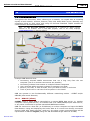
Your PC may have multiple Audio/Sound sub-systems installed, for example the internal
speakers, external connected speakers, connected Bluetooth headphones, or even a
Bluetooth mobile-phone acting as a remote audio device! SOB can also play a WAV
sound file to simulate narration of a data value (this is described later in the chapter), so
BOTH Sound (for TTS) and Audio (for playing WAV files) output devices must be
configured according to your requirements.
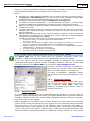
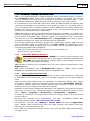
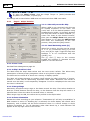
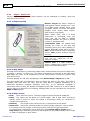
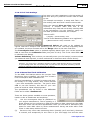
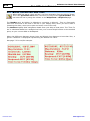
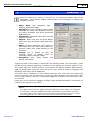
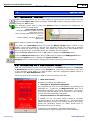
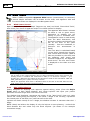
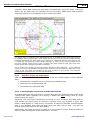
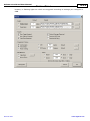
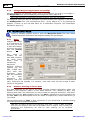
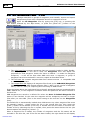
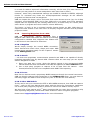
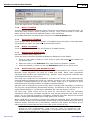
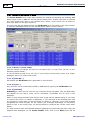
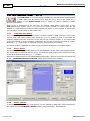
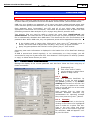
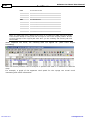
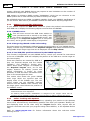
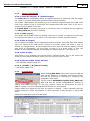
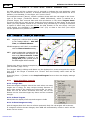
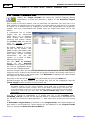
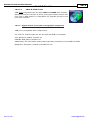
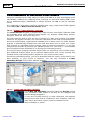
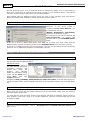
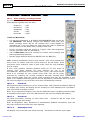
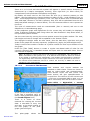
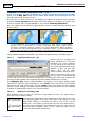
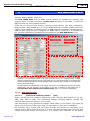
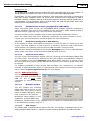
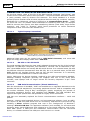
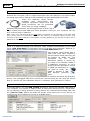
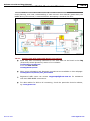
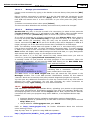
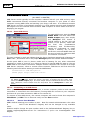
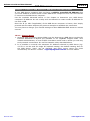
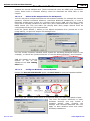
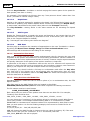
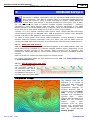
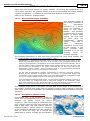
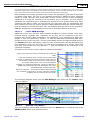
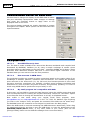
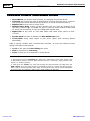
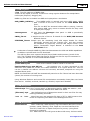
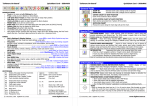
Press the [Audio Output…] button on the Speech Properties form (circled red in the
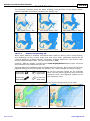
image above), to open this simple TTS Settings form:
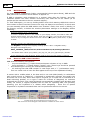
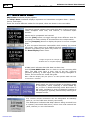
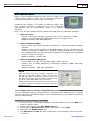
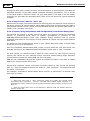
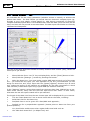
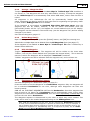
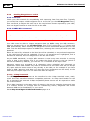
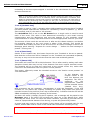
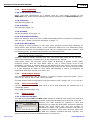
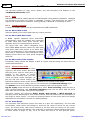
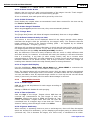
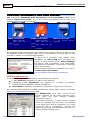
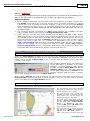
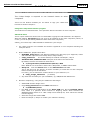
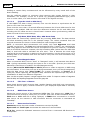
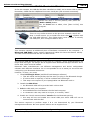
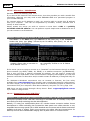
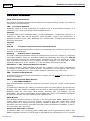
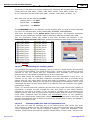
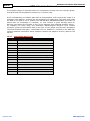
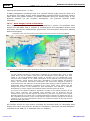
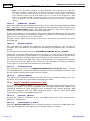
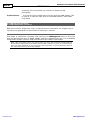
You can choose a specific installed sound system for narrating (Bluetooth Audio in the
example), or choose the "preferred device" to use the default Windows™ sound system.
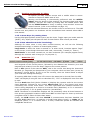
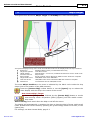
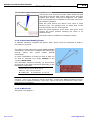
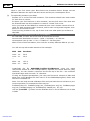
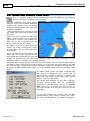
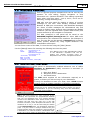
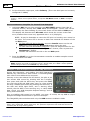
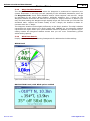
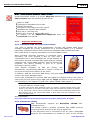
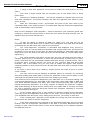
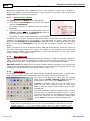
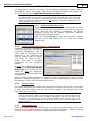
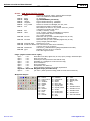
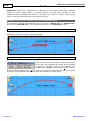
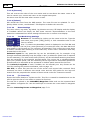
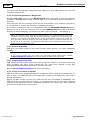
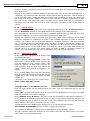
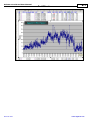
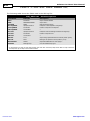
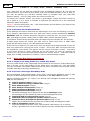
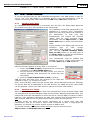
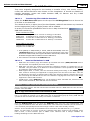
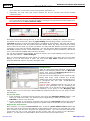
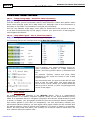
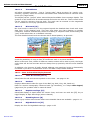
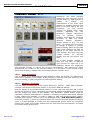
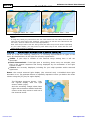
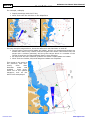
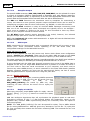
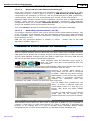
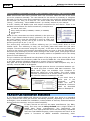
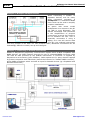
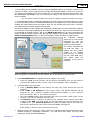
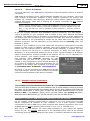
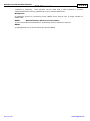
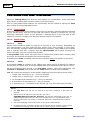
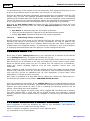
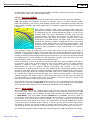
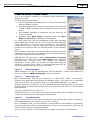
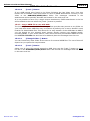
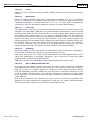
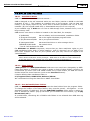
SOB will display the Sound
System in use on the
Titlebar of the SOB Talking
Pilot form:
14.1.1.4
Configure Windows™ Sound System
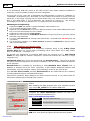
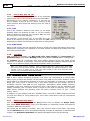
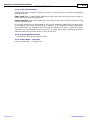
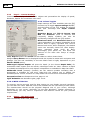
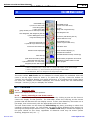
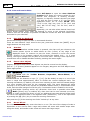
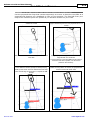
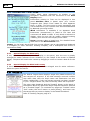
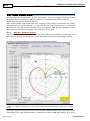
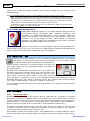
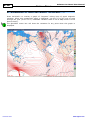
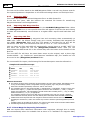
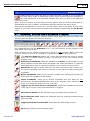
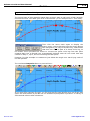
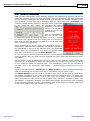
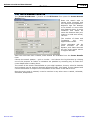
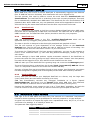
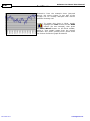
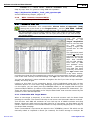
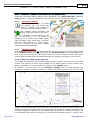
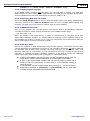
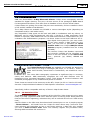
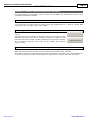
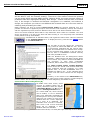
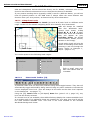
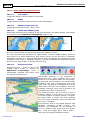
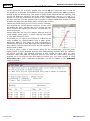
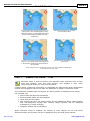
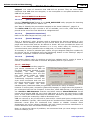
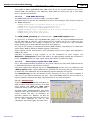
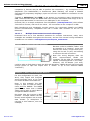
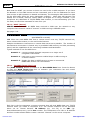
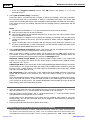
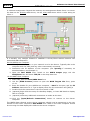
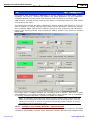
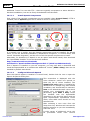
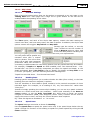
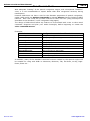
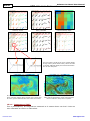
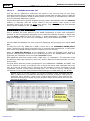
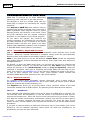
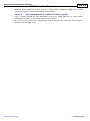
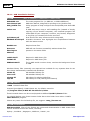
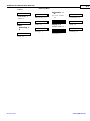
Double-click Sounds & Multimedia applet in Control Panel to open the Properties window:
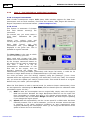
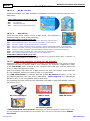
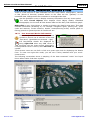
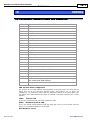
Now simply set a default Audio device to be used for both your Audio and Speech output:
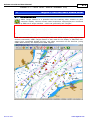
This form will appear differently in other
Windows versions, and may include a
separate Speech page, however the
settings and functions described here will
apply to both Windows 2000 and newer
Windows installations.
Rel 4:Jan 2011
www.digiboat.com