1
Inside Stitch Colors
Futura - English 1-01
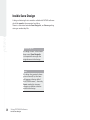
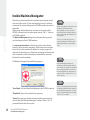
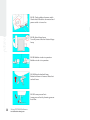
Stitch Colors
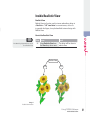
Digitizing is a more pleasurable experience if the “thread-colors”
(on-screen colors that represent the thread that will be stitched in
a design) match the artwork or are realistic for the subject matter. Even when saving stock designs, it is beneficial to change the
Stitch Colors as they will be stored with the design.
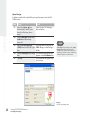
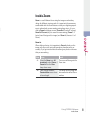
Change Stitch Colors
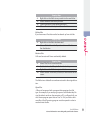
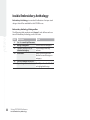
Step Action
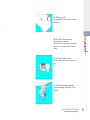
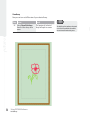
>1 Select to Open a design
from the File drop-down
menu, and choose Ok.
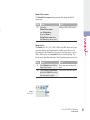
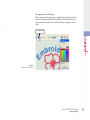
>2 Select Stitch Colors from
Tools drop-down menu.
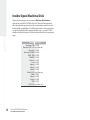
>3 Select a thread palette from
Active Palette box.
>4 Choose List Colors.
>5
>6
>7
>8
64
Result
The design will open onscreen.
In order to Change Stitch Color
a stitch file needs to be open
on the FUTURA screen.
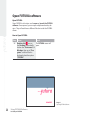
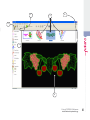
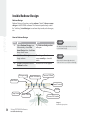
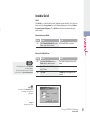
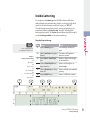
The floating Stitch Colors
dialogue box will open.
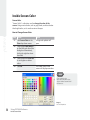
The floating color chart of
the selected thread palette
will open.
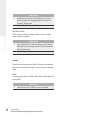
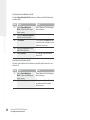
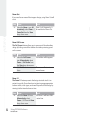
Click on any desired color to
change.
Alternatively you can click
and select any color in the
RGB color area.
Repeat step #6 for all
remaining colors choosing
appealing colors.
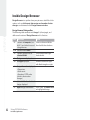
Click X on Color Chart to
close.
Using FUTURA Software:
Inside Stitch Colors
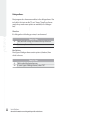
Tip!
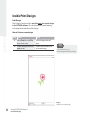
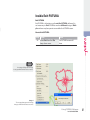
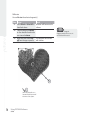
Note that the color boxes relate
to the colors in the design
in the stitching sequence