1
Beginner's Guide to Using Toad
21
Create and Manage Connections
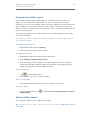
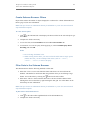
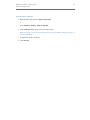
To commit or rollback your changes
»
Select Session | Commit or Session | Rollback.
Tip: You can also right-click the connection in the Connection Bar, and select
Commit or Rollback.
End Connections
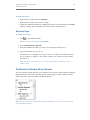
To end one connection
»
Select Session | End Connection.
Or
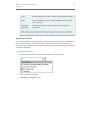
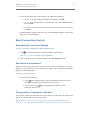
Click
in the standard toolbar to end the currently active session. You can also
click the arrow by the button to select a different open connection to end.
To end all connections
»
Select Session | End All Connections.
Test Connections
To test connections if the session has dropped
»
Select Session | Test Connections (Reconnect).
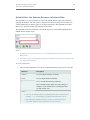
To test connections in the Database Login window
»
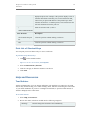
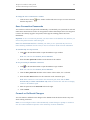
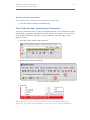
Select connections in the grid and click
. Toad opens a new session to test the
connection and lists any errors that occur.
Manage Multiple Connections
About Managing Multiple Connections
When working with Toad you may have multiple connections open at once. Trying to keep
track of which open window is related to which connection can be difficult. Toad provides a
variety of features and options to help you manage multiple open connections.
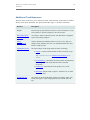
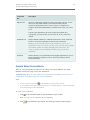
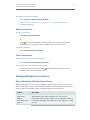
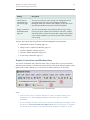
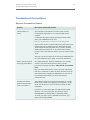
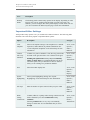
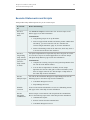
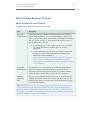
Method
Description
Organize the
Database
Connections Grid
(page 24)
The Database Login window displays all of your previous
connections in the connections grid. You can reduce the number of
connections that display and organize how they display in a variety
of ways.