1
Adding Buttons to a Board
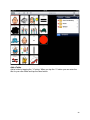
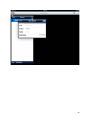
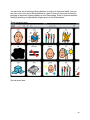
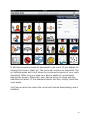
You add buttons to a board from the library picker. The library picker is a left/right scroll
view that displays all the buttons in your current library. Whichever library is showing on
the library layer is your current library.
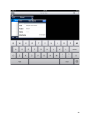
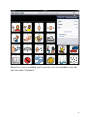
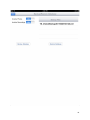
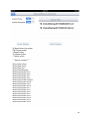
Activate the library picker by swiping down on the board layer. You’ll see it at the top of
the screen. Swipe left or right on the library picker to view the buttons in the library.
Buttons in the library picker are always sorted alphabetically. Swipe down, really more
like a flick, to add a button to your board. You’ll see that the board will automatically
resize if needed.
Finally, dismiss the library picker by swiping up on it.
Editing a Board
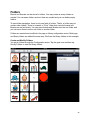
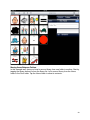
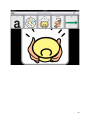
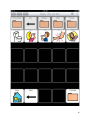
You enter the board edit mode by tapping on the board title. When you do so, you’ll see
delete icons appear on the board’s buttons. In edit mode you can move and delete
buttons. Move buttons by dragging a button to its new position. All other buttons on the
board will automatically reposition themselves. You may find as you drag a button that
you’ll bump against other buttons and the buttons will reposition. Don’t worry – keep
dragging your button to where you want it.
The static board grid option lets you set a board size at any time. A static grid lets you
place buttons on a board without disturbing the position of other buttons on a board.
There are 18 different grid sized from 1×1 to 7×8.
Delete a button by tapping the delete icon on a button. The remaining buttons will
reposition themselves.
Tap the board title again to exit edit mode and return to play mode.
Editing a Library/Button
On the library layer you can add and edit buttons. Also, you can delete buttons from a
library in the library edit mode.
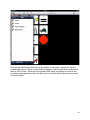
Add a button to a library by tapping the “+” on the title bar. You’ll notice that there’s a red
border on this button. The red border indicates that it is the active button and all editing
functions will operate on this active button. The speech and image editors edit,
respectively, the button label/TTS/recording(s) and image.
Buttons in a library are always sorted alphabetically by label. This makes it easier to find
a button especially in the library picker.
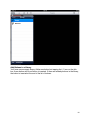
Enter the library edit mode by tapping the library title on the title bar. You’ll see delete
icons appear on the buttons. Tap the delete icon to delete the button. If a button is being
used on a board you’ll see a warning message with the names of the affected boards. If
8