1
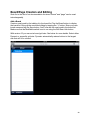
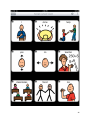
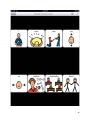
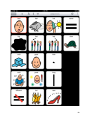
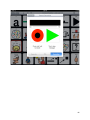
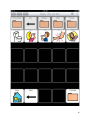
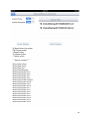
You create and edit buttons on the library layer. Button speech and images can be
edited. Since boards reference buttons in libraries, when you edit a button in a library
the change automatically appears on all boards that reference that button.
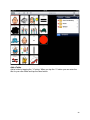
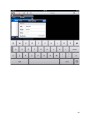
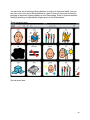
If you want to quickly edit a button, put the board in edit mode by tapping the board title,
and then double-tap the button. When you double-tap the button you will go to that
button’s library and the button will be pre-selected for editing. Tap either the Speech
editor or the Image editor to edit the button. You can go back to the board at any time
and any changes you’ve made will show up.
Message Window
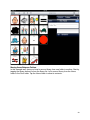
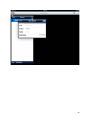
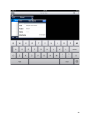
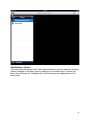
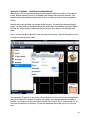
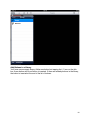
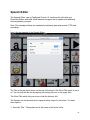
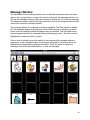
You can enable the message window from the Settings popover. Turn it on and the
message window will appear. For any button you tap or select via scanning, that button
will be copied to the message window. Tapping the message window plays the message
and double-tapping the message window clears the message window. There’s also a
backspace and a clear button (use when scanning) which you can use the remove the
last button and clear the message window.
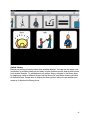
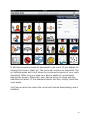
If you have some buttons set up for TTS and some for recorded voices, that’s no
problem for TapSpeak Choice. The app will interleave TTS and recordings in the
message window without a problem.
Layers
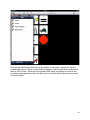
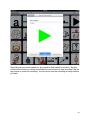
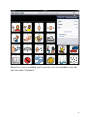
Communication boards and libraries reside on separate layers. You navigate between
layers using up or down swipes. TapSpeak Choice starts on the board layer. To navigate
to the library layer swipe up. When on the library layer swipe down to go back to the
page layer.
Swiping Tips
Here are some tips on the swipes needed to navigate between board and library layers:
• Make the swipes short – about 1/2 to 1 inch is all that’s needed. Long swipes will work
but there’s a bigger chance of going out of a vertical swipe.
• Make the swipes brisk – they don’t have to be super fast. Slow swipes don’t get
detected as swipes.
• If you see the library picker or library buttons scroll even a bit from left to right, the
iPad didn’t detect a vertical swipe.
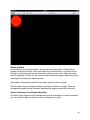
• The “Touch” setting with direct select requires that you pay attention to where you start
swipes on the board layer. If you have it set to “Touch” swipe up/down on any black
portion of the screen. You only need to start the swipe in a black portion of the screen
and you need very little black space for swipes to work.
• Practicing a bit will help.
7