1
Chapter 7
Managing the VPN Client
Viewing and Managing the VPN Client Event Log
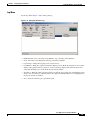
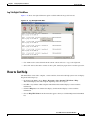
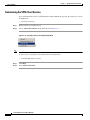
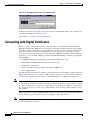
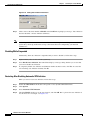
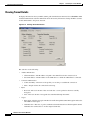
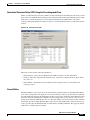
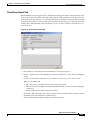
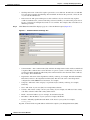
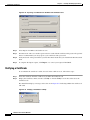
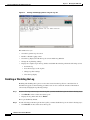
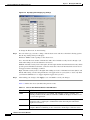
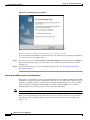
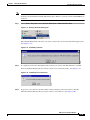
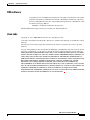
Figure 7-10 Displaying and Changing Log Settings
To change the filter level, do the following:
Step 2
For each of the logs you want to change, click the down arrow and choose from the following options
that the Log Settings dialog box displays:
Disabled—Inhibits event reporting for the chosen class.
Low—Provides the least amount of information. This choice includes severity levels 1 through 3 (all
faults and warnings). Low is the default for all classes.
Medium—Includes severity levels 1 through 4; all in Low plus the first level informational events, which
provide general information about the connection. Note that a first level informational event is level 4
and appears in the event display as Info/4.
High—Includes severity levels 1 through 6, thus adding two levels of informational events (Info/5 and
Info/6). This setting can lower the performance of all applications on your system, so use it only when
your network administrator or a support engineer suggests that you do so.
Step 3
After making your changes, click Apply to save or Cancel to cancel your changes.
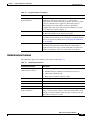
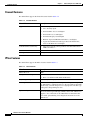
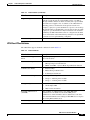
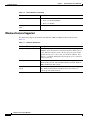
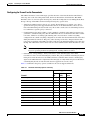
Table 7-3 defines the classes (modules) that generate events.
Table 7-3
Classes That Generate Events in the VPN Client
Class Name
Definition
CERT
Certificate management process (CERT), which handles getting, validating, and
renewing certificates from certificate authorities. CERT also displays errors that occur
as you use the application.
CLI
Command Line Interface, which lets managers start and end connections, get status
information and so on through a command line rather than using the VPN Client
graphical user interface.
CM
Connection manager (CM), which drives VPN connections. (CM dials a PPP device,
configures IKE for establishing secure connections, and manages connection states.
VPN Client User Guide for Windows
7-12
OL-5489-01