1
Chapter 5
Connecting to a Private Network
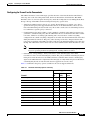
Authenticating to Connect to the Private Network
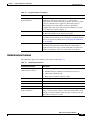
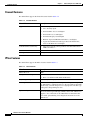
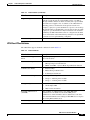
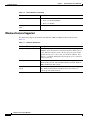
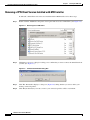
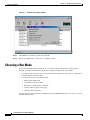
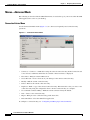
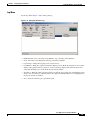
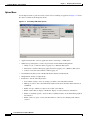
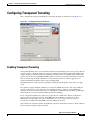
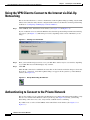
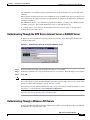
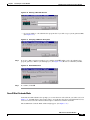
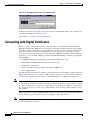
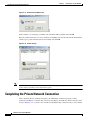
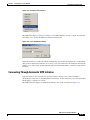
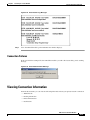
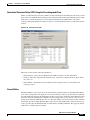
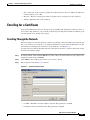
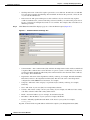
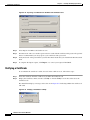
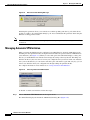
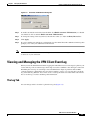
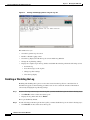
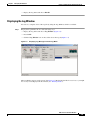
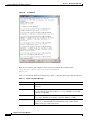
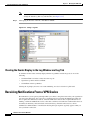
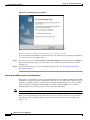
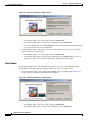
Figure 5-6
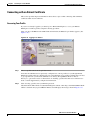
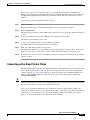
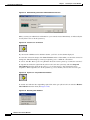
Authenticating Through a Windows NT Domain
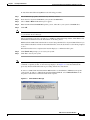
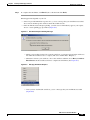
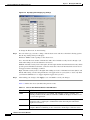
Step 1
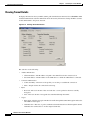
In the Username field, enter your username. This entry is case-sensitive.
Step 2
In the Password field, enter your password. This entry is case-sensitive. The field displays only asterisks.
Note
If you are connecting to a legacy server (that is, to a VPN 3000 Concentrator running a software version
prior to Release 4.0), you might also be prompted for a domain name. If you see this field in the dialog
box, enter your Windows NT Domain name in the Domain field, if it is not already there.
Step 3
Click OK.
Skip to “Viewing Connection Information.”
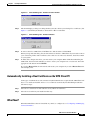
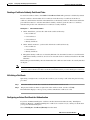
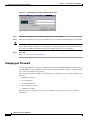
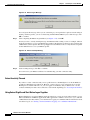
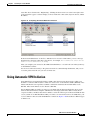
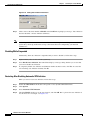
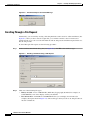
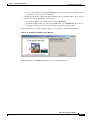
Changing your Password
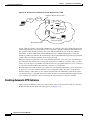
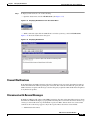
Your network administrator may have configured your group for RADIUS with Expiry authentication on
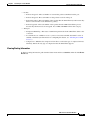
the VPN 3000 Concentrator. If this feature is in effect and your password has expired, a window prompts
you to enter and confirm a new password.
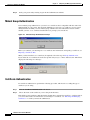
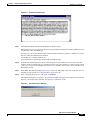
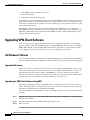
After you have tried unsuccessfully to log in three times, you might receive one of the following login
messages:
•
Restricted login hours
•
Account disabled
•
No dial-in permission
•
Error changing password
•
Authentication failure
These messages let you know the cause of your inability to log in. For help, contact your network
administrator.
VPN Client User Guide for Windows
5-6
OL-5489-01