1
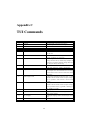
APPENDIX C. TUI COMMANDS
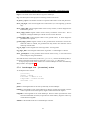
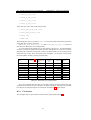
4.2
Star Magnitude Multiplier
Can be used to change the brightness of the stars
which are visible at a given zoom level. This may be
used to simulate local seeing conditions - the lower
the value, the less stars will be visible
4.3
Maximum Magnitude to Label
Changes how many stars get labelled according to
their apparent magnitude (if star labels are turned on)
4.4
Twinkling
Sets how strong the star twinkling effect is - zero is
off, the higher the value the more the stars will twin-
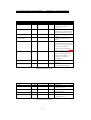
5
Colors
(menu group)
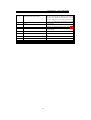
5.1
Constellation Lines
Changes the colour of the constellation lines
5.2
Constellation Names
Changes the colour of the labels used to name stars
5.3
Constellation Art Intensity
Changes the brightness of the constellation art
5.4
Constellation Boundaries
Changes the colour of the constellation boundary
lines
5.5
Cardinal Points
Changes the colour of the cardinal point markers
5.6
Planet Names
Changes the colour of the labels for planets
5.7
Planet Orbits
Changes the colour of the orbital guide lines for plan-
5.8
Planet Trails
Changes the colour of the planet trail lines
5.9
Meridian Line
Changes the colour of the meridian line
5.10
Azimuthal Grid
Changes the colour of the lines and labels for the azimuthal grid
5.11
Equatorial Grid
Changes the colour of the lines and labels for the
5.12
Equator Line
Changes the colour of the equator line
5.13
Ecliptic Line
Changes the colour of the ecliptic line
5.14
Nebula Names
Changes the colour of the labels for nebulae
5.15
Nebula Circles
Changes the colour of the circles used to denote the
positions of nebulae (only when enabled int he con-
6
Effects
(menu group)
6.1
Light Pollution Luminance
Changes the intensity of the light pollution simulation
6.2
Landscape
Used to select the landscape which Stellarium draws
when ground drawing is enabled
6.3
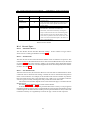
Manual zoom
kle.
ets
equatorial grid
figuration file, note this feature is off by default)
Changes the behaviour of the / and \ keys. When
set to “No”, these keys zoom all the way to a level
defined by object type (auto zoom mode). When set
to “Yes”, these keys zoom in and out a smaller amount
and multiple presses are required
6.4
Object Sizing Rule
When set to “Magnitude”, stars are drawn with a
size based on their apparent magnitude. When set to
“Point” all stars are drawn with the same size on the
screen
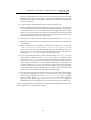
6.5
Magnitude Sizing Multiplier
Changes the size of the stars when “Object Sizing
Rule” is set to “Magnitude”
6.6
Milky Way intensity
Changes the brightness of the Milky Way texture
6.7
Maximum Nebula Magnitude to Label
Changes the magnitude limit for labelling of nebulae
6.8
Zoom Duration
Sets the time for zoom operations to take (in seconds)
6.9
Cursor Timeout
Sets the number of seconds of mouse inactivity before
the cursor vanishes
50