1
ArchiMED Suite ®
Page 3
Image management for Dental Cabinet and for Radiologists
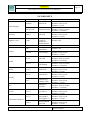
IMAGES DATABASE .................................................................................................................. 68
IMAGES: ZOOM ON IMAGE..................................................................................................... 76
IMAGES: IMAGES ACQUISITION ............................................................................................ 82
8. UTILITY ........................................................................................................................................ 92
UTILITY ........................................................................................................................................ 93
Select the language to use .............................................................................................. 94
Working parameters ................................................................................................................... 94
Get incoming phone calls ........................................................................................................... 95
Waiting room management ........................................................................................................ 95
Remote control ........................................................................................................................... 95
PRINT ............................................................................................................................................ 96
IMAGES ........................................................................................................................................ 96
Storage ....................................................................................................................................... 97
NETWORK.................................................................................................................................... 98
TERMINAL SERVER ................................................................................................................... 99
DICOM .......................................................................................................................................... 99
BACKUP DATABASE ............................................................................................................... 100
DATABASE RESTORE.............................................................................................................. 102
REPAIR DATABASE ................................................................................................................. 102
PATIENT COPY ......................................................................................................................... 103
CREATE CD FOR PATIENT ..................................................................................................... 104
9. 3D IMAGES ................................................................................................................................ 106
3D Module: IMAGES MANAGEMENT .................................................................................... 107
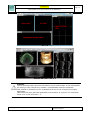
3D Module: 3D IMAGES ............................................................................................................ 107
3D Module: 3D reconstruction window....................................................................................... 108
3D Module: Warning. .................................................................................................................. 110
3D Module: Create the panoramic arc ......................................................................................... 110
3D Module: AXIAL VIEW ......................................................................................................... 111
3D Module: 3D VIEW ................................................................................................................. 112
3D Module: CROSS SECTION VIEW ....................................................................................... 114
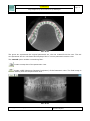
3D Module: PANORAMIC VIEW .............................................................................................. 115
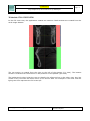
3D Module: FULL CROSS VIEW .............................................................................................. 117
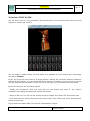
3D Module: CROSS 3D VIEW ................................................................................................... 118
3D Modules: Hounsfield .............................................................................................................. 119
3D Module: CEPH VIEW............................................................................................................ 119
3D Module: Meaning of the functions ......................................................................................... 120
10. APPENDIX ................................................................................................................................ 136
APPENDIX – Digital sensors that can be connected to Archimed Suite .................................... 137
© Copyright DIGITAL imaging sas – Via Alfieri 12 A B – 10142 Nichelino (TO)
www.digitalimaging.it
www.archimed.org
First edition: November 2006
Revision: May 2014