1
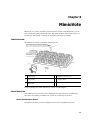
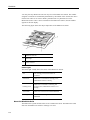
MimioTeach
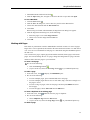
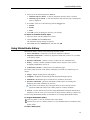
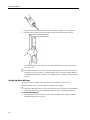
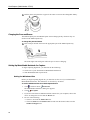
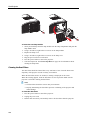
3. Click the MimioTeach stylus anywhere on the whiteboard.
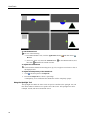
Interactive mode starts and the calibration screen appears.
To exit Interactive mode
Do one of the following:
l
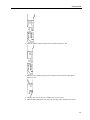
Press the Interactive button,
l
Start MimioStudio Tools, click Interactive , and then click Exit.
Start MimioStudio Preferences, select Interactive, and then click Disable.
l
, twice on the MimioTeach bar.
See Customizing MimioStudio for information on how to access MimioStudio
Preferences.
Calibrating Interactive Mode
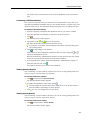
Each time Interactive mode is enabled, you are prompted to calibrate using the MimioTeach
stylus.
When using a permanently installed whiteboard and projector, you do not need to
recalibrate Interactive mode after the first session. See Adjusting the Interactive Preferences.
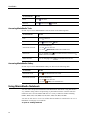
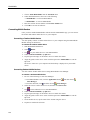
To calibrate Interactive mode
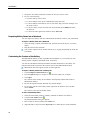
1. If the calibration screen does not appear when you start Interactive mode, do one of the
following:
l
Press the Interactive button,
l
Start MimioStudio Tools, click the Interactive button,
Recalibrate.
, on your MimioTeach bar.
l
Start MimioStudio Preferences, select Interactive, and then click Calibrate.
, and then click
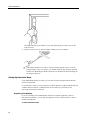
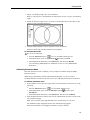
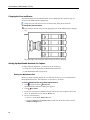
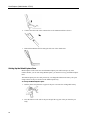
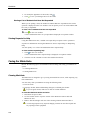
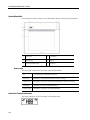
2. Press the MimioTeach stylus down on the whiteboard at the center of each of the nine
calibration targets.
Make sure to hold the stylus perpendicular to the writing surface as you click.
The calibration target disappears and the next calibration target appears.
When the calibration screen disappears, Interactive mode is enabled.
Using MimioTeach
You can use the MimioTeach bar and stylus in MimioStudio Interactive mode to deliver
lessons and presentations. In MimioStudio Interactive mode, you control the movement of
42