1
MimioView
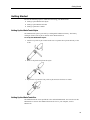
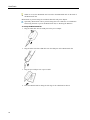
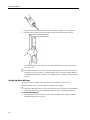
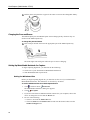
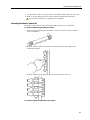
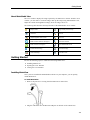
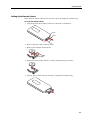
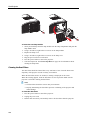
3. Connect the other end of the USB cable into an available USB port on your computer.
Opening the View Window
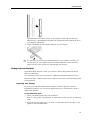
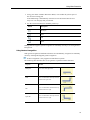
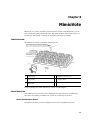
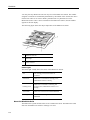
When you press the View button on the MimioView, the camera and lamps turn on and the
MimioStudio View window opens automatically.
To open the View window
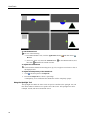
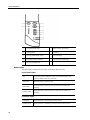
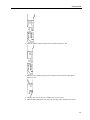
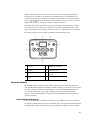
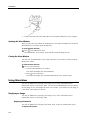
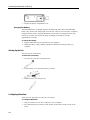
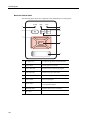
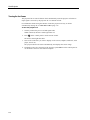
Press on the MimioView base.
The MimioStudio View window opens and the camera and lamps turn on.
Closing the View Window
You can close the MimioStudio View window from the View window or directly from the
MimioView camera.
To close the View window
Do one of the following:
l
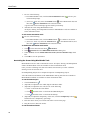
Close the MimioStudio View window.
The camera and lamps turn off automatically.
l
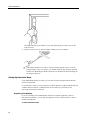
Press on the camera base.
The camera and lamps turn off and the MimioStudio View window closes.
Using MimioView
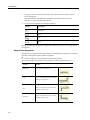
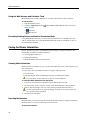
You can use MimioView to display a still image or live video of documents, threedimensional objects, or microscope slides. You can also use MimioStudio Tools to mark up
the still image or live video displayed in the View window; you can then save the image to
a Notebook or the Gallery for later use.
Displaying an Image
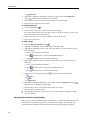
You can use MimioView to display a still image or live video of documents, threedimensional objects, or microscope slides.
Displaying a Document
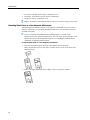
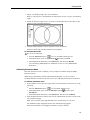
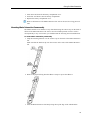
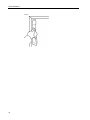
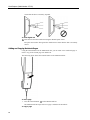
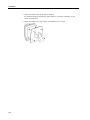
You can use MimioView to display a document, book, or other two-dimensional object.
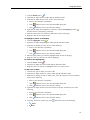
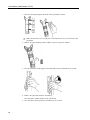
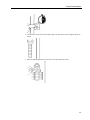
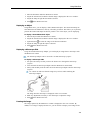
To display a document
134