1
MimioProjector
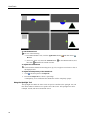
Saturation
Adjust the color saturation of the image. The saturation ranges from black and white to fully
saturated color.
This setting is only supported when Movie is selected as the color mode.
Press ◄ to decrease the amount of saturation in the image.
Press ► to increase the amount of saturation in the image.
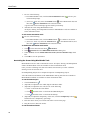
Hue
Adjust the red and green color balance.
This setting is only supported when Movie is selected as the color mode.
Press ◄ to increase the amount of green in the image.
Press ► to increase the amount of red in the image.
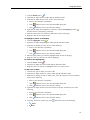
Gamma
Adjusts the representation of dark scenery. The greater the gamma value, the bright dark
scenery will appear.
Press ◄ to decrease the gamma value.
Press ► to increase the gamma value.
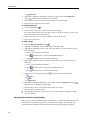
Color Temperature
At a higher color temperature, the image appears colder; at a lower color temperature, the
image appears warmer.
Color Space
Select the appropriate color matrix type; Auto, RGB, or YUV.
Adjusting the Screen
You can adjust the screen and display settings for the projector.
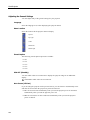
Aspect Ratio
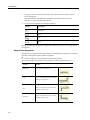
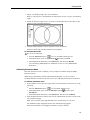
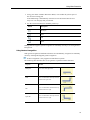
The following aspect ratios are available for scaling the projected image.
182
n
Auto - keeps the image the original width-to-height ratio and maximizes the image to
fit native horizontal or vertical pixels
n
4:3 - scales the image to fit the screen and displays using a 4:3 ratio
n
16:9- scales the image to fit the width of the screen and adjusts the height to display
the image using a 16:9 ratio
n
16:10 - scales the image to fit the width of the screen and adjusts the height to display
the image using a 16:10 ratio