1
42
Rayica User Guide
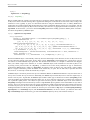
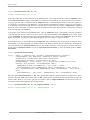
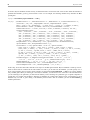
You can use Options[FindIntensity] to observe its default option settings.
In[3]:= Options[FindIntensity]
Out[3]=
8KernelScale Ø Relative, SmoothKernelSize Ø 6, SmoothKernelRange Ø 3,
IntensitySetting Ø Automatic, Energy Ø Automatic, IntensityScale Ø 1,
Print Ø True, Show Ø True, ReportedSurfaces Ø Last, SequentialTrace Ø False,
GenerationLimit Ø 200, PlotRange Ø All, PlotDomain Ø Automatic, PlotPoints Ø 40,
Plot2D Ø ContourPlot, ContourLines Ø False, Contours Ø 50, Full3D Ø Automatic,
ColorFunction Ø [email protected] - #1 0.65, 1, #1 0.9 + 0.1D &L, FilterTrace Ø True,
ScoutTrace Ø Automatic, ScoutRays Ø Automatic, ThresholdIntensity Ø 0.001,
CosineCompensation Ø True, SequentialRead Ø Automatic, InterpolatingFunction Ø False,
InterpolationOrder Ø 1, SampleFactor Ø 2, RecenterData Ø False, RunningCommentary Ø False<
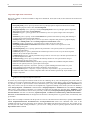
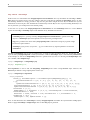
Here we can see that FindIntensity uses a number of options that we have not encountered before. The most significant of
these are listed below.
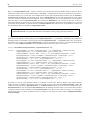
Out[12]//TableForm=
IntensitySetting
SequentialRead
IntensityScale
KernelScale
Plot2D
Print
ReportedSurfaces
Show
SmoothKernelRange
SmoothKernelSize
Options that help characterize FindIntensity.
While some of these options will be considered further in this section, others will be left to discussion elsewhere.
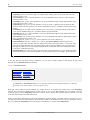
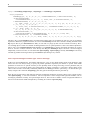
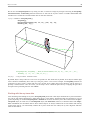
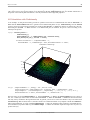
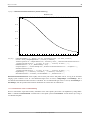
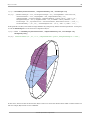
In addition to showing information as a three-dimensional plot, the Plot2D option in FindIntensity has several other
settings. Its settings are shown below.
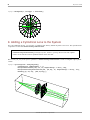
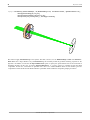
False or Full3D gives the full three-dimensional rendering of the intensity profile.
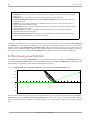
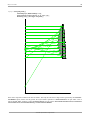
True or SideView gives a two-dimensional cross-section rendering at the x-z plane of the intensity profile.
FrontView gives a two-dimensional cross-section rendering at the y-z plane of the intensity profile.
ContourPlot gives a contour plot of the intensity profile.
Settings of Plot2D.
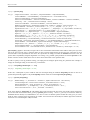
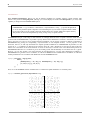
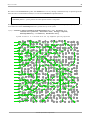
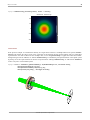
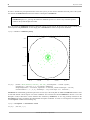
Next we shall plot the same FindIntensity calculation with its default plot setting (Plot2D -> ContourPlot). This
time we call FindIntensity with the previous results stored in intensityresult. This saves us from having to rerun the
ray trace and intensity calibration. We will use Print -> False to switch off the printed messages. (Show -> False can
be used to switch off the graphical rendering.)
©1994-2005 Optica Software. All rights reserved.