1
CHAPTER 11
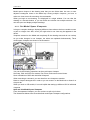
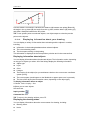
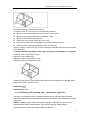
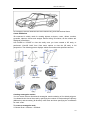
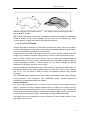
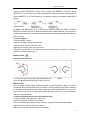
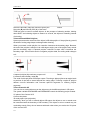
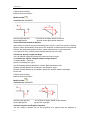
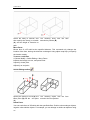
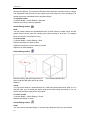
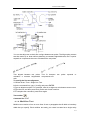
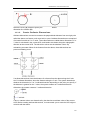
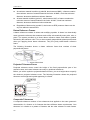
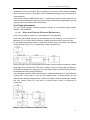
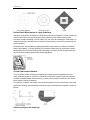
XCLIP only affects the single object of xref, retain the xref definitions unchanged. The part
of xref or block inside the clipping boundary is still visible, while the remaining part are
invisible. The geometric drawing being referenced itself is unchanged, only its displaying
way is edited.
You can use XCLIP to do the following:
Create new clipping boundary
Remove existing boundary
Generate polyline objects that are concurrent with vertex of clipping boundary.
Turn on or off xref Clipping
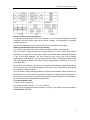
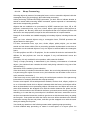
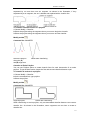
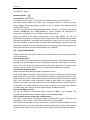
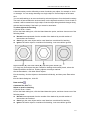
If xclip is turned on, all the clipping boundaries will be started to display the clipped part of
a xref. If the xclip is turned off, the clipping boundaries will not displayed, only display the
drawings in xrefs containing contents both inside or outside the clipping boundary.The
clipping boundary can‘t be restored once removed. The xref having been clipped can be
modified, moved, or copied as those unclipped xrefs. While modifying the xrefs, the
clipping boundary moves together with the xrefs. If the xref attached to the drawing
contain nested clipped xrefs, these xrefs will be displayed as it was after clipping. The
nested xref is also clipped if superior xref has been clipped.
Turning clipping boundaries on and off
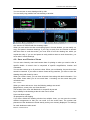
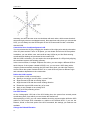
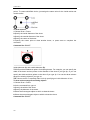
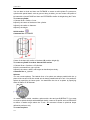
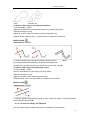
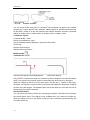
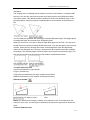
The clipping boundaries can be controlled whether to display or not through system
variable XCLIPFRAME . If set this system variable to 1, the clipping boundary can be
selected and plotted as a part of the object.
When a clipping boundary is turned off, the boundary does not display and the entire
external reference is visible, provided that the geometry is on a layer that is on and
thawed. However, deleting a clipping boundary is permanent.
To turn clipping boundaries on and off
1 Choose Modify > Clip > Xref.
2 Select the desired external references.
3 Press Enter.
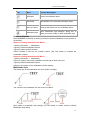
4 To turn off clipping boundaries, choose Off. To turn on existing clipping bound aries,
choose On.
5 Press Enter.
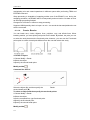
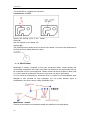
Reference toolbar
Command line XCLIP
TIP When the XCLIPFRAME system variable is on (set to 1), you can select and print the
clipping boundary frame.
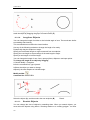
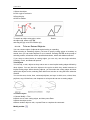
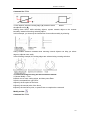
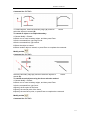
Clipping Boundary Options
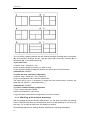
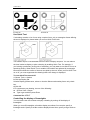
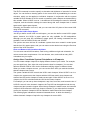
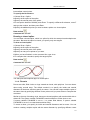
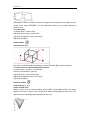
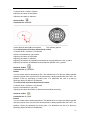
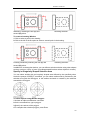
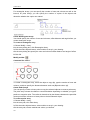
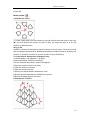
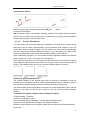
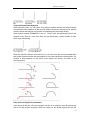
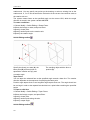
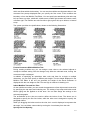
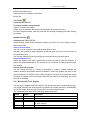
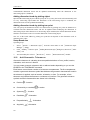
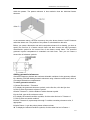
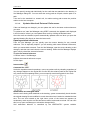
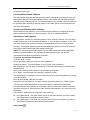
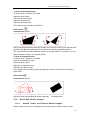
When clipping boundaries, you can specify a rectanglar window or use polyline to define
clipping boundary through New boundary option. If the selected clipping boundary is
rectanglar window, only xrefs within the rectanglar window are displayed. The clipping
boundary is parallel to current UCS, and the clipping boundary will be applied to the
normal direction of its plane.
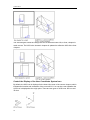
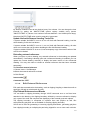
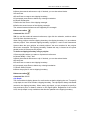
To define a rectangular clipping boundary
1 Choose Modify > Clip > Xref.
280