1
CHAPTER 8
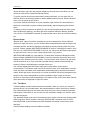
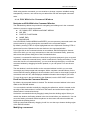
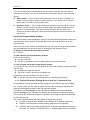
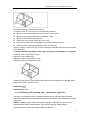
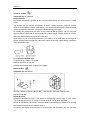
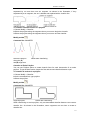
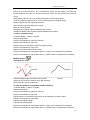
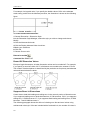
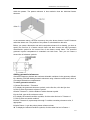
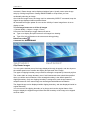
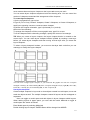
To copy a solid face
1 Choose Modify > Solids Editing > Copy Faces.
2 Select the face(s) to copy, and press Enter.
3 Specify a base point.
4 Specify an end point.
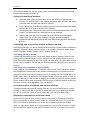
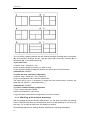
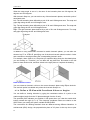
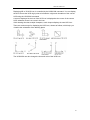
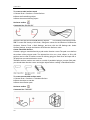
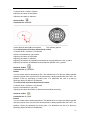
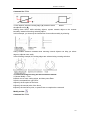
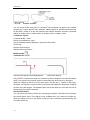
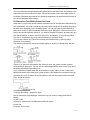
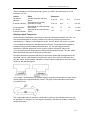
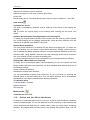
Solids Editing toolbar
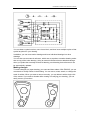
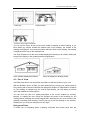
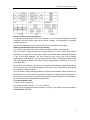
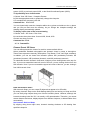
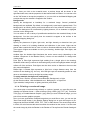
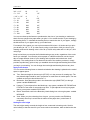
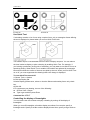
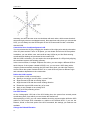
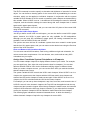
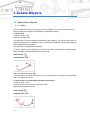
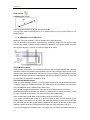
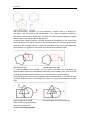
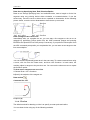
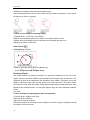
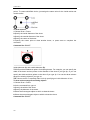
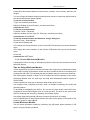
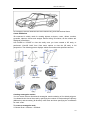
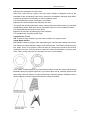
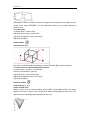
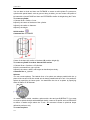
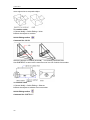
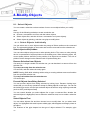
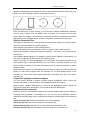
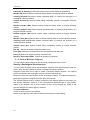
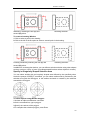
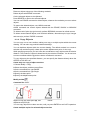
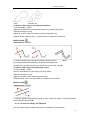
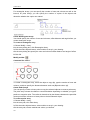
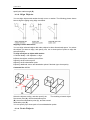
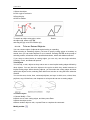
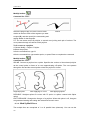
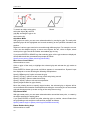
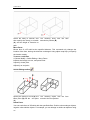
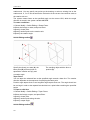
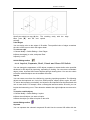
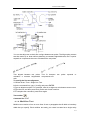
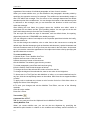
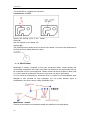
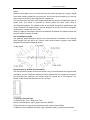
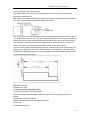
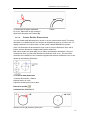
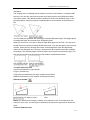
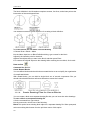
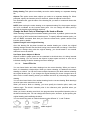
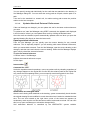
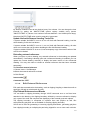
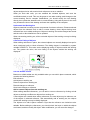
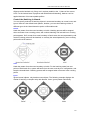
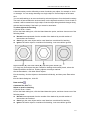
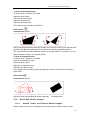
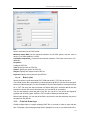
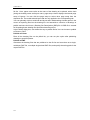
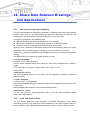
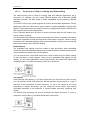
Specify the face(s) to copy (A), the base
point (B), and the end point(C).
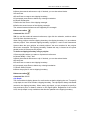
The resulting entity with the face copied.
8.6.4. Modify Edges of 3D Solids
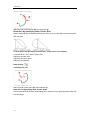
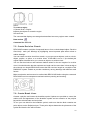
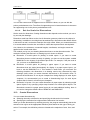
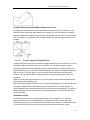
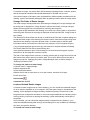
You can copy edges of 3D solids to become an independent object or change its color.
Copy Edges
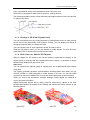
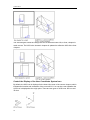
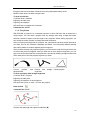
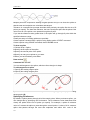
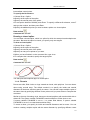
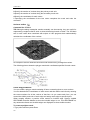
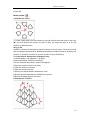
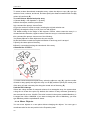
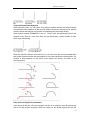
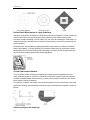
Copying edges of 3D solids is similar with copying faces of 3D solids. All edges are copied
as the independent lines, arcs, ellipses or spline objects. However, the properties keep the
same as the current layer. After you specifying the location of placing the copy, you can
perform one of the following methods:
Base point: You must to specify two points on the drawing. The first one is a base point;
the other one determines the location of the copy.
Vector: You need to specify a point to determine the location of the copy. The base point is
the original point (0,0,0).
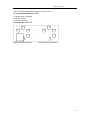
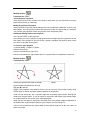
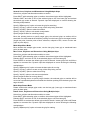
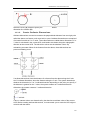
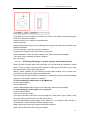
To copy an edge
1 Choose Modify > Solids Editing > Copy Edge.
2 Select the edge(s) to copy, and press Enter.
3 Specify a base point.
4 Specify an end point.
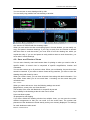
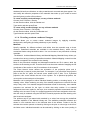
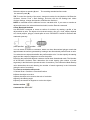
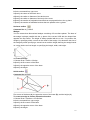
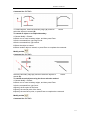
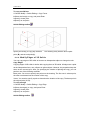
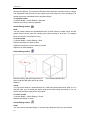
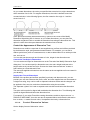
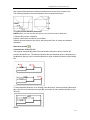
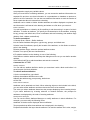
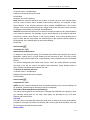
Solids Editing toolbar
204