1
■
All leaf nodes in a project sub-tree reference a known user or the reserved name,
“default.” (See a detailed description of this special user in the section, “About
the Special User, default” on page 261.)
■
There are no sub-projects within a project sub-tree.
■
All leaf nodes not in a project sub-tree reference a known user or project.
■
All user leaf nodes in a project sub-tree have access to the project.
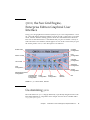
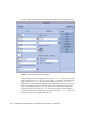
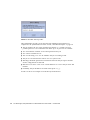
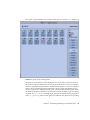
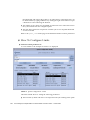
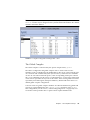
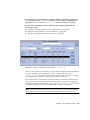
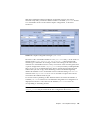
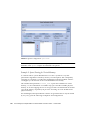
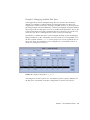
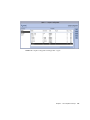
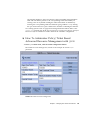
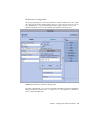
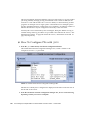
Modify
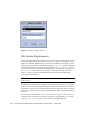
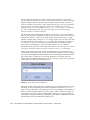
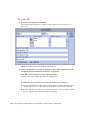
Click this button to edit the selected node. Clicking this button opens a Node Info
screen that displays the name of the selected node and its number of shares.
Delete
Clicking this button deletes the selected node and all its descendants.
Copy
Clicking this button copies the selected node together with its descendants into a
paste buffer.
Cut
Clicking this button cuts the selected node together with its descendants off the
share tree. The cut off part is copied into the paste buffer.
Paste
Clicking this button pastes the most recently copied node under the selected node.
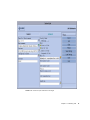
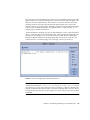
Find
This button opens an input box for entering the search string and then searches in
the share tree for a corresponding name. Node names are indicated which begin with
the case sensitive search string.
Chapter 9
Managing User Access and Policies
259