1
About Your New Label Maker
Inserting the Label Cassette
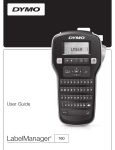
With the DYMO® LabelManager 420P electronic label
maker, you can create a wide variety of high-quality, selfadhesive labels. You can choose to print your labels in
many different fonts, font sizes, and styles. The label maker
uses DYMO D1 label cassettes in widths of 6 mm (1/4”),
9 mm (3/8”), 12 mm (1/2”), or 19 mm (3/4"). These label
cassettes are available in a wide range of colors.
Your label maker uses DYMO D1 label cassettes. Visit
www.dymo.com for information about purchasing
additional label cassettes.
To insert the label cassette
1 Lift the label cassette cover to open the label
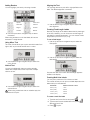
compartment. See Figure 3.
Visit www.dymo.com for information on obtaining labels
and accessories for your label maker.
Product Registration
Visit www.dymo.com/register to register your label
maker online.
Figure 3
2 Make sure the tape and ribbon are taut across the
Getting Started
Follow the instructions in this section to print your first label.
mouth of the cassette and that the tape passes
between the label guides. See Figure 4.
Connecting the Power
If necessary, turn the ribbon rewind spool clockwise to
tighten the ribbon.
The label maker is powered by a rechargeable, Lithiumion battery pack. To save power, the label maker
automatically turns off after ten minutes of inactivity.
Ribbon
rewind
spool
Inserting the Battery
The battery pack included with your label maker comes
partially charged.
To insert the battery
Label
guides
1 Slide the battery compartment cover away from the
Figure 4
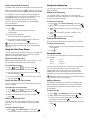
label maker. See Figure 2.
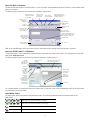
3 Insert the cassette and press firmly until the cassette
clicks into place. See Figure 5.
Figure 2
2 Insert the battery pack into the battery compartment.
Figure 5
3 Replace the battery compartment cover.
4 Close the label cassette cover.
! Remove the battery pack if the label maker will not be
used for a long period of time.
Using the Label Maker for the First Time
Recharging the Battery
The first time you turn on the power, you are asked to select
the language, units of measure, and label width. These
selections remain set until you change them.
A charging adapter is included with your label maker for
recharging the battery pack.
! The charging adapter is only used for recharging the
battery pack; the charging adapter cannot be used to
power the label maker.
You can change these selections using the
key.
To set up the label maker
1 Press
To recharge the battery
to turn on the power.
2 Select the language and press
1 Plug the charging adapter into the power connector on
3 Select inches or mm and press
the top of the label maker.
.
.
4 Select the width of the label cassette currently in the
2 Plug the other end of the charging adapter into a
label maker and press
power outlet.
.
You are now ready to print your first label.
4