1
Using Clip Art, Symbols, and
Special Characters
Adding Symbols
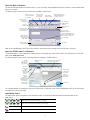
The label maker supports the extended symbol set
shown below.
Clip art, symbols, punctuation, and other special characters
can be added to your labels.
Adding Clip Art
The label maker includes the clip art shown below.
↔ L
©
®
™
☺
♣
♥
♦
♠
'
"
,
.
;
’
:
/
!
¡
\
|
&
@
?
¿
_
•
(
)
{
}
[
]
€
£
$
¢
¥
#
+
-
*
÷
√
^
~
≈
=
≠
±
<
>
≤
≥
%
‰
°
₀
₁
₂
₃
₄
₅
₆
₇
₈
₉
⁰
¹
²
³
⁴
⁵
⁶
⁷
⁸
⁹
⅓
⅔
⅛
⅝
⅞
¼
½
¾
⅜
§
¶
α
β
γ
δ
ε
ζ
η
θ
ι
κ
λ
μ
ν
ξ
ο
π
ρ
σ
τ
υ
φ
χ
ψ
ω
Α
Β
Γ
Δ
Ε
Ζ
Η
Θ
Ι
Κ
Λ
Μ
Ν
Ξ
Ο
Π
Ρ
Σ
Τ
Υ
Φ
Χ
Ψ
Ω
а
б
в
г
д
е
ё
ж
з
и
й
К
л
м
н
о
п
р
с
т
у
ф
х
Ц
ч
ш
щ
ъ
ы
Ь
э
ю
я
А
Б
В
Г
Д
Е
Ё
Ж
З
И
Й
К
Л
М
Н
О
П
Р
С
Т
У
Ф
Х
Ц
Ч
Ш
Щ
Ъ
Ы
Ь
Э
Ю
Я
To insert a symbol
1 Press
!
Insert
.
to select the desired symbol.
3 When you locate the symbol, press
to add the
symbol to your label.
, select Clip art, and then press
! You can also quickly add a symbol using the Symbol
.
key,
2 Use the up and down or left and right navigation keys
to select the desired clip art.
3 When you locate the clip art, press
, select Symbols, and then press
2 Use the up and down or left and right navigation keys
To insert clip art
1 Press
Insert
to add the
clip art to your label.
8
.