1
Calling the VDMP3 (outside line)
Connected to an answering machine:
1. From an outside line, dial the telephone number to which the VDMP3 is
connected.
2. When the line rings, hang up the telephone.
3. Dial the telephone number again within the time limit set by your installer (see
“Answering Machine Override” in VDMP3 Setup Instructions).
4. See “Using VDMP3 Functions” below.
Not connected to an answering machine:
1. From an outside line, dial the telephone number to which the VDMP3 is
connected.
2. See “Using VDMP3 Functions” below.
Using VDMP3 Functions
1. When the VDMP3 answers the line, you are prompted to enter your usual
access code.
“Please enter your access code.”
After the VDMP3 prompts you to enter your access code, you can press “#” to
disconnect immediately and avoid waiting 2 minutes before calling back.
2. Each area’s status is given.
“Area 1 armed, Area 2 disarmed...”
3. Options are given to arm/disarm and control PGM features.
“Press 1 to arm or disarm the system. Press 2 to control features.”
Receiving a Call From the VDMP3 (alarm in system)
VDMP3 Feature
Feature 1 ON
Feature 1 OFF
Feature 2 ON
Feature 2 OFF
Feature 3 ON
Feature 3 OFF
Feature 4 ON
Feature 4 OFF
EVO Utility Key
Utility Key 1
Utility Key 2
Utility Key 3
Utility Key 4
Utility Key 5
Utility Key 6
Utility Key 7
Utility Key 8
VDMP3 Feature
Feature 5 ON
Feature 5 OFF
Feature 6 ON
Feature 6 OFF
Feature 7 ON
Feature 7 OFF
Feature 8 ON
Feature 8 OFF
EVO Utility Key
Utility Key 9
Utility Key 10
Utility Key 11
Utility Key 12
Utility Key 13
Utility Key 14
Utility Key 15
Utility Key 16
If a utility key in the EVO control panel is programmed with a timer, the
VDMP3 will not recognize PGM deactivation when the set timer elapses.
As a result, the VDMP3 may indicate that the PGM is ON when actually
the timer has elapsed and the PGM is in fact OFF.
Upgrading the Firmware
The VDMP3’s firmware can be upgraded using the In-Field Paradox Upgrade
Software application. The In-Field application can be downloaded from the
Paradox website at www.paradox.com. For detailed firmware upgrade
instructions, go to paradox.com (paradox.com > Software > WinLoad >
Firmware Upgrade Instructions).
When the VDMP3 calls because of an alarm in the system, the VDMP3 informs
you of the alarm and gives options to control the system.
Recording a “Voice System ID”
For example: “Area 2 in alarm. Zone 3. Press 1 to disarm the system. Press
pound twice (##) to hang up.”
Using the built-in Paradox sound recorder, a “Voice System ID” can be recorded
to identify the installation site. In order to record your installation site’s ID, your
PC must be equipped with a microphone. Recorded files are saved in WAV
format.
•
•
•
To acknowledge the alarm, press ##. D Alarm reporting stops.
To acknowledge and disarm the system, press 1 + [ACCESS CODE].
To have the VDMP3 call the next telephone number, simply hang up.
Special Telephone Keys
Use special telephone keys when programming telephone numbers in Step 3 of
the Setup Instructions.
Function
Key
Function
[STAY]
Clear
#
[FORCE] Delete
Delete from cursor to the
Switch Tone / Pulse Dialing (T) [ARM]
end
Wait for second dial tone (W) [DISARM] Insert space
4-second pause (P)
[BYP]
Dial 9 for outside line
*
Key
[CLEAR]
[TRBL]
[ACC]
[MEM]
9+[STAY]
To record a message:
1. Download the In-Field Paradox Upgrade Software V2.30 (see “Upgrading the
Firmware”).
2. Ensure that a microphone is connected to your computer.
3. Open the In-Field software and click the Voice ID button.
4. To begin recording, click the record button.
5. To stop recording, click the stop button.
6. In the File menu, select Save and select a name and location for your audio
file.
7. Follow the firmware upgrade instructions (see “Upgrading the Firmware”).
8. In step 3 “Select Firmware”, select the .wav file to be uploaded to the VDMP3.
9. Click “Start Transfer”.
10.To listen to the message that you have recorded, call the VDMP3. After the
VDMP3 prompts you to enter your access code, press “*” to listen to your site
ID message.
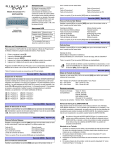
LED Feedback
Online
OFF
OFF
----ON
OFF
---
ERROR
ON
ON
--------Flashing
RX
OFF
OFF
Flashing
---------
TX
OFF
ON
--Flashing
-------
Message
No data / No EBus*
Invalid data
Receiving data
Sending data
Module online / activated
Stand-by mode
Firmware upgrade
*If a control panel is not detected, reset and power up.
If the LED display shows an error message, enter Installer Programming Mode
to re-scan for the VDMP3 module.
Feature Activation (PGMs)
By activating or deactivating the VDMP3’s 8 Features, it is possible to activate
the PGM utility keys or PGMs that are programmed in the control panel.
For example, when activating VDMP3 Features, the following message is
played:
“Press 1 to activate / deactivate Feature 1”
“Press 2 to activate / deactivate Feature 2”
...
“Press star ( ) to exit”
“Press star (#) to hang up”
*
Magellan / Spectra SP
VDMP3 features can activate the first 8 PGMs as programmed in the control
panel.
EVO
VDMP3 feature numbers correspond to EVO utility keys according to the
following table:
Warranty
For complete warranty information on this product please refer to the Limited Warranty Statement
found on the website www.paradox.com/terms. Your use of the Paradox product signifies your
acceptance of all warranty terms and conditions.
©2009 Paradox Security Systems Ltd. All rights reserved. Specifications may change without prior
notice. One or more of the following US patents may apply: 7046142, 6215399, 6111256, 6104319,
5920259, 5886632, 5721542, 5287111, 5119069, 5077549 and RE39406 and other pending patents
may apply. Canadian and international patents may also apply.
Digiplex EVO, Magellan and Spectra are trademarks or registered trademarks of Paradox Security
Systems Ltd. or its affiliates in Canada, the United States and/or other countries. For the latest
information on products approvals, such as UL and CE, please visit www.paradox.com.