1
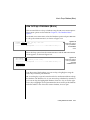
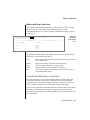
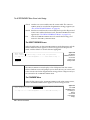
Modifying a Column with the ALTER TABLE Menu
3.
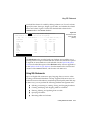
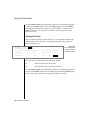
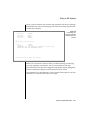
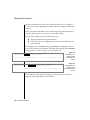
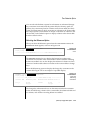
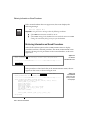
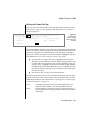
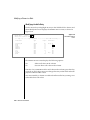
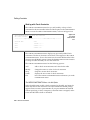
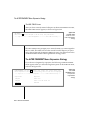
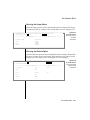
Type each modification on the top line of the screen, and press
RETURN. DB-Access makes the change and redisplays the ALTER
TABLE menu again. For certain column definitions, DB-Access first
displays another MODIFY screen.
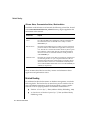
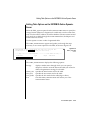
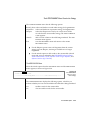
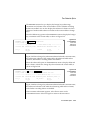
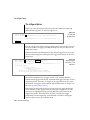
If you modify a data type, you might need to enter additional
information. DB-Access displays a screen that prompts you for this
information. Consider the following examples:
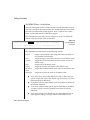
❑
Changing a column to the CHARACTER data type causes
DB-Access to display the MODIFY LENGTH screen so you can
specify the length of the CHARACTER field.
❑
Changing a column to a DATETIME data type causes the MODIFY
DATETIME QUALIFIER screens to appear.
❑
Changing a column to an INTERVAL data type causes the
MODIFY INTERVAL QUALIFIER screens to appear.
❑
Changing a column to a VARCHAR data type causes the MODIFY
MAXIMUM LENGTH and MODIFY MINIMUM SPACE screens to
appear.
❑
Changing a column to a TEXT or BYTE data type causes the
MODIFY BLOBSPACE screen to appear.
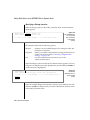
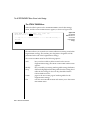
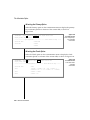
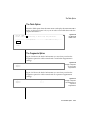
If you modify a unique index on a column, you see a screen that
asks you to MODIFY DUPLICATES.
Not all data types can be changed to other kinds of data types.
Data types and their requirements are described in Chapter 3 of
the Informix Guide to SQL: Reference and in Chapter 3 of the Guide
to GLS Functionality. ♦
GLS
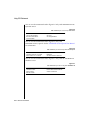
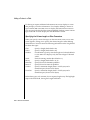
See the discussion of indexing in Chapter 1 of the Informix Guide
to SQL: Syntax and in the INFORMIX-OnLine Dynamic Server
Performance Guide.
5-60
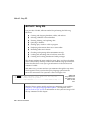
4.
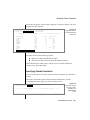
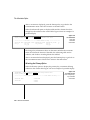
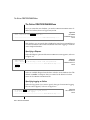
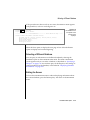
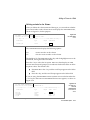
Move the highlight to the next field that you need, and repeat the
process.
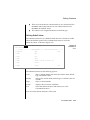
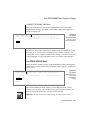
5.
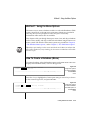
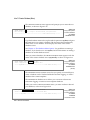
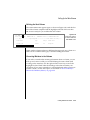
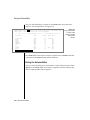
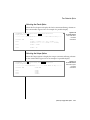
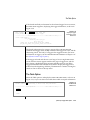
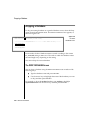
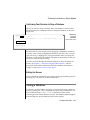
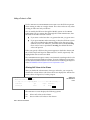
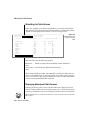
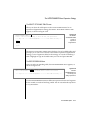
When you select Exit to leave the screen, you see the EXIT menu.
Press RETURN to select the default, Build-new-table, or press the
D key, or move the cursor to highlight the Discard-new-table option
with an Arrow key and press RETURN. DB-Access accordingly builds
or discards the table and returns you to the TABLE menu.
DB-Access User Manual