1
SCHOOL OF AGRICULTURE
Polycom ViaVideo
Troubleshooting
AgIT Operations
Policy No. 1.2.5
If the audio continues not to work, complete these steps:
1. If you are in the middle of a call, click on the “Hang Up” button, located on the
middle right of Polycom window. This will disconnect you from your call.
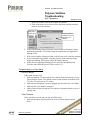
2. Close Polycom ViaVideo by clicking on , located in the upper right-hand
corner of the Polycom window.
Click here
to close
Polycom
ViaVideo.
Click the
“Hang Up”
button to
disconnect
from a call.
3. Turn off your camera by sliding the on/off switch all the way to the right.
4. Turn your camera back on by sliding the on/off switch all the way to the left.
5. Restart the Polycom ViaVideo software.
6. Click on , located in the upper left corner of the Polycom window. This will
open the Polycom ViaVideo ‘Setup’ screen.
7. Click on the ‘Audio’ tab, located on the left side of the ‘Setup’ window.
8. Check to make sure both ‘Adjust Sound Effects Volume’ and ‘Adjust Audio
Volume’ are turned up. When ‘Adjust Sound Effects Volume’ has been
adjusted, it will produce a telephone ring sound so you can hear how loud it is.
If you click the “Generate Tone” button, located next to the ‘Adjust Audio
Volume’ control, a tone will be produced for 15 seconds to allow you to hear
how loud it is.
Click the ‘Audio’
tab to adjust
volume settings
Click and move
the sliding bar to
adjust the sound
effects volume
Click here to
generate a tone to
test the audio level
Click and move the
sliding bar to adjust
the audio volume
Page 2 of 6
Created: 4/16/2004
School of Agriculture
Modified: 8/16/2004
Contact: Brad Clayton, AgIT Operations Team Leader - [email protected], 765.496.6806