1
SCHOOL OF AGRICULTURE
Polycom ViaVideo
Troubleshooting
AgIT Operations
Policy No. 1.2.5
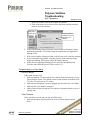
c. Make sure all three items on this window are checked.
d. If any of the boxes are not selected, first select them and then restart the
Polycom ViaVideo software.
Click here to
change the
‘Data’ setup
Verify that all three
checkboxes on the
‘Data’ page are
selected
2. Verify with the Bridge Operator that the correct Conference Template is being
used for the conference. You must be using the template that says Application
Sharing (t-120).
3. If the correct template is being used and it still does not work, restart the computer.
4. If you continue having problems, try using a Point to Point conference using
Application Sharing. If that works, inform the Bridge Operator.
5. In the case that Application Sharing still does not work, uninstall Polycom
ViaVideo and reinstall Polycom ViaVideo version 5.1.1.
Troubleshooting on a View Station
Sound Problems
If the sound does not work:
1. Make sure both the TV sound and the View Station sound are turned up. Use the
Polycom remote for the View Station volume and the controls on the front of the
TV or the TV remote for the TV volume.
2. Make sure the microphone is securely plugged into the back of the View Station.
3. Make sure the View Station is not muted.
4. Make a Point to Point call with the View Station to determine whether or not it is
a bridge issue.
Video Problems
If the video does not work and you only get a blue screen:
1. Make sure the input selected for near site is set to camera and not external
device.
Page 5 of 6
Created: 4/16/2004
School of Agriculture
Modified: 8/16/2004
Contact: Brad Clayton, AgIT Operations Team Leader - [email protected], 765.496.6806