1
SCHOOL OF AGRICULTURE
Polycom ViaVideo
Troubleshooting
AgIT Operations
Policy No. 1.2.5
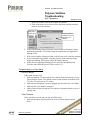
9. If no tone is produced when you click “Generate Tone”:
a. Make sure the checkbox next to ‘Audio Cable Connected to the Audio-in
Port on the PC’ is selected. This is located at the bottom of the ‘Audio’ page.
b. If the ‘Audio Cable Connected to the Audio-in Port on the PC’ box is
already checked and the audio is still not working, click on the “Select
Input Line” button, located at the bottom of the ‘Audio’ page. This will
bring up a ‘Select Your Input Line’ window.
Make sure
this checkbox
is selected
The “Select
Input Line”
button
c. On the ‘Select Your Input Line’ window, verify that the selected input line
is the one you are actually using. (The selected one is the one that is
highlighted.) If it is not, select the correct input line and then click “OK.”
If the correct one is already selected, just click “OK.”
Verify that the
selected input line
is the one you are
actually using.
d. Check that the audio cable is firmly plugged into the camera.
10. Try a Point to Point video conference before joining a Multipoint conference.
11. If the audio continues not to work, restart your computer.
Video Problems
If the video is fuzzy, adjust the focus wheel, located on the actual camera. If there is
no video, follow these guidelines:
1. Close the Polycom ViaVideo software.
2. Turn off the camera.
3. Turn the camera back on and restart Polycom ViaVideo.
Page 3 of 6
Created: 4/16/2004
School of Agriculture
Modified: 8/16/2004
Contact: Brad Clayton, AgIT Operations Team Leader - [email protected], 765.496.6806