1
•
•
Only the group’s users have access to the group and its content.
Depending on their function in the group, different users have different roles and privileges.
Navigation in CampusNet
•
When you log on to CampusNet, the system identifies you and displays your name and
customized news information. An overview of the groups you have access to appears in
the left-hand group menu (see previous page).
•
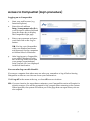
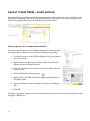
When you click on a group, the
group overview is replaced with
the group’s own menu and you
are informed of which privileges
you have in that group.
•
To return to the front page, click
the blue back arrow ( ) or the
word Front page above the lefthand menu.
•
Note that all courses consist of 2
levels: course level (this has the
course name and contains
among other things links to the
course description in the Course
Catalogue) and class level (named ClassXX). To maintain consistency across the system,
all teaching activities should take place at class level. Administrators should therefore
remove unused services at course level via the group menu command Admin (see how on
page 30).
•
Your personal menu (My messages, My library etc.) gives you access to an overview of
relevant information from all the groups you are affiliated to. For example, clicking on
My messages allows you to see all current messages from all your groups.
Search function
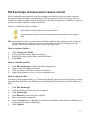
The search field in the upper right of the screen enables you to searh in messages, welcome texts, discussion fora as well as file names and related description
fields.
You can search in certain categories or in all CampusNet content, expired groups and messages as well.
Small icons on the list of results show in which category the search word appears.
8