1
How to get started
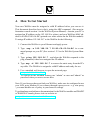
Your new WebNet must be assigned a valid IP address before you can use it.
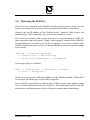
This document describes how to do it, using the ARP command. (For more
information consult section 1 in the WebNet System Manual).
Assume your PC is assigned an IP address on the 192.168.26.x subnet, and your
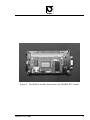
WebNets MAC address is 00:D0:C8:00:1A:BC (printed on a white sticker
on the WebNet module). To assign IP address 192.168.26.7 to the WebNet do the
following:
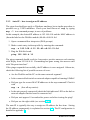
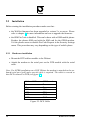
1. Connect the WebNet to your Ethernet and apply power.
2. Type arp -s 192.168.26.7 00-D0-C8-00-1A-BC in a command prompt on your PC (See the WebNet System Manual).
3. Type ping 192.168.26.7 , and when the WebNet responds to the
ping command, it has been assigned the IP address.
4. Type arp -d 192.168.26.7 to remove the static entry from the PCs
arp table. The WebNet is assigned a valid IP address and ready for use
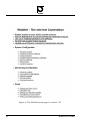
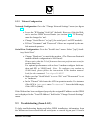
5. Use a standard web browser to open the network page:
http://192.168.26.7. To explore all the included features use admin
as user and admin as password when you access secure files.
Note: If your browser does not find your WebNet, make sure its configured to use
your LAN, not a Modem. If you connect through a proxy server - e.g. win-proxy
- you must disable use of proxy in your browser settings.
To get hardware and software documentation for the WebNet module and WebPIC
or WebRJS interface boards, please visit our website at
http://webnet.iotech.dk.
WebNet User’s Guide
3