1
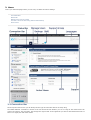
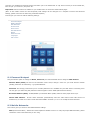
Manual Connection:
To be selected it you want to connect to a WiFi network with a hidden Network Name (SSID).
If you want to connect to a WiFi Network using the manual method, please fill in:
Network Name: Name of the WiFi network you want to join.
Security: Security standard being used of the WiFi network you want to join.
Password: Password of the WiFi network you want to join
9.4 Access Mode
In order to increase the security level for the XYFI, you can set the Default access mode, Number of maximum users
and a Guest Password:
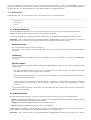
Default Access Mode - Defines the access mode for a new device connecting to your XYFI (2 options):
1) Hotspot User: Typically, your own laptop and personal WiFi enabled devices (e.g. smartphone/tablet etc..) and a
limited user group that often connects to the XYFI.
2) Guest User: User/device needs to know the 'Guest Password' to access the internet (in addition to the SSID
(Network Name) & the Pre-shared Key (WiFi Password).
Number of Users - You can allow access for a maximum of 8 users/devices connecting to your XYFI using WiFi.
Guest Password - Creates additional security as all the users/devices with the access mode 'Guest User' have to
enter the 'Guest Password' before connecting to Internet. Both text and numbers can be used. The 'Guest Password' is
valid as long as you wish, or until you change it.
9.5 Active Users
Here you have the option of seeing which devices are currently connected/offline/blocked to your XYFI and edit/change
the access mode etc. for each device.
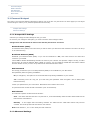
Colour codes in front of each device:
Green: This device is currently connected to your XYFI.
Grey: This device has previously connected to your XYFI, but is now offline.
Red: This device is blocked and will not be able to connect to your XYFI until you 'unblock' it.
Remove/block devices: The icon on the right enables you to remove, unblock/block a user/device.
In order to edit each device, please click on the '+' sign:
Device Name: You can change the device name so that it is easy for you to see which user/device is connected.
Access Mode: Here you can change the access mode between 'Hotspot User' and 'Guest User'.
9.6 Add WPS Device
Automatically add WiFi device to your XYFI using WPS - 'WiFi Protected Setup'. Your device needs to support WPS in
order to use this feature.
WiFi Protected Setup (WPS) is a standard for easy and secure wireless network set-up and connections.
To use WPS, the device you wish to connect must support WPS and must be compatible with WPA security. WPS can
automatically set up a random network name (SSID) and high-level WPA wireless security for computers, smart phones,
tablets and other consumer electronics devices.
WPS enables you to use push buttons or PIN code instead of entering a Network Name (SSID) and WiFi password by
hand.
Push button: The WPS button is either on the side of the XYFI (LED button) or a clickable button in the administration
pages.
PIN (Personal Identification Number): The PIN can be viewed on the administration pages. The PIN is entered for
the wireless device that wants to join the XYFI