1
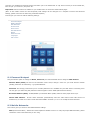
Insert SIM Card
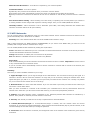
Power Up XYFI
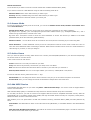
Connect to Internet
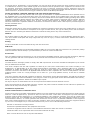
Connect to Administration Pages
1.1 Insert SIM Card
Before connecting the XYFI to you PC/tablet/smartphone etc. for the first time, you must insert the SIM card supplied by
your service provider:
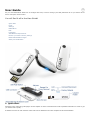
1) Remove the top cover of the XYFI.
2) Insert the SIM card and the optional micro-SD card into the corresponding card slots.
3) Put the top cover back on by inserting it into the slot at the front and press the cover down until it clicks into place.
1.2 Power Up XYFI
For XYFI to be able to connect to any Mobile or WiFi networks, it needs to be switched on. Before you connect it to a
power source, you need to fully extend the unique USB connector (180 degrees) by pushing the button on the top of the
XYFI.
XYFI can use several different power sources:
Computer: Insert the XYFI into a free USB port on your computer.
USB Power Adapter: Switch on the XYFI via the 110-240v power socket.
USB Cigarette Lighter Adapter: Use your XYFI in cars/boats/buses etc. or other places where you have a 12V
cigarette lighter socket.
USB Battery Pack: When travelling, this is the ideal way to power the XYFI.
Others: Such as Car Stereo, Playstation, Wii etc. (with USB connection)...Please make sure that it offers min. 5V/1
Amp output power.
Note: You should only use the original USB Power Adapter/Cigarette Lighter Adapter and USB Battery Pack as
replacement power sources may damage your XYFI and make it less reliable. Option NV is not responsible for damage
caused by using non-Option NV products.
1.3 Connect to Internet
XYFI comes with pre-defined settings that makes it very easy for you to connect to the Internet:
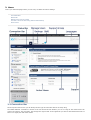
1) Your XYFI is pre-configured with WPA2 encryption to protect unauthorised access. The unique Network Name (SSID)
and WiFi Password (Pre-shared key) are printed on the manufacturing label underneath the bottom cover.
2) When your XYFI is switched on, find the Network Name (SSID) in your list of available networks and click Connect.
3) You will be asked to fill in the WiFi password, and when this is done, you are connected to the Internet.
If your PIN code is not disabled, or if it is not a known APN address, you will be guided to the settings pages to make
the changes before being able to connect to the Internet.
International roaming is disabled by default, and if you use the XYFI for the first time in this situation, you need to
enable roaming within the settings pages or manually click the connect button
1.4 Connect to Administration Pages
The administration pages give you access to see/edit all the settings for the XYFI, in addition to the connection status etc.
In order to log in to the administration pages (valid both for desktop and mobile version):
1a) Desktop: Open your Internet browser and type xyfi/ in the address bar (or 172.22.2.1) and press 'Enter'.
1b) Mobile (smartphone): Open your Internet browser and type xyfi/ in the address bar. If 'XYfi/' does not send you
to the mobile site, type m.xyfi/ (or 172.22.2.1) and press 'Go'.
2) The Log In page will open and you have to create/insert your username and password (case sensitive) to enter the
administration pages.
You can save this address as a bookmark in your browser or add to your home screen, for future use.