1
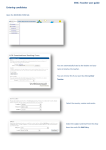
3. The list of available rooms is displayed; scroll down to view all rooms. Each
room has a list of attributes, a photograph and a list of current bookings. Select
the photograph to open the booking screen where you can provisionally book a
room.
4. Once a room is selected we can see a list of bookings for the day, provisional
bookings are in red. Note the day is split into time slots. To provisionally book
a room select “Book Slot” for the time slot you wish to book. Note you can
book anytime within a free time slot.