1
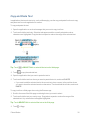
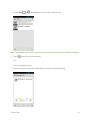
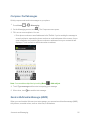
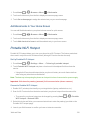
 1. Press Home
options.
> Menu
> System settings > Direct Connect settings > Group call
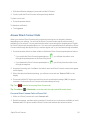
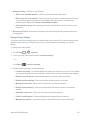
2. Select an option: l Allow the call to continue.: Keeps the call active even after you hang up. The call will remain active until the last member disconnects.
l End the call for everyone.: Terminates the call session for all connected members when you hang up.
DC Headset Mode
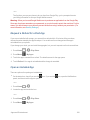
You can use the headset button as the DC button.
1. Press Home
> Menu
> System settings > Direct Connect settings.
2. Select the DC headset mode check box to enable the function.
One Touch DC
You can select the function of the DC button when you press it in standby mode. By default, it displays your Direct Connect (including Call Alert and Invite) Call logs. You can also select to enable or disable the assigned function of the DC button when the phone’s display is off in idle state.
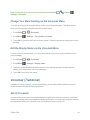
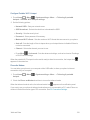
To assign a function to the DC button: 1. Press Home
DC.
> Menu
> System settings > Direct Connect settings > One touch
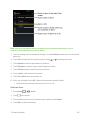
2. Touch Action and select an option.
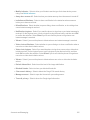
l Launch DC call log list to display your Direct Connect Call logs.
l Launch contacts list to display your Contacts list.
l DC selected contact to place a Direct Connect call to a selected number. Select Contacts, Recent DC’s, or New number and enter or select the number to specify.
l DC most recent number to place a Direct Connect call to the latest number listed in your Direct Connect Call logs.
l Off to disable one touch DC.
3. Touch Action when screen off and select an option.
l Enable to enable the one touch DC function even when the screen is off.
l Disable to disable the one touch DC function when the screen is off.
Sprint Direct Connect
71