1
soCMS Content Management System User Guide
6. Page Control
You are able to control pages by either selecting a page and making amendments or deleting it. Or by
using the right menu to add, move or delete.
a. Editing an existing page
To edit a previously created page all you need to do is select the item in the tree and the content
will load in the main screen.
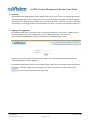
Some pages within your system may have a locked icon
at the end of the page name. If so,
these pages can only be changed by using your soSupport credits.
b. Creating a page
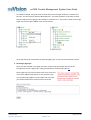
To create a page you need to use the right click menu, be sure to select the
appropriate parent or item at the relevant level when creating a new page.
See Sub-Item or Item below;
i. Sub Item or Item
Whichever item you right click on you will get a relevant menu, e.g. if you click on the home
page you will only get the menu option ‘New Sub item’ whereas clicking on other items you will
get the full menu as above.
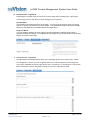
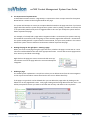
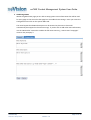
Look at the example below if we have right clicked on ‘Products and Services we get the screen
on the left. If we choose ‘New Item’ at this level (‘Products and Services) we will create a new
item at this level e.g. below the current items parent. In this case this is ‘Home’. The result is
the image on the right (by default new items go to the end of the item list.
soCMS Help
©soVision Ltd April 2008
Page 7 of 25
Version 1.0