Download User's Guide
Transcript
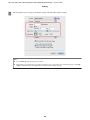
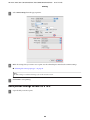
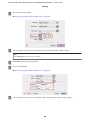
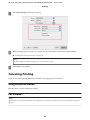
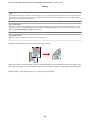
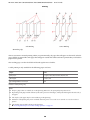
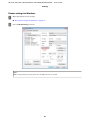
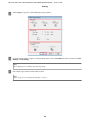
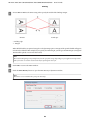
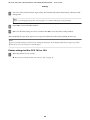
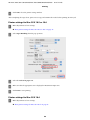
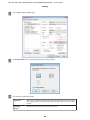
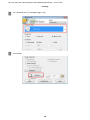
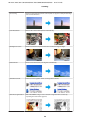
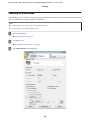
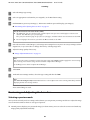
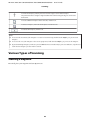
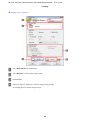
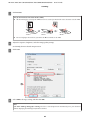
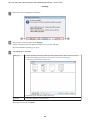
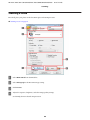
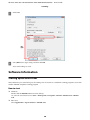
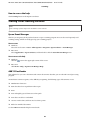
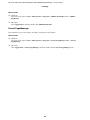
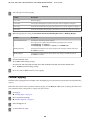
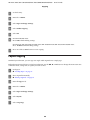
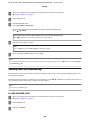
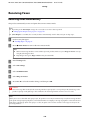
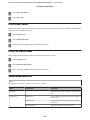
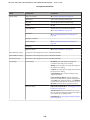
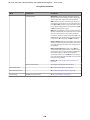
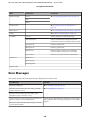
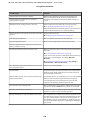
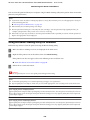
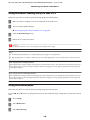
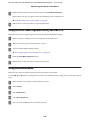
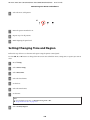
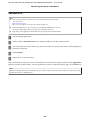
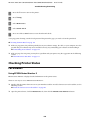
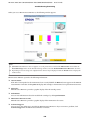
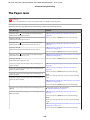
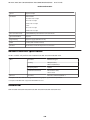
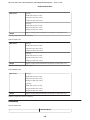
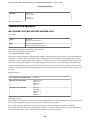
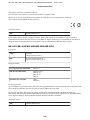
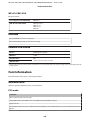
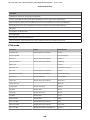
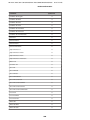
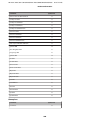
WP-4511/4515/4521/4525/4530/4531/4535/4540/4545/4590/4595 User’s Guide Printing ❏ Windows XP and Server 2003: Click Start, Control Panel, then Printers and Faxes. Then right-click the printer and select Printing Preferences. From the shortcut icon on the taskbar Right-click the printer icon on the taskbar, then select Printer Settings. To add a shortcut icon to the Windows taskbar, first access the printer driver from the Start menu as described above. Next, click the Maintenance tab, and then the Monitoring Preferences button. In the Monitoring Preferences window, select the Shortcut Icon check box. Getting information through online help In the printer driver window, try one of the following procedures. ❏ Right-click the item, then click Help. ❏ Click the button at the top right of the window, then click the item (for Windows XP only). Accessing the printer driver for Mac OS X The table below describes how to access the printer driver dialog. Dialog Box How to Access It Page Setup Click Page Setup on the File menu of your application. Note for Mac OS X 10.5 or later: Depending on your application, the Page Setup menu may not appear in the File menu. Print Click Print on the File menu of your application. Epson Printer Utility 4 For Mac OS X 10.6, click System Preferences on the Apple menu and then click Print & Fax. Select your printer from the Printers list box, click Options & Supplies, Utility, and then click Open Printer Utility. For Mac OS X 10.5, click System Preferences on the Apple menu and then click Print & Fax. Select your printer from the Printers list box, click Open Print Queue and then click Utility button. For Mac OS X 10.4, double-click Macintosh HD, the Applications folder, and then the Printer Setup Utility icon in the Utilities folder. Select your printer from the Printer List and then click the Utility button. Getting information through online help Click the Help button in the Print dialog. 40