1
Section 1: GBFM User Guide
1.
USER GUIDE
1.1
Host Machine
Page 1
GBFM5 needs to be installed on a Windows-based PC, running Windows 2000 or Windows
XP. It uses the .NET 2.0 framework, so this needs to be installed too. It is freely available
from Microsoft, and can be installed using 'Windows Update'. To check that it is installed,
look at Control Panel>Add or Remove Programs. There should be an entry: Microsoft .Net
Framework 2.0.
You will also need:
Memory: 1Gb RAM
Processor: fast processor e.g. Intel Pentium 4 3.8GHz or AMDAthlon 3800 or higher.
Slower processors will still work, but the processor speed is the main bottleneck when the
system runs. Multitasking capability using a dual core does not affect performance so much,
and the ability to run in 64bit mode is also not important at the moment. GBFM5 has been
tested on a Dell Precision PWS 380 with an Intel P4 3.80 GHz, and a Fujitsu-Siemens Amilo
laptop with an AMD Athlon 64 3700+ processor, and these have very similar run times. PC
systems with the mid-range AMD 4400, 4600 and 4800 processors might be most suitable.
Storage: The new system can produce a large quantity of data, but with a fairly typical
200gb hard drive, this will not be a problem. Nevertheless, the ability to save model run
results onto writeable DVDs would be useful. A model run files when zipped, fit onto a CD or
unzipped onto a DVD.
Additional Software: The system also needs to have MSExcel (any version), and it is
useful to have Access (or equivalent), (See MS Office ), a GIS package (e.g. Manifold) and a
decent text editor (e.g.Ultraedit).
1.2
Installation
The system simply needs to be copied onto the host machine. Version 5 has a fixed base
year (2004), so it should be installed in a folder called 'gbfm_5_2004'. Future updates can
then be added without overwriting this one. Once installed, there will be the GBFM
executable file GBFM5.exe and a subdirectory GBFMData, containing the data for the
implementation. Normally the system will be installed on the machine's 'C' drive, but the
system can be set up on any drive.
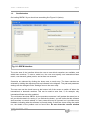
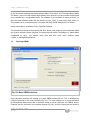
By double clicking GBFM5.exe, it is possible to verify that the installation has worked.
Printed on 31/03/08
Our Ref:
16:28