1
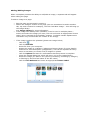
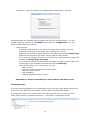
• Summary - review the page you’ve added before confirming to proceed. All pages added will automatically be hidden from the site until populated. You can unhide a page by unticking the Is Hidden and ticking the Is Approved box on the Generic Page Information section. • Hints and Tips -‐ If adding a page similar to one that has already been created, copy the Template and format of that page when creating the new one -‐ Pages can be deleted by right clicking on the page and selecting Delete Page -‐ Pages can be moved up and down using a drag and drop facility -‐ If you need to change the file name of a page then right click on the page and left click on Change Page File Name -‐ If you need to change the Page details of a page you have created, right click on the page in the navigation and then left click on Edit Page. -‐ This will then take you to a box where you can: o Add a redirect o Choose to open the redirect in a new window o Make the page a folder o Hide Subpages o Change the page to show in menu Remember to always ‘Save Changes’ in the bottom right hand corner Homepage News The news item that appears on the homepage is the news story that appears at the top of the list in the ‘News & Events’ folder (in the content management system). To change this select the relevant news story and drag and drop it to the top of the folder (See position of ‘Sheffield welcomes…’ news story in screenshot below). 14