1
Getting Started
About the User Interface
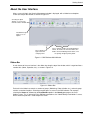
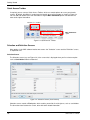
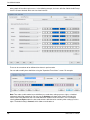
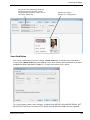
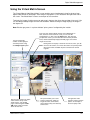
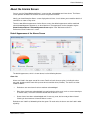
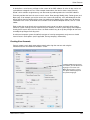
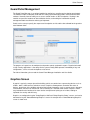
After a successful login, the Security Management window is displayed, with a ribbon bar and options
shown at the top of the window, as shown in Figure 2-1.
Selecting an option
displays a screen in the
main area of the window.
The ribbon bar gives
quick access to
options.
These display your
login name and
company name.
These show the number of unacknowledged
alarms, the number of uncleared alarms, the
number of unacknowledged task alarms, and
the priority of highest-priority alarm.
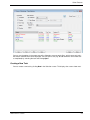
Figure 2-1: SMS Software Main Window
Ribbon Bar
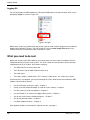
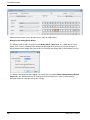
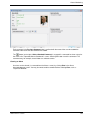
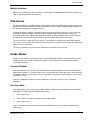
A main feature of the user interface is the ribbon bar along the top of the window, which is organized into a
number tabs (Home, Operation, etc.), as shown in Figure 2-2.
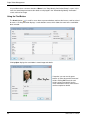
Figure 2-2: Ribbon Bar
Each tab in the ribbon bar contains a number of groups (Monitoring, Video & Audio, etc.), and each group
contains a number of options. Selecting an option opens a screen in the SMS software. For example,
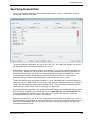
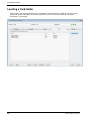
selecting the Home tab, followed by the Card Holders option in the Identity group opens the Card
Holders screen. This is referred to in the SMS documentation as the "Home/Identity/Card Holders" screen,
which shows the path that is used to open the screen.
SMS Software User Guide
15