1
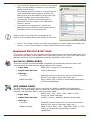
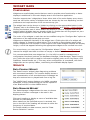
the “Number From” box. Date and Number – The current system date (in the format YYYYMMDD) will be appended to the base filename, followed by an automatically incrementing number. The format of the date is chosen such that when sorted alpha-numerically (in a program such as Windows Explorer), the date codes will sort in the correct ascending order. Date and Time – The current system date and time (in the format YYYYMMDD_HHMMSS) will be appended to the base filename. Should two snapshots be taken in the same second, an increasing number will be appended to the end of the name to ensure no files are overwritten. Note: The snapshot settings will be stored by Scanline, and used when the application is next run (with numbering continuing sequentially). NUMERICAL DATA When you have recorded a log-file, you can use one of the Scanline export converters to output the data in different formats, suitable for use in third party analysis software. Start the “Data Export Wizard” by clicking ‘Log : Export Numerical Data’ or using the System button ‘Export’ menu. When the Wizard starts, click “Next” to proceed to the format selection page. Choose the type of file you want to export to from… o CSV – Comma Separated Values. An ASCII text file that can be easily imported into spreadsheets, or custom software data processing. See the online help files for further details on the CSV format. o XTF – Extended Triton Format. A binary file commonly used for topographic analysis. Click “Next” to proceed after making your selection. Choose the source log-file (if one isn’t already open), and the file to export the data into, by clicking on the appropriate “Change…” buttons. Click “Next” to proceed and if required, adjust the sources of data that will be exported. Click “Next” again to review your choices. If you need to make any changes before starting the export, use the “Back” button to go back through the Wizard – otherwise click “Next” to start the export. The progress bar will show the state of the export. Depending on the size of the source log file and the format you are exporting to, this process may take several minutes. If you wish to abort click the “Cancel” button, otherwise wait for the wizards “Complete” page to be displayed. Click the “Finish” button to close the wizard. 23