1
Internet light troubleshooting
Log on to your router
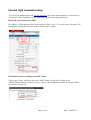
For the rest of this document, you will need to access the statistic and configurations screens of your
router. To log onto your router, open a browser session (e.g. Internet Explorer, Mozilla Firefox or
Google Chrome) & type in the address:http://192.168.1.1
At the prompt:-
Enter your admin username & password. Unless you have changed this, the default is normally:Username : admin
password : admin
Always on
This does not affect fibre (which is an always on type of connection), only ADSL.
The most likely cause of the internet light going red, or off, is that “Always On” is not configured
on the router. This is not part of the router's default configuration.
If not using the internet for 30 minutes or more, you may see the internet light go red, or off.
This can give the appearance that the internet has dropped or disconnected. What has actually
happened is that the virtual path from the exchange equipment (DSLAM) to the internet has
disconnected. The ADSL link should still be up OK. Opening a web browser, and typing in a web
page, will usually “wake” the router, but if using wireless devices, this can sometimes cause the
wireless connection to time out and disconnect.
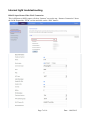
You can set your router to “Always on” to solve this, or in some older routers this may be referred
to as ‘nailed up connection’.
To set this on your router, please see my guide, which I have hopefully attached to this post, if not,
please ask me for it.
Page 2 of 10
Date : 14/03/2015