1
LAB 7: TROUBLESHOOTING OFFICE APPLICATIONS
7.
From the Tools menu, select Customize.
8.
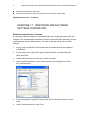
In the Customize dialog box, in the Commands tab, click Rearrange Commands.
9.
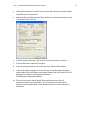
In the Rearrange Commands dialog box, under Choose A Menu Or Toolbar To
Rearrange, verify that Menu Bar is selected. In the drop-down list adjacent to Menu
Bar, verify that File is selected. Click Reset.
3
10. In the Reset Toolbar message box, click OK. Note that the Preview Web Page
command has been removed from the File menu.
11. Close all open windows and programs. Do not save changes.
EXERCISE 7.2: REMOVING UNNEEDED
COMPONENTS FROM MICROSOFT OFFICE
Estimated completion time: 5 minutes
An employee doesn’t want unneeded components of Office installed, to save disk space and
reduce clutter on the Start menu. However, if she does need to use those components in the
future, she wants them available.
1.
Log on to the Computer02 virtual machine with the Administrator account (the
password is Pa$$w0rd).
2.
From the Start menu, select Control Panel.
3.
In Control Panel, double-click Add Or Remove Programs (switch to Classic view if
necessary).
4.
In the Add Or Remove Programs window, in the Currently Installed Programs scroll
window, select Microsoft Office Professional Edition 2003. Click Change.
5.
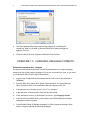
In the Microsoft Office 2003 Setup Wizard, on the Maintenance Mode Options
page, verify that Add Or Remove Features is selected and click Next.
6.
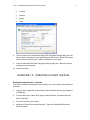
On the Custom Setup page, select the Choose Advanced Customizations Of
Applications check box. Click Next.
7.
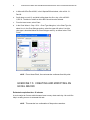
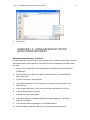
On the Advanced Customization page, click the Microsoft Office Publisher node
drop-down list, as shown below. Select Installed On First Use. Click Update.