1
06 0789732769 CH03
8/31/04
12:54 PM
Page 197
197
. . . . . . . . . . . . . . . . . . . . . . . . . . . .Hardware
. . . . . Troubleshooting
. . . . . . . . . Techniques
. . . . . .
Mouse Hardware Checks
The hardware check for the mouse involves isolating it from its host port.
Simply replace the mouse to test its electronics. If the replacement mouse
works, the original mouse is probably defective. If its electronics are not
working properly, few options are available for actually servicing a mouse. It
might need a cleaning, or a new trackball. However, the low cost of a typical
mouse generally makes it a throwaway item if simple cleaning does not fix it.
If the new mouse does not work either, chances are good that the mouse’s
electronics are working properly. In this case, the mouse driver or the port
hardware must be the cause of the problem. If the driver is correct for the
mouse, the port hardware and CMOS configuration must be checked.
The system board typically contains all of the port hardware electronics and
support so it must be replaced to restore the port/mouse operation at that
port. However, if the system board mouse port is defective, another option
is to install a mouse that uses a different type of port (for example, use a USB
mouse to replace the PS/2 mouse).
Mouse Configuration Checks
When a mouse does not work in a Windows system, restart it and move into
safe mode by pressing the F5 function key while the “Starting Windows”
message is displayed. This starts the operating system with the most basic
mouse driver available. If the mouse does not operate in safe mode, you must
check the mouse hardware and the port to which the mouse is connected.
If the mouse works in safe mode, the problem exists with the driver you are
trying to use with it. It might be corrupt or it could be having a conflict with
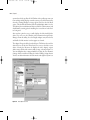
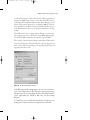
some other driver. To check the driver, consult Device Manager. If Device
Manager shows a conflict with the mouse, remove the driver and allow the
system’s PnP process to reinstall it.
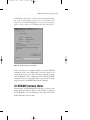
If the correct driver for the installed mouse is not available, you must install
one from the manufacturer. This typically involves placing the manufacturer’s driver disk or disc in the appropriate drive and loading the driver using
the Update Driver (requires disk from original equipment manufacturer
[OEM]) option on the Device Manager Mouse Properties page. If the OEM
driver fails to operate the mouse in Windows, you should contact the mouse
manufacturer for an updated Windows driver.