1
X100 Series Quick Guide
143
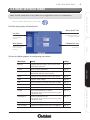
APPENDIX C: CONFIGURE PORT FORWARDING MANUALLY
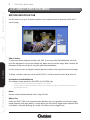
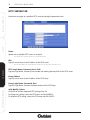
The X100 range supports UPnP traversal function. Therefore, you can use this feature to configure port
forwarding of the NAT router first. However, if you need to configure port forwarding manually, please
follow the steps below:
2.
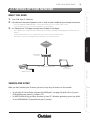
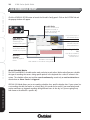
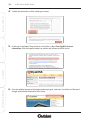
Access the Router with Your Web browser
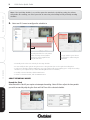
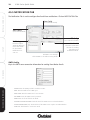
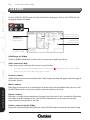
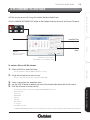
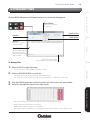
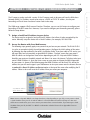
The following steps generally apply to any router that you have on your network. The D-Link DI-624
is used as an example to clarify the configuration process. Configure the initial settings of the router
by following the steps outlined in the router’s Installation Guide. If you have cable or DSL service, you
will most likely have a dynamically assigned WAN IP Address. ‘Dynamic’ means that your router’s
WAN IP address can change from time to time depending on your ISP. A dynamic WAN IP Address
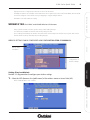
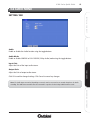
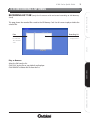
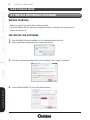
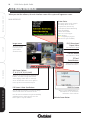
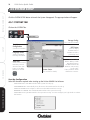
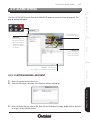
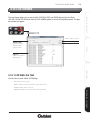
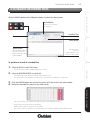
identifies your router on the public network and allows it to access the Internet. To find out what your
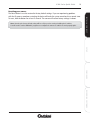
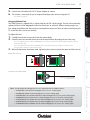
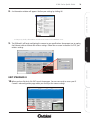
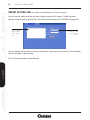
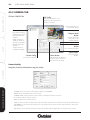
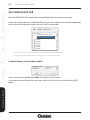
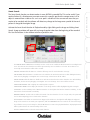
router’s WAN IP Address is, go to the Status screen on your router and locate the WAN information
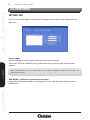
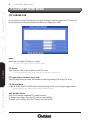
for your router. As shown on the following page the WAN IP Address will be listed. This will be the
address that you will need to type in your web browser to view your camera over the Internet. Be sure
to uncheck the Reset IP Address on Restart option at the top of the screen after modifying the IP
address. Failure to do so will reset the IP address when you restart your computer.
Note: Because a dynamic WAN IP can change from time to time depending on your ISP, you may want to obtain
a Static IP address from your ISP. A Static IP address is a fixed IP address that will not change over time and
will be more convenient for you to use to access your camera from a remote location. If you cannot get a Static
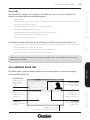
IP address from your ISP, the DIPS™ or DDNS is an alternative solution. Please refer to Appendix D for more
information.
RECORDING SOFTWARE
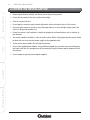
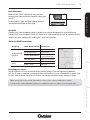
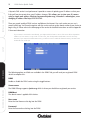
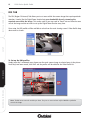
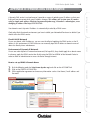
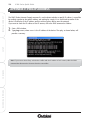
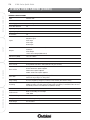
Your WAN IP Address
will be listed here.
CONFIGURE
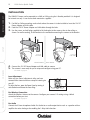
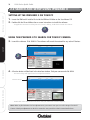
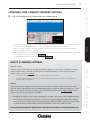
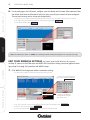
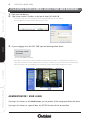
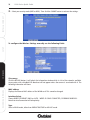
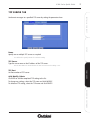
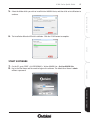
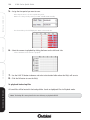
Assign a local/fixed IP address to your device
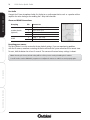
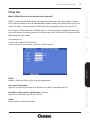
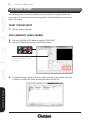
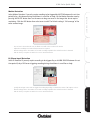
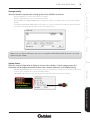
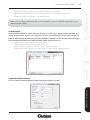
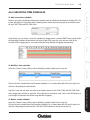
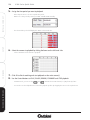
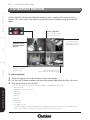
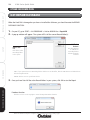
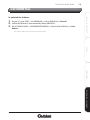
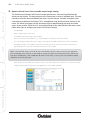
The device must be assigned a local and fixed IP Address that allows it to be recognized by the
router. Manually setup the device with a fixed IP address, for example, 192.168.0.100.
SETUP
1.
INSTALL & CONNECT
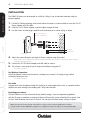
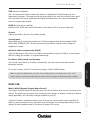
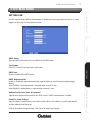
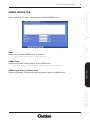
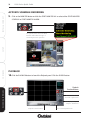
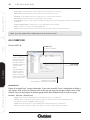
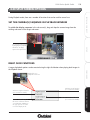
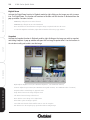
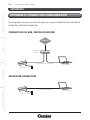
The IP cameras can be used with a router. If the IP camera needs to be accessed from the Wide Area
Network (WAN), its IP address needs to be setup as a FIXED or STATIC IP address, also the port
forwarding or Virtual Server function of router needs to be setup.