1
Using the Touch Panel
2
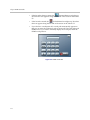
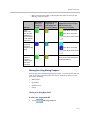
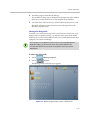
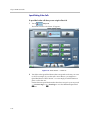
Touch the audio Speed Dial button that corresponds to the telephone
number you want to call. For example, if you often call the CEO’s cell
phone, you might see an audio Speed Dial button called “CEO Cell”. You
can simply touch that button to place a call to that number.
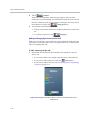
If you touch the
Help Desk button when an audio call is connected, the
system must hang up the audio call in order to place the help call. A message
informs you of this before hanging up the audio call. For more information about
placing help calls, refer to Getting Help on page 2-31.
Hanging Up Calls
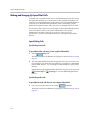
If you are on a video call and an audio call concurrently, you must hang up the
calls separately. This section describes how to hang up both types of calls.
Hanging Up Video Calls
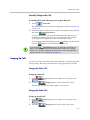
To hang up a video call:
1
If the
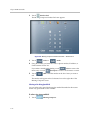
Hang Up button is not visible on your screen, touch
Polycom.
2
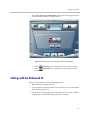
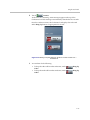
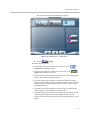
Touch the
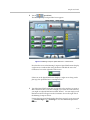
Hang Up button on the left side of the screen (as
shown in Figure 2-4 on page 2-5).
The message “The call has ended” appears on the screen.
Hanging Up Audio Calls
To hang up an audio call:
1
If the
Hang Up button is not visible on your screen, touch
Polycom.
2
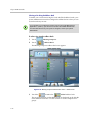
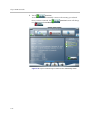
Touch the
Hang Up button on the right (Audio-Only) side of
the screen (as shown in Figure 2-4 on page 2-5).
Making Calls Using Meeting Composer
Meeting Composer enables you to easily place calls to multiple sites or to
Immersive Telepresence sites (which have more than one codec). You can
select the sites you want to call by using manual dial, speed dial, the Local or
Global address book, or by searching.
Even if you want to call a traditional (standalone) video conferencing system
or an audio-only site, you can use Meeting Composer to manually dial that site
or to find that site in the address book.
2–9