1
Send Data to Datacolor TOOLS
These options allow you to send active Targets and Trials to the Datacolor TOOLS
desktop.
NOTE
These options are available regardless of whether Datacolor TOOLS is open at the
time the option is selected. If the program is not open, it is launched as part of either
of these functions.
1.
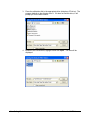
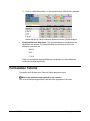
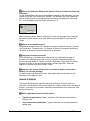
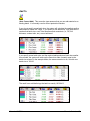
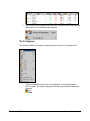
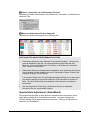
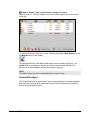
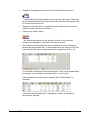
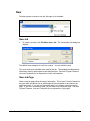
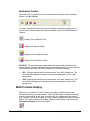
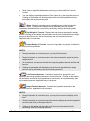
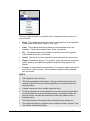
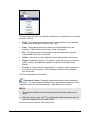
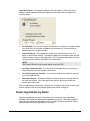
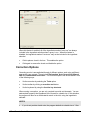
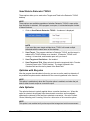
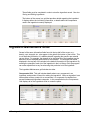
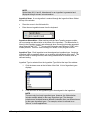
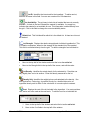
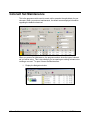
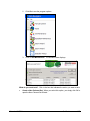
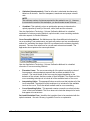
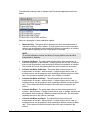
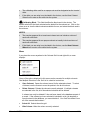
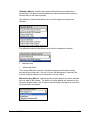
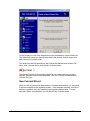
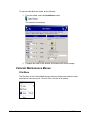
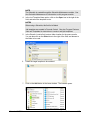
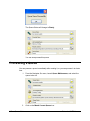
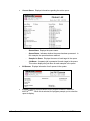
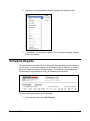
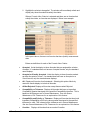
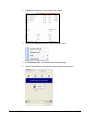
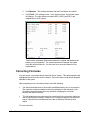
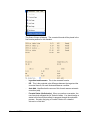
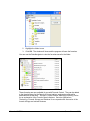
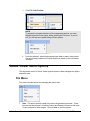
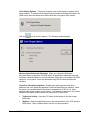
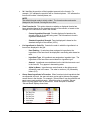
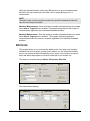
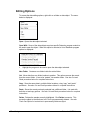
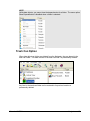
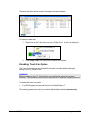
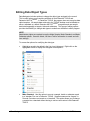
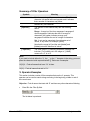
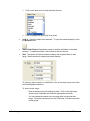
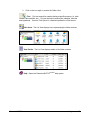
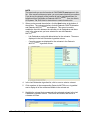
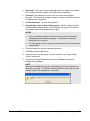
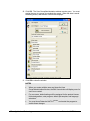
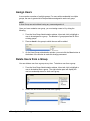
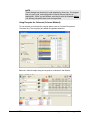
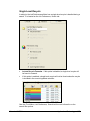
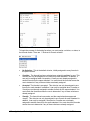
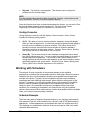
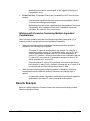
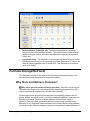
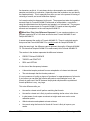
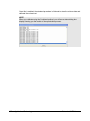
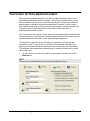
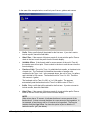
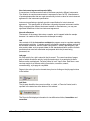
Click on Send Data to Datacolor TOOLS. A submenu is displayed:
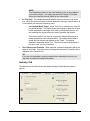
NOTE
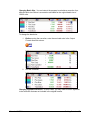
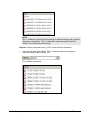
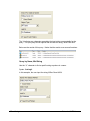
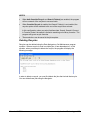
If you send the same target multiple times, TOOLS will create multiple
standards with the same name on the desktop.
2.
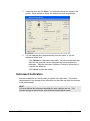
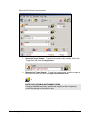
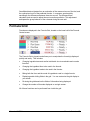
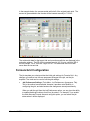
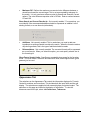
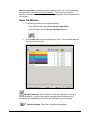
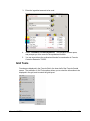
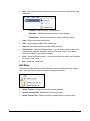
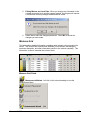
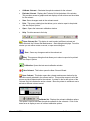
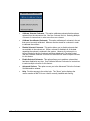
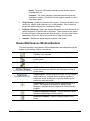
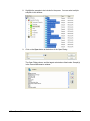
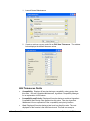
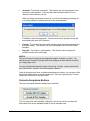
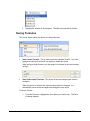
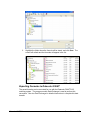
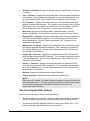
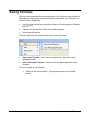
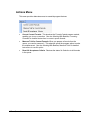
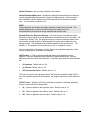
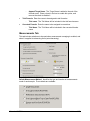
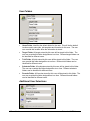
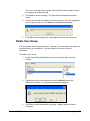
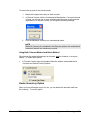
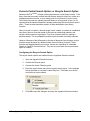
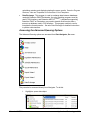
Send Target. The program switches to Datacolor TOOLS, and the target is
added to the TOOLS desktop as a standard. If Datacolor TOOLS is not
running, it is launched, and remains open until you close it.
3.
Send Target and Predictions. Not enabled.
4.
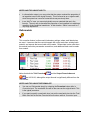
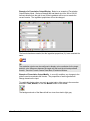
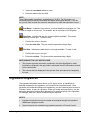
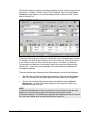
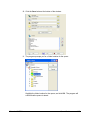
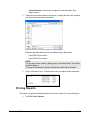
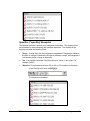
Send Target and Trial. When selected, the active target and trial in Formula
Central are sent to the TOOLS desktop. The target is placed in the
Standard field and the trial is placed in the Batch field.
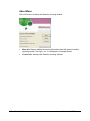
Optimize with Recycles
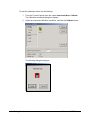
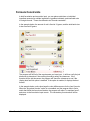
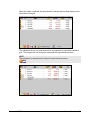
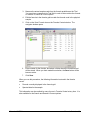
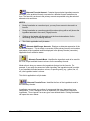
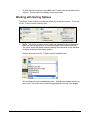
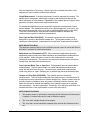
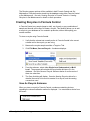
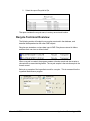
After the program has calculated a formula, you can re-run the match to determine if
any available recycles can be substituted for the current ingredients in the formula.
NOTE
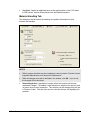
This option is enabled only when the Recycles option is enabled, and when the job
state is either formula output or correction output.
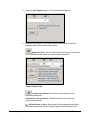
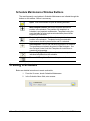
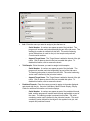
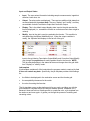
Auto Optimize
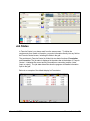
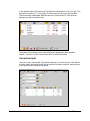
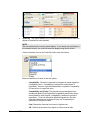
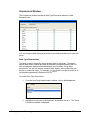
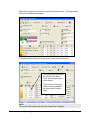
The optimize feature is typically applied after a correction has been run. When this
option is selected, the program skips the automatic correction, and immediately
optimizes the colorants in the formula to calculate a correction. See also Formula
Central, Matching and Correcting Colors for a discussion of all correction options.
NOTE
This option is not enabled until you have provided a target and a trial measurement.
Datacolor MATCHPIGMENT
Formula Central Menus • 189