1
Setting Driver Properties
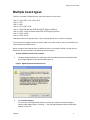
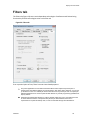
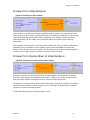
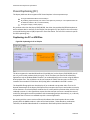
Osprey Config’s initial processing sequence
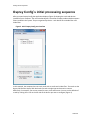
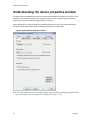
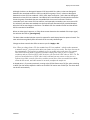
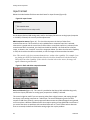
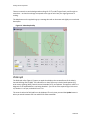
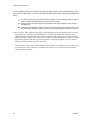
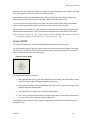
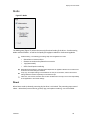
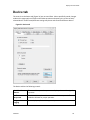
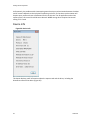
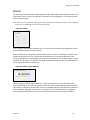
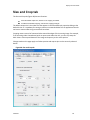
After you open Osprey Config the application displays (Figure 3) showing the cards and devices
installed on your computer. The main window depicts a tree view of Osprey audio and video capture
filters installed in the system. They are organized by device – each device has an Audio Filter and
Video Filter.
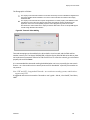
Figure 3. Initial Osprey Config user interface
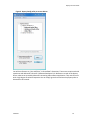
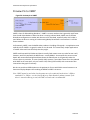
In this example, the computer has two cards, each with an audio and a video filter. The cards are the
Osprey 230 and the Osprey 5X0. Both cards can take a single input and stream its content
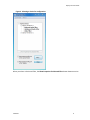
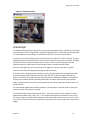
differently. For example, you can use several bit rates, sizes and formats. You can set the defaults of
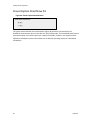
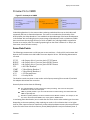
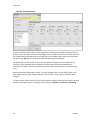
a card by clicking the + icon on the left side of the device you want to configure (Figure 4).
8
ViewCast