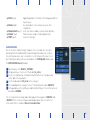
1
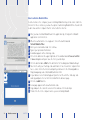
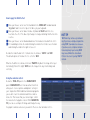
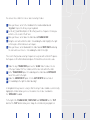
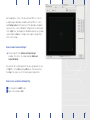
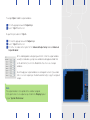
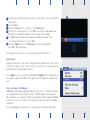
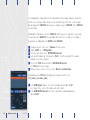
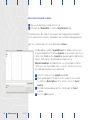
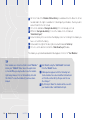
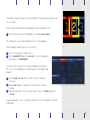
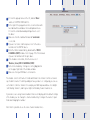
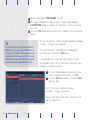
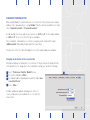
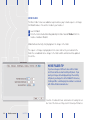
4 In your Utilities folder in the Applications folder, open the ‘Audio and MIDI Configuration’ application.
5 In the ‘Window’ menu, select ‘Show MIDI Window’. You’ll see a ‘Network’ button.
Double click on it.
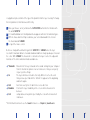
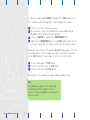
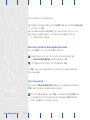
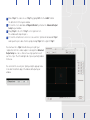
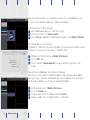
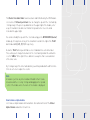
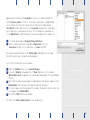
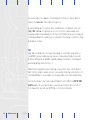
6 In the ‘My Sessions’ part, create a new session using the ‘+’ button then check the
checkbox next to the name.
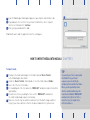
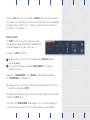
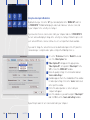
7 Now you can click on your device name in the ‘Directory’ window and click on the
‘Connect’ button located below the ‘Directory’ window.
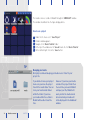
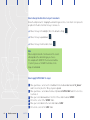
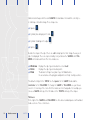
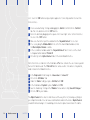
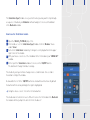
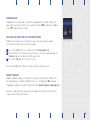
8 In the settings of TouchOSC on your device, select ‘CoreMIDI’. You should see your
session in the ‘Inputs’ and ‘Outputs’ and both should have their switches ‘on’.
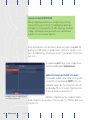
In Modul8, enable ‘MIDI mapping’ and select the control element you want to control and
move the control on your device just as you would with a regular MIDI device.
TouchOSC allows you to use MIDI and OSC simultaneously.
Case study
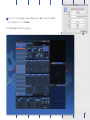
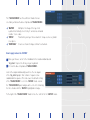
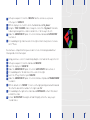
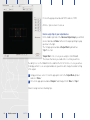
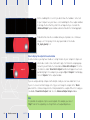
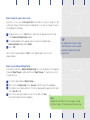
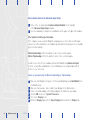
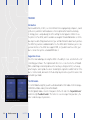
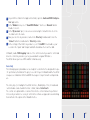
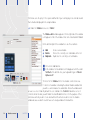
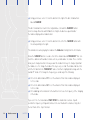
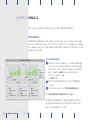
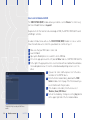
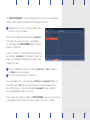
The following layout is provided as a case study for a custom interface designed for a specific performance/installation. The project uses all 10 layers in Modul8 and the TouchOSC
setup uses a combination of OSC and MIDI messages in conjunction with a simple module.
The entire project, including the TouchOSC interface, Modul8 project file, its media and
custom module can be found in the Basics folder, labeled ‘silant.touch’.
The central concept behind the creation of this interface is that it allows the performer
to focus only on what is necessary to control in the software as opposed to overwhelming
them with all of the options of the Modul8 interface.
107