1
CHAPTER 5 CREATING COMPOSITIONS
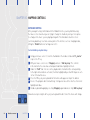
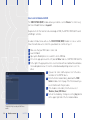
MIXING MULTIPLE COMPOSITIONS USING THE CROSS FADER AND LAYER SETS
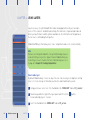
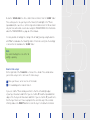
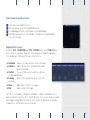
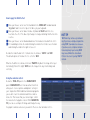
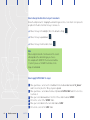
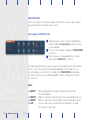
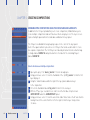
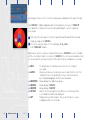
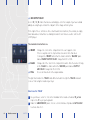
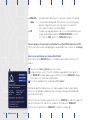
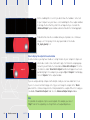
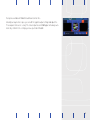
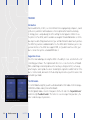
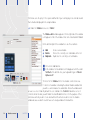
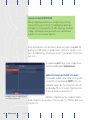
In addition to the 10 layers provided for you to create compositions, Modul8 allows you to
create multiple compositions and switch between them using layer sets. The layer sets are
represented by 8 square buttons located above and below the layer panel.
The 10 layers are divided into two groups by a space in the center of the layer panel.
Each of the square buttons represents a set of 5 layers that can be used in order to create
two separate compositions. The first 5 layers are labeled just below them in a small orange
rectangle labeled ‘GROUP A’ and just below this is the label for the remaining 5 layers
labeled ‘GROUP B.’
How to mix between multiple compositions
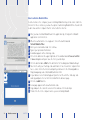
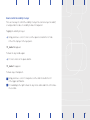
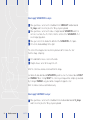
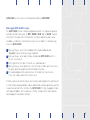
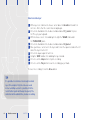
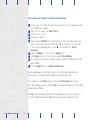
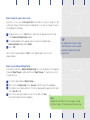
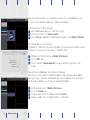
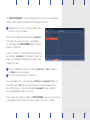
1 Open up the project file ‘basics_tutorial’ if it is not already open.
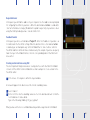
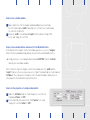
2 Using your mouse cursor click on the thumbnail of the clip ‘01_counter’ so that the first
layer displays it.
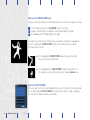
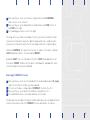
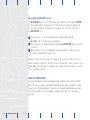
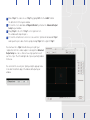
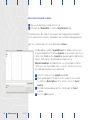
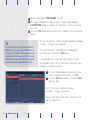
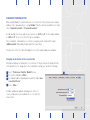
3 Using the ‘+‘ button above and to the right of the layer panel add a new layer
to the composition.
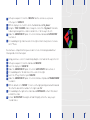
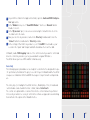
4 Click on the thumbnail labeled ‘04_colors’ to link it to the new layer.
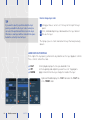
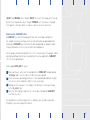
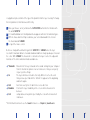
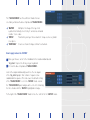
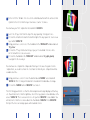
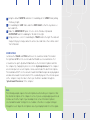
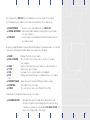
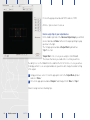
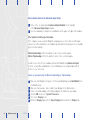
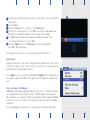
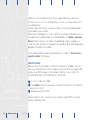
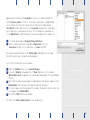
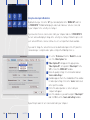
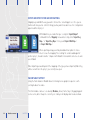
5 With the 2nd layer you created still selected click on the thin blue strip to activate
‘AUTO ROTATE’ under the ‘ANIMATION FX’ panel.
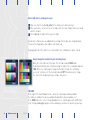
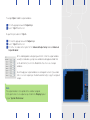
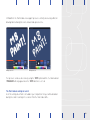
6 Using your mouse cursor click on the auto rotate slider that activates the ‘z’ axis rotation
moving it two or three units from the left to the right so that the layer slowly rotates
clockwise.
62 Modul8 user manual CHAPTER 5