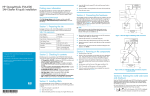
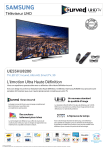
1
HP StorageWorks Command View EVA user guide Part number: T3724–96061 Fourth edition: July 2006 Legal and notice information © Copyright 2004, 2006 Hewlett-Packard Development Company, L.P. Confidential computer software. Valid license from HP required for possession, use or copying. Consistent with FAR 12.211 and 12.212, Commercial Computer Software, Computer Software Documentation, and Technical Data for Commercial Items are licensed to the U.S. Government under vendor's standard commercial license. The information contained herein is subject to change without notice. The only warranties for HP products and services are set forth in the express warranty statements accompanying such products and services. Nothing herein should be construed as constituting an additional warranty. HP shall not be liable for technical or editorial errors or omissions contained herein. Microsoft and Windows are U.S. registered trademarks of Microsoft Corporation. Contents About this guide . . . . . . . . . . . . . . . . . . . . . . . . . . Intended audience . . . . . . . . Prerequisites . . . . . . . . . . Related documentation . . . . . . Document conventions and symbols HP technical support . . . . . . . Subscription service . . . . . . . HP web sites . . . . . . . . . . Documentation feedback . . . . . Product feedback . . . . . . . . . . . . . . . . . . . . . . . . . . . . . . . . . . . . . . . . . . . . . . . . . . . . . . . . . . . . . . . . . . . . . . . . . . . . . . . . . . . . . . . . . . . . . . . . . . . . . . . . . . . . . . . . . . . . . . . . . . . . . . . . . . . . . . . . . . . . . . . . . . . . . . . . . . . . . . . . . . . . . . . . . . . . . . . . . . . . . . . . . . . . . . . . . . . . . . . . . . . . . . . . . . . . . . . . . . . . . . . . . . . . . . . . . . . . . . . . . . . . . . . . . . . . . . . . . . . . 1 Getting started . . . . . . . . . . . . . . . . . . . . . . . . . Overview . . . . . . . . . . . . . Groups . . . . . . . . . . . . User interface layout . . . . . . Completing the array configuration . . Starting HP Command View EVA . Verifying the communication path Creating an array password . . . Initializing the array . . . . . . Entering replication license keys . . . . . . . . . . . . . . . . . . . . . . . . . . . . . . . . . . . . . . . . . . . . . . . . . . . . . . . . . . . . . . . . . . . . . . . . . . . . . . . . . . . . . . . . . . . . . . . . . . . . . . . . . . . . . . . . . . . . . . . . . . . . . . . . . . . . . . . . . . . . . . . . . . . . . . . . . . . . . . . . . . . . . . . . . . . . . . . . . . . . . . . . . . . . . . . . . . . . . . . . . . . . . . . . . . . . . . . . . . . . . . . . . . . . . . . . . . . . . . . . . . . . 2 Configuring HP Command View EVA . . . . . . . . . . . . . . . . Changing the port and timeout parameters Setting user interface options . . . . . . Creating page footer messages . . . . . Setting audit logging options . . . . . . Setting a remote location for audit logs . . . . . . . . . . . . . . . . . . . . . . . . . . . . . . . . . . . . . . . . . . . . . . . . . . . . . . . . . . . . . . . . . . . . . . . . . . . . . . . . . . . . . . . . . . . . . . . . . . . . . . . . . . . . . . . . . . . . . . . . . . . . . 3 Managing your storage environment . . . . . . . . . . . . . . . . Verifying hardware status and health . . . . . . Configuring iSCSI devices . . . . . . . . . . . Creating disk groups . . . . . . . . . . . . . Adding hosts . . . . . . . . . . . . . . . . Creating virtual disks . . . . . . . . . . . . . Presenting virtual disks to hosts . . . . . . . . Creating DR groups (optional) . . . . . . . . . Maintaining arrays . . . . . . . . . . . . . . Updating the controller software . . . . . . Shutting down the array . . . . . . . . . Starting the array . . . . . . . . . . . . Using multiple management servers to manage Uninitializing an array . . . . . . . . . . . . . . . . . . . . . . . . . . . . . . . . . . . . . . . . . . . arrays . . . . . . . . . . . . . . . . . . . . . . . . . . . . . . . . . . . . . . . . . . . . . . . . . . . . . . . . . . . . . . . . . . . . . . . . . . . . . . . . . . . . . . . . . . . . . . . . . . . . . . . . . . . . . . . . . . . . . . . . . . . . . . . . . . . . . . . . . . . . . . . . . . . . . . . . . . . . . . . . . . . . . . . . . . . . . . . . . . . . . . . . . . . . . . . . . . . . . . . . . . . . . . . . . . . . . . . . . . . . . . . . . . . . . . . . . . . . . . . . . . . . . . . . . . 4 Managing events . . . . . . . . . . . . . . . . . . . . . . . . . . . . . . . . . . . . . . . . . . . . . . . . . . . Events overview . . . . . . . . . . . . . . . . . . . . . . . . . . . . . . . . . . . . . . Management agent event log . . . . . . . . . . . . . . . . . . . . . . . . . . . . . . Controller event log . . . . . . . . . . . . . . . . . . . . . . . . . . . . . . . . . . HP StorageWorks Command View EVA user guide 9 . . 9 . . 9 . . 9 . 10 . 11 . 11 . 11 . 11 . 11 13 13 14 14 15 15 16 16 17 17 19 19 20 20 21 22 23 23 23 24 24 24 24 24 25 25 25 26 27 28 29 29 29 29 3 Controller termination event log . . . . . . Viewing events . . . . . . . . . . . . . . . Viewing additional information . . . . . . More details . . . . . . . . . . . . Corrective action code . . . . . . . . Configuring event notification . . . . . . . . . Filtering events by severity . . . . . . . . . Selecting individual events . . . . . . . . Applying a customized event configuration file Configuring host notification . . . . . . . . . . Entering hosts individually . . . . . . . . . Applying a customized host notification list . Obtaining the parse file . . . . . . . . . . . Downloading the MIB . . . . . . . . . . . . Sending the event file . . . . . . . . . . . . . . . . . . . . . . . . . . . . . . . . . . . . . . . . . . . . . . . . . . . . . . . . . . . . . . . . . . . . . . . . . . . . . . . . . . . . . . . . . . . . . . . . . . . . . . . . . . . . . . . . . . . . . . . . . . . . . . . . . . . . . . . . . . . . . . . . . . . . . . . . . . . . . . . . . . . . . . . . . . . . . . . . . . . . . . . . . . . . . . . . . . . . . . . . . . . . . . . . . . . . . . . . . . . . . . . . . . . . . . . . . . . . . . . . . . . . . . . . . . . . . . . . . . . . . . . . . . . . . . . . . . . . . . . . . . . . . . . . . . . . . . . . . . . . . . . . . . . . . . . . . . . . . . . . . . . . . . . . . . . . . . . . . . . . . . 5 Troubleshooting HP Command View EVA . . . . . . . . . . . . . . Optimizing performance . . . . . . . . . . . . . . . Restarting the HP Command View EVA service . . . . . . Using the right-click menu . . . . . . . . . . . . . . . Failed communication path between management agent and Error messages in the user interface . . . . . . . . . . Failed communication link to iSCSI devices . . . . . . . Failed connection warning for empty controller host ports . Failed entities reported on the disk enclosure . . . . . . . Failed transceiver (or GBIC) . . . . . . . . . . . . Failed I/O module . . . . . . . . . . . . . . . . Failed blower power supply . . . . . . . . . . . . Unable to change default values during DR group creation . Source-source DR groups . . . . . . . . . . . . . . . 6 Monitoring array performance . . . . . . . . . . . . . . . . . . . . . . . . . . . . . . . . . . . . . . . . . . . . . . . . . . . . . . . . . . . . . . . . . . . . . . . . . . . . . . . . . . . . . . . . . . . . . . . . . . . . . . . . . . . . . . . . . . . . . . . . . . . . . . . . . . . . . . . . . . . . . . . . . . . . . . . . . . . . . . . . . . . . . . . . . . . . . . . . . . . . . . . . . . . . . . . . . . . . . . . . . . . . . . . . . . . . . Components . . . . . . . . . . . . . . . . . Configuring HP Command View EVAPerf . . . . . Enabling access to password-protected arrays . . . Creating friendly names . . . . . . . . . . . . Creating the friendly names host file . . . . . Adding friendly names . . . . . . . . . . . Adding friendly names manually . . . . . . . Using short names . . . . . . . . . . . . . Using the command line interface . . . . . . . . Viewing arrays . . . . . . . . . . . . . . Specifying the output . . . . . . . . . . . . Refreshing data . . . . . . . . . . . . Limiting data quantity . . . . . . . . . Filtering data . . . . . . . . . . . . . Specifying data output in multiple files . . Using the HP Command View EVAPerf TLViz Commands . . . . . . . . . . . . . . . . Command modifiers . . . . . . . . . . . . Using the graphical user interface . . . . . . . . Data filtering . . . . . . . . . . . . . . . Configure filtering . . . . . . . . . . . Objects and counters . . . . . . . . . . . . HP EVA DR tunnels . . . . . . . . . . . HP EVA host connection . . . . . . . . HP EVA host port statistics . . . . . . . . HP EVA physical disk group . . . . . . . HP EVA storage array . . . . . . . . . 4 . . . . . . . . . array . . . . . . . . . . . . . . . . . . . . . . . . . . . . . . . . . . . . . . . . . . . . . . . . . . . . . . . . . . . . . . . . . . . . . . . . . . . . . . . . . . . . . . . formatter . . . . . . . . . . . . . . . . . . . . . . . . . . . . . . . . . . . . . . . . . . . . . . . . . . . . . . . . . . . . . . . . . . . . . . . . . . . . . . . . . . . . . . . . . . . . . . . . . . . . . . . . . . . . . . . . . . . . . . . . . . . . . . . . . . . . . . . . . . . . . . . . . . . . . . . . . . . . . . . . . . . . . . . . . . . . . . . . . . . . . . . . . . . . . . . . . . . . . . . . . . . . . . . . . . . . . . . . . . . . . . . . . . . . . . . . . . . . . . . . . . . . . . . . . . . . . . . . . . . . . . . . . . . . . . . . . . . . . . . . . . . . . . . . . . . . . . . . . . . . . . . . . . . . . . . . . . . . . . . . . . . . . . . . . . . . . . . . . . . . . . . . . . . . . . . . . . . . . . . . . . . . . . . . . . . . . . . . . . . . . . . . . . . . . . . . . . . . . . . . . . . . . . . . . . . . . . . . . . . . . . . . . . . . . . . . . . . . . . . . . . . . . . . . . . . . . . . . . . . . . . . . . . . . . . . . . . . . . . . . . . . . . . . . . . . . . . . . . . . . . . . . . . . . . . . . . . . . . . . . . . . . . . . . . . . . . . . . . . . . . . . . . . . . . . . . . . . . . . 29 30 31 31 31 31 31 32 32 32 32 33 33 34 34 35 35 35 35 36 37 37 37 37 37 38 38 38 38 39 39 39 40 40 41 41 41 42 43 43 43 43 43 44 44 44 45 47 48 49 50 50 51 51 52 52 53 HP EVA storage controller . . . . . . . . . . . . . . . . . . . . . . . . . . . . . . HP EVA virtual disk . . . . . . . . . . . . . . . . . . . . . . . . . . . . . . . . A Event code formats and descriptions . . . . . . . . . . . . . . . . Event code format . . . . . . . . . Event code types and descriptions . . Software component IDs . . . . Corrective action codes . . . . . Event information packet (EIP) types Coupled crash control codes . . Dump/restart control codes . . . . . . . . . . . . . . . . . . . . . . . . . . . . . . . . . . . . . . . . . . . . . . . . . . . . . . . . . . . . . . . . . . . . . . . . . . . . . . . . . . . . . . . . . . . . . . . . . . . . . . . . . . . . . . . . . . . . . . . . . . . . . . . . . . . . . . . . . . . . . . . . . . . . . . . . . . . . . . . . . . . . . . . . . . . . . . . . . . . . . . . . . . . . . . . . . . . . . . . 53 53 55 55 56 56 56 56 58 58 Glossary . . . . . . . . . . . . . . . . . . . . . . . . . . . . . 59 Index . . . . . . . . . . . . . . . . . . . . . . . . . . . . . . 61 HP StorageWorks Command View EVA user guide 5 Figures 1 2 3 4 5 6 7 6 HP Command View EVA environment . . . . . . HP Command View EVA user interface . . . . . . Storage System Managed by Another Agent window Assuming management of the array dialog box . . Controller events window . . . . . . . . . . . Performance window . . . . . . . . . . . . . Add Counters dialog box . . . . . . . . . . . . . . . . . . . . . . . . . . . . . . . . . . . . . . . . . . . . . . . . . . . . . . . . . . . . . . . . . . . . . . . . . . . . . . . . . . . . . . . . . . . . . . . . . . . . . . . . . . . . . . . . . . . . . . . . . . . . . . . . . . . . . . . . . . . . . . . . 14 15 27 27 30 48 49 Tables 1 2 3 4 5 6 Document conventions . . . . . . . . HP Command View EVAPerf commands Command modifiers . . . . . . . . . Controller event code bits . . . . . . Controller termination event code bits . Event code bit interpretation . . . . . . . . . . . . . . . . . . . . . . . . . . . . . . . . . . . . . . . . . . . . . . . . . . . . . . . . . . . . . . . . . . . . . . . . . . . . . . . . . . . . . . . . . . . . . . . . . . . . . . . . . . . . . . . . . . . . . . . . . . . . . . . . . . . . . . . . . . . . . . . HP StorageWorks Command View EVA user guide . . . . . . 10 45 47 55 55 55 7 8 About this guide This guide describes how to configure and use the HP Command View EVA user interface to manage and monitor HP StorageWorks Enterprise Virtual Arrays (EVAs). Topics include: • • • • • Completing the array configuration Configuring the user interface Managing your storage environment Configuring and managing events Troubleshooting This guide also describes how to use HP StorageWorks Command View EVAPerf to monitor array performance. Intended audience This guide is intended for HP Command View EVA and HP Command View EVAPerf users and administrators with knowledge of: • Operating systems, including Windows • Storage area networks • HP StorageWorks Enterprise Virtual Array Prerequisites You must have installed HP Command View EVA on at least one of the following management servers: • • • • HP OpenView Storage Management Appliance (SMA) General-purpose server Dedicated management server HP ProLiant Storage Server Related documentation The following documents are referenced in this guide: HP StorageWorks Command View EVA installation guide HP StorageWorks EVA software compatibility reference HP StorageWorks Command View EVA release notes HP StorageWorks Command View EVA online help (accessible from the HP Command View EVA user interface) • HP StorageWorks Continuous Access EVA administrator guide • HP StorageWorks Enterprise Virtual Array user guide • HP StorageWorks Enterprise Virtual Array iSCSI connectivity quick start instructions • • • • You can find these documents from the Manuals page of the HP Business Support Center web site: http://www.hp.com/support/manuals In the Storage section, click Storage software and then select your product. HP StorageWorks Command View EVA user guide 9 Document conventions and symbols Table 1 Document conventions Convention Element Blue text: Table 1 Cross-reference links and e-mail addresses Blue, underlined text: http://www.hp.com Web site addresses Bold text • Keys that are pressed • Text typed into a GUI element, such as a box • GUI elements that are clicked or selected, such as menu and list items, buttons, tabs, and check boxes Italic text Text emphasis Monospace text • • • • Monospace, italic text • Code variables • Command variables Monospace, bold text Emphasized monospace text File and directory names System output Code Commands, their arguments, and argument values CAUTION: Indicates that failure to follow directions could result in damage to equipment or data. IMPORTANT: Provides clarifying information or specific instructions. NOTE: Provides additional information. TIP: Provides helpful hints and shortcuts. 10 About this guide HP technical support Telephone numbers for worldwide technical support are listed on the HP support web site: http://www.hp.com/support/. Collect the following information before calling: • • • • • • Technical support registration number (if applicable) Product serial numbers Product model names and numbers Error messages Operating system type and revision level Detailed questions For continuous quality improvement, calls may be recorded or monitored. Subscription service HP recommends that you register your product at the Subscriber's Choice for Business web site: http://www.hp.com/go/e-updates. After registering, you will receive e-mail notification of product enhancements, new driver versions, firmware updates, and other product resources. HP web sites For additional information, see the following HP web sites: • • • • http://www.hp.com http://www.hp.com/go/storage http://www.hp.com/service_locator http://www.docs.hp.com Documentation feedback HP welcomes your feedback. To make comments and suggestions about product documentation, please send a message to [email protected]. All submissions become the property of HP. Product feedback To make comments and suggestions about HP StorageWorks Command View EVA, please send a message to [email protected]. HP StorageWorks Command View EVA user guide 11 12 About this guide 1 Getting started This chapter provides an overview of HP Command View EVA and of the user interface layout. It also describes how to complete the array configuration after you install the software. Overview Use the HP Command View EVA software suite to configure, manage, and monitor the Enterprise Virtual Array (EVA). The software suite includes: • HP Command View EVA—Use the graphical user interface for simple or initial configuration tasks. • HP StorageWorks Storage System Scripting Utility—Use the command line interface to script and run repetitious and complex configuration tasks. See HP StorageWorks Storage Scripting Utility reference for more information. • HP StorageWorks Command View EVAPerf—Use this tool to monitor array performance. HP Command View EVA enables you to: • Initialize the array. • Create, modify, and monitor disk groups, virtual disks, logical unit numbers (LUNs), snapshots, snapclones, mirrorclones, and DR groups. • Restore a virtual disk from a snapshot or mirrorclone. • Configure and monitor physical subsystem components such as controllers, physical disks, power supplies, blowers, and network connections. • Configure and view controller logs and events. Figure 1 shows an HP Command View EVA environment. HP Command View EVA is installed on a management server that is connected to the local area network. The browsing computer, which is used to browse to the management server on which HP Command View EVA is installed, is also connected to the local area network. The management server, storage arrays, and hosts are connected to the storage area network. HP Command View EVA does not require the hosts to be connected to the local area network. However, it may be a requirement of layered applications installed on the management server, so Figure 1 shows the connection between the hosts and the local area network. HP StorageWorks Command View EVA user guide 13 1 5 4 3 2 6 1. Local area network 2. Storage area network 3. Management server 4. Browsing computer 5. Hosts 6. Storage arrays Figure 1 HP Command View EVA environment Groups The ability to use HP Command View EVA features depends on the group to which your user account belongs. The following default groups are created during HP Command View EVA installation: • HP Storage Admins group—Members have view and manage capabilities. • HP Storage Users group—Members have view capability only. You can set a local or domain group to have the permissions of either of these groups. You can only set permissions for additional groups if you use the custom installation option. User interface layout The HP Command View EVA user interface contains the following panes: • Session—Displays information about the management server to which you are connected, provides access to the Management Agent options and the online help, and enables you to log off the user interface • Navigation—Contains an expandable tree of array objects and folders that represent the logical structure of the array • Content—Displays information about the object you select in the Navigation pane and presents actions you can perform 14 Getting started 1. Session pane 2. Navigation pane 3. Content pane Figure 2 HP Command View EVA user interface Completing the array configuration After installing HP Command View EVA, perform the following tasks to complete the array configuration: 1. 2. 3. 4. 5. Start HP Command View EVA. Verify the communication path between the management agent and the array. Create an array password, if applicable. Initialize the array. Enter replication license keys (optional). These tasks are described in the following sections. Starting HP Command View EVA To start HP Command View EVA, you can browse to the management server (general-purpose server, dedicated management server, Storage Management Appliance, or ProLiant Storage Server) from a client machine. To start HP Command View EVA on the management server: 1. Open the browser. 2. Using the server name or IP address as the host_name, enter the following: https://host_name:2372/command_view_eva The HP Command View EVA login window opens. NOTE: To change the port you use to access HP Command View EVA, see "Changing port and timeout parameters" on page 19. 3. Enter a valid user name and password and click Logon. Valid user names are members of the appropriate local or domain group on the management server. See "Groups" on page 14. The HP StorageWorks Command View EVA user interface opens. HP StorageWorks Command View EVA user guide 15 Verifying the communication path Each installation of HP Command View EVA software on a management server is called a management agent. The management agent is the interface to the array and must have access to the array through the SAN. To verify the communication path between the array and the management agent, select an array in the Navigation pane. If the array icon is green, communication is good and you may continue with the array configuration. If the array icon is gray with a yellow triangle over it, there is a communication failure. To resolve the communication failure, see "Troubleshooting HP Command View EVA" on page 35. Creating an array password A password is a security feature that allows you to access specified arrays through an HP Command View EVA session. A management agent can control multiple arrays, and multiple management agents can control a single array, but only one agent can actively control an array at a time. The password you enter in HP Command View EVA must match the array password entered on the operator control panel (OCP) of the controller. For information about the OCP, see the Enterprise Virtual Array user guide for your array model. If you have already set the array password on the OCP, you must enable it in HP Command View EVA to see that array. If the array password has not been set on the OCP, you can use the Enable function to create the password. However, the password is not enabled until you enter it on the OCP. The array password must meet the following requirements: • • • • • Can be 8-16 characters Can include upper and lower case letters Can include numbers 0-9 Can include the following characters: ! " # $ % & ’ ( ) * + , - . / : ; < = > ? @ [ ] ^ _ ‘ { | } Cannot include spaces or the following characters: ~ \ NOTE: You must be running HP Command View EVA 6.0 or later to use passwords with more than eight characters. If you enter a password that is longer than eight characters, you can no longer manage that array if you are running an earlier version of HP Command View EVA. In this situation, you must delete this password and enter a new password that does not exceed eight characters. To enable a password: 1. Click Agent Options in the Session pane. The Management Agent Options window opens. 2. Select Storage system password access. The Storage System Password Access window opens. 3. Click Enable. The Enable Password Access to a Storage System window opens. 4. Select the array to enable in the Storage System World Wide Node Name List box. Only world wide node names that do not have an enabled password are displayed. 5. Enter the array password in the Password box. Enter the password again in the Confirm Password box. NOTE: This password must match the one set on the OCP. 6. Click Enable Password. 16 Getting started The Enable password access dialog box opens. 7. Click OK. A status window opens, indicating success or failure. 8. Click OK to return to the Storage System Password Access window. Initializing the array When you install an array, it appears as an uninitialized storage system. Initializing an array makes it ready for use, binds the controllers as an operational pair, and establishes preliminary data structures on the array. Initializing also sets up the first disk group, which is called the default disk group. If you are upgrading an existing version of HP Command View EVA, the arrays remain initialized and any other existing components are retained. If WEBES is installed on the management server, see the WEBES documentation for instructions on adding entitlement details for the new array. For more information, go to the Service Tools web site: http://h18000.www1.hp.com/support/svctools. NOTE: When you initialize (or reinitialize) an array, you must restart the HP Command View EVA service on any standby management servers. See "Restarting the HP Command View EVA service" on page 35 and "Using multiple management servers to manage arrays" on page 27 for more information. When initializing an array, you must: • Enter a name for the array. • Enter the number of disks to be included in the default disk group. You can also perform the following additional/optional tasks: • • • • • Set the drive type. Set the array date and time. Enter a console LUN ID. Select a disk failure protection level. Enter comments. See the online help for instructions to complete these tasks. Entering replication license keys A license key is not required to activate the EVA controller software, but license keys are required to use replication features. An HP Business Copy EVA license key activates snapshot, snapclone, and mirrorclone features. An HP Continuous Access EVA license key activates the data replication feature. Each license is sold with the individual product. You can enter a license key before or after initializing the array. To avoid text entry errors, HP recommends that you copy and paste license keys from the e-mail message or online source. Be careful not to copy any non-ASCII characters, which can prevent license key validation. For license keys received by e-mail, first set the default message format to ASCII. The method for changing the message format varies by e-mail application. HP StorageWorks Command View EVA user guide 17 TIP: To change the Microsoft Outlook message format to ASCII: 1. Select Tools > Options. 2. Click the Mail Format tab. 3. Under Message format, select Plain Text. 4. Click OK. For license keys obtained from an online source, copy each license key into a file using a text editor such as Microsoft Notepad or Wordpad. To enter a license key: 1. Click Agent Options in the Session pane. The Management Agent Options window opens. 2. Click Licensing options. The Licensing Options window opens. 3. Click Enter new license key. The Add a license window opens. 4. Copy only the license key text from the e-mail or online source. For example, copy the following text for an HP Business Copy EVA license key: FEATURE HSV110-SNAPSHOT Compaq 3.0 permanent uncounted 22222222222F \HOSTID=HSVWWN=5000-2FF2-5555-CC44 NOTICE="Authorization = \BB080CREAMER12345678, Qty 1, QM-00NOT-ZZ2.1, Business Copy 2TB \for VCS V2.0x and V3.0x LTU EVA5000" CAUTION: Do not copy any other text from the e-mail or online source; otherwise, HP Command View EVA will reject the license key. 5. Paste the license key in the text box. 6. Click Add license to save the information. 7. In the Navigation pane, select the icon for the array. The license key is propagated to the array and is available to other management agents. NOTE: If you are using multiple management servers to manage arrays and you must upgrade a replication license key, HP recommends that you wait for all running management commands and/or replication manager jobs and commands to complete before starting the upgrade. If the management server you use to upgrade the license key is not currently managing arrays, it will automatically become the server managing arrays when you perform the upgrade. This will cause any command or jobs initiated from another management server to fail. To resume these jobs and commands, return management control to the other management server. See "Using multiple management servers to manage arrays" on page 27. 18 Getting started 2 Configuring HP Command View EVA This chapter describes configuration options for the HP Command View EVA user interface. For information about other configuration options available from the Management Agent options window, see the HP Command View EVA online help. Changing the port and timeout parameters You can change the port that you use to log into the HP Command View EVA user interface. (The default port is 2372). You can also change the timeout parameter, which determines how much inactivity can occur before the browser session times out and requires you to log in again. To change these parameters, you must edit the cveva.cfg file, which is located in the C:\Program Files\Hewlett-Packard\SANworks\Element Manager for StorageWorks HSV\Bridge directory. (If you installed HP Command View EVA on an SMA, the directory is C:\Program Files\Compaq\SANworks\Element Manager for StorageWorks HSV\Bridge.) You can edit this file using a text file editor. Go to the following section: Section Webserver { # The port for SSL connections # Default: 2372 port 2372 # The time limit on HTTP sessions in seconds # Default: 3600 (1 hour) # Set the value to zero to disable the timeout feature timeout 3600 } Change the port and/or timeout parameter to the appropriate value and save the cveva.cfg file. You must restart the HP Command View EVA service for the changes to become effective. For instructions, see "Restarting the HP Command View EVA service" on page 35. NOTE: If you enter a port that is already in use, you will not be prompted that the port is busy when you restart the HP Command View EVA service. The status of the service shows it has started. You will only know when you attempt to open the user interface and the Page cannot be displayed error message appears that the port is busy. Also, an event is logged in the Windows application event log. You must open this file again, enter a different port, and then restart the service. HP StorageWorks Command View EVA user guide 19 Setting user interface options To set user interface options: 1. Click Agent Options in the Session pane. The Management Agent Options window opens. 2. Click User interface options. The User Interface Options window opens. 3. Under General Options, edit or select the desired settings: • Tree objects displayed—Set the maximum number of objects that can be displayed in the Navigation pane. The default number is 100. • If you have a small number of objects, set Tree objects displayed to a number higher than the number of objects in the SAN. This ensures that the management agent sends the complete tree structure to your browser when you select the tree. • If you have more than 100 objects, set Tree objects displayed to a number lower than the number of objects in the SAN, such as 20 or 50. This optimizes performance and ensures that the management agent sends a limited number of objects to the browser when you select the tree. A special page with navigation buttons opens in the browser, enabling you to request other tree objects. • Default operating system for new hosts—Select an operating system from the list. This operating system is set as the default when you add a host. 4. Under Display Refresh Options, edit or select the desired settings for the Navigation pane or Content pane: • Enable refresh—Select this check box to start the refresh interval for the selected pane. If you do not select this check box, the pane is not refreshed automatically. You must manually refresh all panes using the browser refresh tool. • Refresh interval—Enter the amount of time between a refresh of the selected pane (valid values are 45 to 600 seconds). For example, if you enter 60, the selected pane is refreshed every 60 seconds. 5. Click Save changes. Creating page footer messages Use the Set Page Footer Message options to enter or edit a text message to display at the bottom of each Content pane for browser sessions on the management server. The message can be a security message or can contain other applicable information. The maximum length is 64 characters and the text appears in red. To set a page footer message: 1. Click Agent Options in the Session pane. The Management Agent Options window opens. 2. Click Page footer message options. The Set Page Footer Message window opens. 3. Enter text or edit the existing message in the text box. 4. Click Save changes. The new message appears in red at the bottom of the Content pane. 20 Configuring HP Command View EVA Setting audit logging options Use the Audit Logging Options feature to capture activities that occur in the HP Command View EVA user interface. These activities will generate events that are captured in a log file. Activities that generate events are: • User login and logoff • User accessibility (for example, the Access Denied event is generated for users with view only access) • Actions that change the state of the EVA (for example, creating a virtual disk) • Actions that change the configuration of HP Command View EVA (for example, changing the page footer message) You can have these events sent to one or both of the following logs and you can also specify a directory on a remote server to store the log: • Audit log • Operating system application log To set audit logging: 1. Click Agent Options in the Session pane. The Management Agent Options window opens. 2. Click Audit logging options. The Audit logging options window opens. 3. Select the log in which to store these events, the directory where the log will be located, the size of the log, and the length of time to retain the log. See the HP Command View EVA online help for detailed instructions. 4. Click Save changes. HP StorageWorks Command View EVA user guide 21 Setting a remote location for audit logs When you set the audit logging options, you can choose a file location on a local or remote server. To use a location on a remote server, the remote server must be accessible to the management server on which HP Command View EVA is installed. If necessary, contact your network administrator to establish the necessary permissions for the CV EVA server to access the remote server. Once permissions are set, complete the following steps: 1. Open the Services window on the management server (where HP Command View EVA is installed). 2. Right-click the HP Command View EVA service and select Stop. 3. Right-click the service again and select Properties. The Properties window for the HP Command View EVA service opens. 4. Select the LogOn tab. 5. In the Log on as box, select This account and enter a valid user name and password for the remote server. 6. Click OK and close the Properties window. 7. Right-click the service and select Start. NOTE: If you change the log location to the local server, you must enter the log location in the Log location box in the Log to a file section of the Audit Logging Options window in the user interface and then click Save Changes. If you select Disabled in the Log to a file section, this disables the audit log completely. It does not just disable logging to a remote server. If, for some reason, the logs cannot be placed in the requested location, an error message is displayed. 22 Configuring HP Command View EVA 3 Managing your storage environment This chapter describes how to use HP Command View EVA to manage your storage environment. See the HP Command View EVA online help for detailed procedures. When you install HP Command View EVA, an initial folder structure for an array is created in the Navigation pane. The initial folders are Virtual Disks, Hosts, Disk Groups, Data Replication, and Hardware. You can create subfolders to further organize and manage your hosts and virtual disks. Verifying hardware status and health The hardware is organized in folders for the rack, controller enclosures, and drive enclosures. You can navigate through each folder and view information about each component of the hardware. For example, for the controller enclosure, you can view general information such as the manufacturer and model number, world wide node name, operating state, and available memory. You can also view details about the controller ports. See HP StorageWorks Enterprise Virtual Array user guide for information about the displays and status indicators on the array. Configuring iSCSI devices You can use HP Command View EVA to manage EVAs that include iSCSI devices (called the iSCSI connectivity option). If your configuration includes iSCSI controllers, configure them as follows: 1. Install the iSCSI devices. See HP StorageWorks EVA iSCSI connectivity quick start instructions for installation instructions. 2. HP Command View EVA automatically discovers iSCSI controllers as part of the array discovery process. If, for some reason, the iSCSI controllers are not discovered, go to the Navigation pane, select the iSCSI controller icon in the Hardware folder, and: • Force a discovery cycle by clicking Discover iSCSI Devices. • If the discovery cycle does not detect the devices, click Add iSCSI Devices to add them manually. NOTE: If HP Command View EVA does not detect the devices or an error message is displayed when you manually enter the IP address of a device, ensure that the Fibre Channel ports of the iSCSI controller(s) are zoned with the host ports of the EVA(s). The discovery cycle automatically adds an iSCSI host to the Hosts folder. You can now present virtual disks to the iSCSI host as you would present any virtual disk to a host. See "Presenting virtual disks to hosts" on page 24 for more information. NOTE: You cannot delete the iSCSI host manually, but it is deleted automatically if you delete the iSCSI controller. HP StorageWorks Command View EVA user guide 23 Creating disk groups A disk group is a set of physical disks that form storage pools from which you can create virtual disks. When you initialize an array, a default disk group is created. You can create additional disk groups for such functions as remote replication, but performance is generally better with one large disk group than with multiple small disk groups. See HP StorageWorks Enterprise Virtual Array user guide for instructions to create multiple disk groups. Adding hosts Hosts connect to a fabric through Fibre Channel adapters (FCAs) and access storage through the array controllers. Use HP Command View EVA to add a host and make it known to an array. After a host is added, it must be online and connected to the fabric to write I/O to the array. When adding a host, consider the following: • The host does not have to be online to be added. • Enter the name, IP address, FCA world wide name, and the operating system of the host. Enter comments, if desired. • You can define any number of ports for a host. Creating virtual disks A virtual disk (called a Vdisk in the user interface) is a simulated disk drive created in a disk group. You can assign a combination of characteristics to a virtual disk, such as a name, redundancy level, and size. Some operating systems require a logical unit number. You can change the OS unit ID when you create a virtual disk. For OpenVMS and Tru64 UNIX, enter a unique OS unit ID for each virtual disk. Presenting virtual disks to hosts Presenting a virtual disk offers its storage to a host. To make a virtual disk available to a host, you must present it. You can present a virtual disk to a host during or after virtual disk creation. The virtual disk creation must be complete before the host presentation can occur. If you choose host presentation during virtual disk creation, the management agent cannot complete any other task until that virtual disk is created and presented. Therefore, HP recommends that you wait until a virtual disk is created before presenting it to a host. Creating DR groups (optional) If you want to replicate virtual disks remotely, create DR groups in the Data Replication folder. For more information about DR groups, see the HP Command View EVA online help or HP StorageWorks Continuous Access EVA administrator guide. 24 Managing your storage environment Maintaining arrays This section describes how to use HP Command View EVA to maintain the arrays. Updating the controller software For information about updating the controller software, see the following: • HP StorageWorks Enterprise Virtual Array updating product software instructions for instructions about upgrading the controller software and the disk drive firmware simultaneously. • HP StorageWorks Enterprise Virtual Array disk drive firmware upgrade read me first for instructions about upgrading firmware on a single disk drive. Shutting down the array To shut down the array: CAUTION: Ensure that any active commands or functions (HP Storage System Scripting Utility, HP Continuous Access EVA, HP Business Copy EVA, or HP Replication Solutions Manager) have completed before you begin this procedure. Shutting down an array makes application data unavailable to host applications. Shutting down one array controller affects the performance of any presented virtual disks. 1. Select the array in the Navigation pane. The Initialized Storage System Properties window opens. 2. Click System options. The System Options window opens. 3. Click Shut down. The Shutdown Options window opens. 4. Under System Shutdown, click Power down. To delay the shutdown, enter a value in the Shutdown delay box to set a time delay (in minutes). The controllers perform an orderly shutdown and then power off. Then, the disk enclosures power off. Wait for the shutdown to complete. 5. Turn off the power switch on the rear of each controller. 6. Turn off the circuit breakers on each rack power distribution unit (PDU). If you are powering down the controller for an extended period of time (longer than the advertised cache battery life), pull the battery on each controller for one minute. The battery is disabled until the array is powered up. 7. If the management server is an SMA and you are not using it to manage other storage arrays, shut down the SMA. From the SMA user interface, select Settings > Maintenance > Shutdown. HP StorageWorks Command View EVA user guide 25 Starting the array To start the array: 1. Verify that each fabric switch connected to the controllers is powered up and fully booted. The LED power indicator on each switch should be on (green). If you must power up the switch, wait for the power-up boot process to complete before proceeding. This may take several minutes. 2. If the management server you shut down is an SMA, power it up and wait for the power-up boot process to complete. Verify that the SMA is running by logging in to it through the web interface. NOTE: Before applying power to the rack PDU, ensure that the power switch on each controller is off. 3. Power up the circuit breaker on each rack PDU. Verify that all drive enclosures are operating properly. The status indicator and the power indicator should be on (green). 4. Wait three minutes and then verify that all disk drives are ready. The drive ready indicator and the drive online indicator should be on (green). If the storage array does not include back-end Fibre Channel (FC) loop switches, the drive fault indicator on the bay 1 disk drive in all the drive enclosures may be on. 5. Power up the upper controller. It assumes the role of primary controller. 6. Wait 10 seconds and then power up the lower controller. It assumes the role of secondary controller. 7. Verify that the operator control panel on each controller displays the array name and world wide ID. 8. Start HP Command View EVA and verify connection to the array. If the array is not visible, click HSV Storage Network in the Navigation pane and then click Discover in the Content pane to discover the array. NOTE: If the array is still not visible, reboot the management server to re-establish the communication link. 9. Using the HP Command View EVA user interface, check the array status to ensure that it is operating properly. If any status indicator is not normal, check the log files or contact your HP service provider for assistance. 26 Managing your storage environment Using multiple management servers to manage arrays If you have configured two or more management servers to manage arrays, you can change the management server that is currently managing a specific array. To change the management server managing an array: 1. Log in to HP Command View EVA on the management server that you want to manage the array. 2. Click Discover and then click OK. The array icons in the Navigation pane appear in gray to indicate that another server is managing the array. 3. Select an array in the Navigation pane. The Storage System Managed by Another Agent window opens. Figure 3 Storage System Managed by Another Agent window 4. Click OK. A dialog box opens, asking you to confirm the change in management of the array. Figure 4 Assuming management of the array dialog box 5. Click OK. The array icon in the Navigation pane becomes green to indicate that the server you are logged in to has control of this array. The color change may not happen immediately. 6. If you want to change management for another array, repeat steps 3 through 5. If the management server now managing the array is in an HP Continuous Access EVA environment, see HP StorageWorks Continuous Access EVA administrator guide for information about coordinating active and standby management servers on multiple sites. HP StorageWorks Command View EVA user guide 27 Uninitializing an array Uninitializing an array is not a common procedure. Uninitialize an array only if you want to clear all data for that array. See the online help for instructions. CAUTION: If you uninitialize an array, you will lose all virtual disks, associated data, and host presentations that you created for the array. 28 Managing your storage environment 4 Managing events This chapter describes how to manage events using HP Command View EVA. Events overview Events track the progress of actions, both normal and exceptional, that occur on the array. Examples of normal events are creating virtual disks or initializing an array. Examples of exceptional events are an incomplete function or a reduction in array capabilities. Normal events are more common than exceptional events. You can use HP Command View EVA to configure and view these events. Managing events from the HP Command View EVA user interface is especially useful when you are monitoring multiple EVAs. Events are captured in one or more of the following logs: • Management agent • Controller • Controller termination All event logs are stored in the C:\hsvmafiles directory on the management server. Management agent event log A management agent is the installation of HP Command View EVA on a management server. Management agent events are triggered by: • Responses to user actions in the user interface • Actions initiated through the HP Command View EVA API Controller event log A controller event is a normal or exceptional action on any hardware component or logical object within the array. Examples of controller events are: • • • • Disk or disk enclosure changes Configuration changes (such as creating a disk group) Controller reboots Changes detected by the environmental monitoring unit (EMU) within the array An example of a normal event would be the controller reporting that creation of a virtual disk has completed. An example of an exceptional event would be a disk enclosure that has lost communication on a Fibre Channel loop. CAUTION: Uninitializing an array deletes all controller events. For more information about uninitializing an array, see "Uninitializing an array" on page 28. Controller termination event log Controller termination events report that a controller has ceased operation, but do not report on controllers in uninitialized arrays. HP StorageWorks Command View EVA user guide 29 Viewing events To view events: 1. While viewing the properties of the selected storage system, click View events. The View Events menu opens. 2. Select an event log (management agent, controller, controller termination). The selected event log appears. Figure 5 Controller events window NOTE: Hundreds of events may exist for a controller; therefore, events are displayed in groups to facilitate viewing. Select a specific range in the Display Range list or click Previous group or Next group to move between ranges. The following information is provided for each event: • Date/Time Controller—The date and time that the event occurred and the name and world wide ID of the controller on which the event occurred. • Severity—The severity types are informational, critical, warning, and undetermined. • Event Code—A hexadecimal number assigned to the event. If you want to know how the hexadecimal number for the event code is formed, see "Event code format" on page 55 for more information. • Sequence number—The sequence number assigned to the event. Some tasks generate a series of events. The sequence number helps you identify the order in which related events occurred. • Description—The text description of the event. See "Viewing additional information" on page 31 and "Event code types and descriptions" on page 56 for more information. 30 Managing events Viewing additional information You can view additional information for controller and controller termination events by clicking the following links in the event description: • More details • Corrective action code More details Depending on the host operating system, the More details link directs you to open or save the GetSCEventAddData.bri file. This file is generated by the controller and pulls descriptions from various event logs, including the controller port number. See the HSV controller cabling section of the HP StorageWorks Enterprise Virtual Array user guide for port identifiers. Corrective action code The corrective action code (CAC) shows you the recommended action to resolve the event. If the event severity is informational, the CAC is 00 and there is no corrective action to take. Configuring event notification Event logs contain chunks of data for events that have occurred. You can format this data so that when events of a particular type occur, notification is sent to the host(s) you specify. For example, you can use SNMP-compliant products such as Insight Manager, Tivoli, or EMC Patrol to create conditional instructions and send notification of particular events to specified hosts. For instructions to create your own event configuration file, see the documentation for your SNMP-compliant product. You can select which events cause SNMP notification messages to be sent. You can choose events individually or by severity level. Filtering events by severity The severity levels are: • • • • 0—Normal (informational in nature) 1—Undetermined (more information needed to determine severity) 2—Warning (not failed but attention recommended or required) 3—Critical (failure or failure imminent) To select a severity level: 1. From the Initialized Storage System Properties window, click System options. The System Options window opens. 2. Select Configure event notification. The Configure Event Notification window opens. 3. Under Configure events individually, select one or more of the following options: • All events • Critical events • Warning events • Normal events 4. If you are finished configuring event notification, click OK. The System Options window opens. You will now receive only events of the severity you selected. HP StorageWorks Command View EVA user guide 31 Selecting individual events To select which individual events cause an SNMP notification message to be sent: 1. Complete steps 1 through 3 from "Filtering events by severity" on page 31. 2. Under Configure events individually, click Configure. The Set Event Notification Options window opens. The events that appear in this window are determined by your selection of a severity level. 3. From this window, you can: • • • • Select individual events for notification. Click Notify all to automatically select all events listed. Click Notify none to clear the event selections. Click Restore defaults to reset the default events set during HP Command View EVA installation. 4. When you finish making your selections, click Save changes. The Configure Event Notification window opens. 5. Click OK. The System Options window opens. You must configure host notification for your event configuration to take effect. Applying a customized event configuration file To apply your customized event configuration file to HP Command View EVA: 1. From the Initialized Storage System Properties window, click System options. The System Options window opens. 2. Select Configure event notification. The Configure Event Notification window opens. 3. Under Configure events using a configuration file, click Browse. 4. Locate and select the event configuration file you created. 5. On the Configure Event Notification window, click Configure. 6. Click OK. Configuring host notification You can specify the hosts that receive the SNMP traps that the management agent generates for events. Any SNMP-enabled host in the same network as the array can be used. You can enter individual hosts or you can apply a customized host notification list to HP Command View EVA. Entering hosts individually To enter hosts individually: 1. From the Initialized Storage System Properties window, click System options. The System Options window opens. 2. Select Configure host notification. The Configure Host Notification window opens. 32 Managing events 3. Click Modify host list. The Modify Host Notification window opens. 4. In the Host Name box, enter the fully qualified domain name or IP address of the host. 5. In the Notify Port box, enter 162. 6. Click Save changes. The designated host should begin receiving SNMP traps. If the host is not receiving traps, restart the HP Command View EVA service. Applying a customized host notification list To apply a customized host notification list to HP Command View EVA: 1. From the Initialized Storage System Properties window, click System options. The System Options window opens. 2. Select Configure host notification. The Configure Host Notification window opens. 3. Under To replace the host notification list, click Browse. 4. Locate and select the host notification list you created. 5. On the Configure Host Notification window, click Send list file. 6. Click OK. The hosts in the notification list should begin receiving SNMP traps. If the hosts are not receiving traps, restart the HP Command View EVA service. Obtaining the parse file The parse file provides HP Command View EVA with a human-readable description for each event code generated by the array controllers. The parse file contains the hexadecimal event code and event description, an explanation of the event, and the array component to which the event refers. Every release of the controller software contains an updated parse file. If the event description displays Description not found in parse file, you must update the parse file that the controller uses to populate the event description. This issue can occur if you upgrade or install HP Command View EVA on a management server that has not previously run this software. To obtain the updated parse file: 1. Contact HP Support and request an updated parse file. See "HP technical support" on page 11 for contact information. HP Support will e-mail the parse file to you and instruct you where to store it on the management server. 2. From the Initialized Storage System Properties window, click View events. The View Events window opens. 3. Select either Controller Event Log or Controller Termination Event Log as the event type. 4. On the event log window, click Send parse file. The Send Event Parse File window opens. 5. Click Browse and locate the path in which HP Support instructed you to save the parse file (step 2). 6. Click Send parse file. The parse file you received from HP Support is uploaded to the management agent. When the action has completed, the Operation succeeded message appears. HP StorageWorks Command View EVA user guide 33 7. Click OK to close the window. The appropriate event descriptions should now appear in the event log window. Downloading the MIB You can use the HP Command View EVA SNMP MIB with your monitoring tools (such as Insight Manager) to translate the hexadecimal event code into decimal format. You can use the MIB and your monitoring tools to help interpret the SNMP notifications sent by HP Command View EVA. NOTE: The format of the HP Command View EVA SNMP MIB is SEMI. To download the MIB: 1. From the Initialized Storage System Properties window, click System options. The System Options window opens. 2. Select Configure event notification. The Configure Event Notification window opens. 3. Click Get MIB. The File Download dialog box opens. 4. Click Save and put the MIB on the server where Insight Manager (or other monitoring tool) resides. 5. When finished, click OK twice to return to the Initialized Storage System Properties window. The data in the MIB is determined by the controller software-specific parse file. If the MIB is built using the default parse file, it may not contain all of the descriptions for the SNMP event traps. As a result, any application displaying this information will not display the event information correctly. Therefore, you should ensure that the MIB is generated with the proper parse files. To determine if you are using the current parse file: 1. Log on to the management server running HP Command View EVA. 2. Locate the C:\hsvmafiles directory. 3. Verify that the parse file listed matches the controller software version running on the array. 4. Do one of the following: a. If the correct parse file is listed, download the MIB. b. If the correct parse file is not listed, see "Obtaining the parse file" on page 33 for instructions before downloading the MIB. Sending the event file If you contact HP Support for assistance, the support technician may request a copy of the current event file, which is the current output translated from the controller. To send the event file to HP Support: 1. Go to the appropriate event log for the controller. 2. Click Get event file. 3. When prompted, save the file to your local hard drive. (The file-name format for the event file is GetEventfile.xxxxx.) 4. E-mail the file to the support technician. 34 Managing events 5 Troubleshooting HP Command View EVA This chapter provides recommendations for optimizing performance and describes issues you may encounter and how to resolve them. Optimizing performance Consider the following tips to optimize performance: • • • • • Minimize the number of non-administrative users connected to the array. Minimize the number of disk groups. Only open one session of the utility at a time. Do not use the user interface if you are using the utility to run controller failovers. Use HP Command View EVA, not the array operator control panel, to complete all management functions, such as code loads. If you use the array to perform management functions, you must first shut down HP Command View EVA and then restart it after completing the management function. Restarting the HP Command View EVA service To restart the HP Command View EVA service: 1. Open the Services window on the management server. 2. Right-click the HP Command View EVA service and select Stop. 3. Right-click the HP Command View EVA service again and select Start. Using the right-click menu In some browser configurations, the right-click menu is disabled. If the right-click menu is enabled in your browser configuration, do not use the following Internet Explorer right-click menu options (or the Mozilla equivalents) when using the HP Command View EVA interface: • • • • Open Link in New Window Save Target As Set as Desktop Item Add to Favorites Selecting any of these right-click menu options redirects you to the user interface without the proper context and may cause incorrect information to appear. HP StorageWorks Command View EVA user guide 35 Failed communication path between management agent and array Symptom: The array icon in the Navigation pane is gray with a yellow triangle over it, indicating there is no communication between the management agent and the array. Solution: Ensure that: • The fabric switches are configured and zoned correctly. See the switch documentation for more information. • The management server, through the host bus adapters, can detect available storage on the fabric. Use the Emulex configuration utility or the QLogic configuration utility (SANblade) to perform this step. • The array is connected and powered up, and the array software is fully booted. The management agent may not discover an array that is in the process of booting. • The same properly formatted password has been entered in the operator control panel (OCP) of one controller and in the management agent (if password protection is applicable). The management agent uses this password to communicate with the array, and the array validates the management agent with this password. NOTE: Password problems may appear similar to communication path problems. If in doubt, ensure that the passwords match in the array and the management agent. If the array is not responding, the Storage System Not Responding window opens. Click Path test to determine if the management server has a valid path to any of the array controller's host ports. The output of Path test lists all controller host ports, identifying the master port and listing a command status state for each port. NOTE: The Path test output identifies the controller host ports by the controller world wide name, not the host port world wide ID. The command status states are: • Ready—Commands can be accepted. • Busy—A command is currently being processed and no other commands can be accepted. • Waiting—The send-diagnostic part of the command has been processed, but the receive-diagnostic part has not. • Not Available—The controller software version does not support the Command Status state option. Under most conditions, this problem is temporary. HP Command View EVA will recover the connection when the array is able to respond to management commands. If this problem occurs frequently or does not resolve itself after a short period of time, contact HP Support for assistance. HP recommends that you save a screen capture of the Path test output for further analysis by HP Support. 36 Troubleshooting HP Command View EVA Error messages in the user interface Symptom: When performing tasks in the user interface, an error message such as This page cannot be displayed may appear. Solution: Verify that the browser settings are correct. For more information, see the browser settings in the HP Command View EVA installation guide. If the browser settings are correct, refresh the browser: • In Internet Explorer, press Ctrl+F5. • In Mozilla, press Shift and click Reload simultaneously. The error message should no longer appear. Failed communication link to iSCSI devices Symptom: Several boxes on the iSCSI Controller Properties window display unavailable or unknown. This may indicate that the communication link between HP Command View EVA and the iSCSI device is down. Solution: Open a DOS prompt and ping the iSCSI device. If the ping is successful, click Refresh on the iSCSI Controller Properties window to refresh the communication status. If the state does not change, ensure that the Fibre Channel ports of the iSCSI controller(s) are zoned with the host ports of the EVA(s). Failed connection warning for empty controller host ports Symptom: The Connection state box on the Controller Properties window displays Connection failed for an empty host port. Solution: Insert an optical loop-back connector into the empty host port. The Connection state box will display Connected. For more information about optical loop-back connectors, contact your HP-authorized service provider. Failed entities reported on the disk enclosure Symptom: Failed entities on a disk enclosure may cause a red X to appear on the entire shelf in the Navigation pane. Solution: Use the following information to help determine the entity that is causing the failure. Failed transceiver (or GBIC) The symptoms of a failed transceiver (or GBIC) are: • The controller event log contains the following entries: • 0d8d9001 <Transceiver error> • 0df00011 <Status Change on one or more drive enclosures> • 09d50005 <Transitioned to Single Port on Fibre State> • The Disk Enclosure Properties window displays the following information: • On the Power tab, the operational state displays Good. • On the Cooling tab, the status of the sensors displays OK. • On the I/O-Comm tab, the operational state of the I/O modules displays Bad or Not Installed. HP StorageWorks Command View EVA user guide 37 Failed I/O module The symptoms of a failed I/O module are: • The controller event log contains the following entries: • 0ddd9311 <A drive enclosure I/O module error has occurred.> • 061e4c13 <An HSV210 Controller has detected only one port of a Fibre Channel service.> • 0df00011 <Status change of one or more drive enclosures.> • The Disk Enclosure Properties window displays the following information: • On the Power tab, the operational state displays Good. • On the Cooling tab, the status of the sensors displays OK. • On the I/O-Comm tab, the operational state of the I/O modules displays Not Installed or Failed. Failed blower power supply The symptoms of a failed blower power supply are: • The controller event log contains the following entry: 0d330911 <AC Input to drive enclosure power supply has been lost.> • The Disk Enclosure Properties window displays the following information: • On the Power tab, the operational state of a power supply displays Unknown. • On the Cooling tab, the operational state of a blower displays Unknown and the status of the power supply temperature sensor displays Not Available. Unable to change default values during DR group creation Symptom: When creating a DR group, an attempt to change the default value for Failsafe mode or Write mode may fail. Solution: After creating the DR group, verify the settings for Failsafe mode and Write mode. If necessary, change and save the values. Source-source DR groups Symptom: Certain conditions result in a DR group being a source on both sites. For example, a DR group is suspended while the intersite links are down. When the intersite links are available, the DR group is a source on both sites, which can occur if you: • Issue a failover with the suspend option during an unplanned failover. • Enable autosuspend on the DR group before or after the unplanned failover, but before the intersite links are available. • Set the DR group to suspend before or after the unplanned failover, but before the intersite links are available. Solution: Use HP Command View EVA or the Storage System Scripting Utility to resume the DR group. 38 Troubleshooting HP Command View EVA 6 Monitoring array performance Use HP StorageWorks Command View EVAPerf to monitor and display EVA performance metrics from a command line interface or a graphical user interface. You can also view performance metrics in an external application, such as Microsoft Excel, after you export data to either a CSV (comma-separated value) or TSV (tab-separated value) format. You can monitor and display the following metrics: • • • • • • • • Arrays Array controllers Host connections Host port statistics Physical disks Port status Replication Virtual disks Components HP Command View EVAPerf components are installed in the following directory: C:\Program Files\Hewlett-Packard\EVA Performance Monitor The software components are: • evapdcs.exe—EVA Data Collection service, which gathers data from the EVAs that are visible to a host and stores it in memory cache • evaperf.exe—HP Command View EVAPerf command line interface • evapmext.dll—DLL extension for Windows Performance Monitor, the graphical user interface • EVAPerf-TLViz-Formatter.exe–EVAPerf TLViz Formatter user interface, which formats the HP Command View EVAPerf all command output so you can view it with the HP TLViz tool. • EVADATA.MDB–A Microsoft Access database template you can use to view the all command output in a database. The data from the command output resides in individual tables. • MSADODC.OCX–This file is required to operate the EVAPerf TLVIZ Formatter use interface Configuring HP Command View EVAPerf To begin array monitoring, ensure that HP Command View EVAPerf is configured properly: • EVA Data Collection service • The service uses TCP port 860. You may need to open this port on your firewall. • The service is set to manual start when you install HP Command View EVAPerf. • When you run the HP Command View EVAPerf command line interface, the service starts and remains running until you reboot the host. • Set the service to start automatically if you use Windows Performance Monitor for background logging. If you execute logging before starting this service, the startup time for the service may exceed the time that Windows Performance Monitor waits for the first data samples. • You can also start and stop the service using Windows Service Manager. • HP Command View EVAPerf command line interface HP StorageWorks Command View EVA user guide 39 • Ensure that you run the command line interface from the directory on which it was installed. Otherwise, the necessary configuration files will not be found. • Array • Ensure that the array for which you want to gather performance metrics is initialized. Otherwise, the Failure to get metrics error message appears. This error message also appears if the array is unresponsive (due to other activities on the array) or if you attempt to gather metrics during a controller software upgrade. • HP recommends that you use unique names for each array. For example, if you are adding an array to a SAN and the name for that array is the same as another array that exists in the SAN, you should change the name of the new array before adding it to the SAN. A SAN that contains arrays with duplicate names may result in unpredictable behavior. Enabling access to password-protected arrays If the array you want to monitor is password protected, you must identify the array's world wide name (WWN) and password. NOTE: The array password is first entered on the operator control panel (OCP) of the array controller. When you enter the array WWN, you can use upper or lowercase letters and either include or eliminate hyphen separators. For example, 5000-1FE1-5000-CD30, 5000-1fe1-5000-cd30, and 50001FE15000cd30 are all valid WWN entries. To enable HP Command View EVAPerf access to a password-protected array: 1. Open a command window. 2. Change to the directory on which HP Command View EVAPerf is installed. 3. Enter the following command: evaperf spw array_WWN array_password where: • array_WWN is the WWN of the array. • array_password is the password entered on the OCP of the array controller. For example: C:\evapmt>evaperf spw 5000–1FE1–5000–A9F0 RSGHSVxx Setting the password for array WWN: 5000–1FE1–5000–A9F0 Password set To verify the array password, enter the following command: evaperf vpw Passwords are verified before they are added to the arraypass.conf file in encrypted format. The only way you can enter an incorrect password is if it was changed on the array. Creating friendly names You can associate the WWNs of objects, such as arrays, virtual disks, and hosts, with more readable identifiers called friendly names. For example, you can identify an array that is known by its WWN of 5000-1FE1-5000-A9F0 as RSG14HSV1. You can extract this information from HP Command View EVA and use it in HP Command View EVAPerf. 40 Monitoring array performance Creating the friendly names host file To create the friendly names host file, you will need the account user name and password that was created for you during installation of HP Command View EVA. Complete the following procedure: 1. Open a command window. 2. Change to the directory on which HP Command View EVAPerf is installed. 3. Enter the following command: evaperf fnh [hostname] [username] [password] where: • hostname is the name of the management server running HP Command View EVA. • username is the account user name that was created during HP Command View EVA installation. • password is the account password that was created during HP Command View EVA installation. HP Command View EVAPerf verifies that it can access HP Command View EVA before adding the information to the fnamehosts.conf file. NOTE: If you enter the fnh command without parameters, a list of known management servers running HP Command View EVA appears. Adding friendly names To add friendly names for arrays configured with the fnh command: 1. Open a command window. 2. Change to the directory on which HP Command View EVAPerf is installed. 3. Enter the following command: evaperf fn The fnames.conf file is created. Any friendly name information that exists for the management servers running HP Command View EVA and listed in the fnamehosts.conf file is extracted from HP Command View EVA and stored in the fnames.conf file. Update the fnames.conf file when you make changes to the arrays. The fnames.conf file must reside in the directory in which HP Command View EVAPerf was installed. Adding friendly names manually You can create and maintain the fnames.conf file manually using a standard text editor. Each line in the file contains a WWN that uniquely identifies an object and the friendly name of the object. When reading this file, HP Command View EVAPerf ignores blank lines and lines that begin with a pound sign (#). The following is a listing from a manually created file: HP StorageWorks Command View EVA user guide 41 Using short names If the friendly names you created in HP Command View EVA are impractical for the HP Command View EVAPerf command line interface, you can substitute contractions for full names in the fnames.dict file. When you install HP Command View EVAPerf, the fnames_sample.dict file is also installed. You can either: • Rename this file to fnames.dict and modify its contents to include the short names. • Create a separate file called fnames.dict using a standard editor. Within the fnames.dict file, enter a short name for each long friendly name as follows: <long name> <short name> For example: # Sample contractions dictionary: “Test1\\Copy of Test1” Test1-c chienchi cc Test1\Test1 VV “Test1\Test1” VV Consider the following when creating names: • If either the long or short name contains spaces, enclose the name in quotes. • If a back slash appears within a string enclosed in quotes, you must add another back slash. • Enter one long and short name combination per line. To use the short name you have entered in this file, add the –cn modifier to any command you enter in the HP Command View EVAPerf command line interface. The short name is substituted when a long name is encountered. 42 Monitoring array performance Using the command line interface You can use the HP Command View EVAPerf command line interface to display EVA performance data in a tabular format. The procedures in this section assume you are familiar with command line interfaces. Viewing arrays To view arrays visible to HP Command View EVAPerf: 1. Open a command window. 2. Change to the directory in which HP Command View EVAPerf is installed. 3. Enter the following command: evaperf ls The visible arrays are listed. Specifying the output This section describes the ways you can specify the command line interface output. Refreshing data The command line interface output does not refresh automatically while you are viewing it. To continuously refresh the array data, enter the following command: evaperf as -cont To set a refresh frequency (in seconds), include the n modifier in the command: evaperf as -cont 10 NOTE: If you do not specify an interval, the default interval is one second. Limiting data quantity You can limit the amount of data that is collected and presented, which can be useful if your configuration includes numerous arrays, physical disks, and virtual disks. To limit the arrays for which HP Command View EVAPerf collects data, enter the following command: evaperf as -sz array1 array10 array32 The output contains data for the specified arrays only. To limit the virtual disks for which HP Command View EVAPerf collects data, enter the following command: evaperf vd -fvd disk2 disk4 disk8 The output contains data for the specified virtual disks only. HP StorageWorks Command View EVA user guide 43 Filtering data You can filter the data that is collected for specific items, such as a word or a host port name. For example, enter the following command: evaperf as -sz array1 array2 -fd test The output indicates where test appears on array 1 or array 2. Specifying data output in multiple files You can generate output for several commands and save the output for each command in a separate file, organized by array. When you run the mof command with the -csv and -od modifiers, it executes the ls, as, cs, vd, vdg, hc, ps, hps, pd, pdg and drt commands and saves the output of each command for each array in a separate, CSV-formatted file in the directory you specify. The naming convention for each file is array name_command name_date and time stamp.csv. For example, enter the following command to store the output of the mof command in the analysis directory: mof -csv -od C:\analysis Using the HP Command View EVAPerf TLViz formatter The HP StorageWorks Command View EVAPerf TLViz formatter (the formatter) is a graphical user interface you can use to put the HP Command View EVAPerf output files in a TLViz-compatible format. TLViz is HP TimeLine Visualizer, which you can use to generate graphical representations of performance data. The formatter is installed when you install HP Command View EVAPerf. Included with the formatter is a Microsoft Access database template that you can populate with HP Command View EVAPerf data. Download HP TLViz from the following web site: http://h71000.www7.hp.com/openvms/products/t4/index.html To format HP Command View EVAPerf data for TLViz: 1. Execute the following command to gather data and redirect it to a file: evaperf all -csv -cont <no of sec> -dur <no of sec> -fo <file name> 2. Put the all command output file and the EVAPerf-TLViz-Format.exe and EVADATA.MDB files in the same directory. By default, EVAPerf-TLViz-Format.exe and EVADATA.MDB are located in the c:\Program Files\Hewlett-Packard\EVA Performance Monitor directory. 3. Run the EVAPerf-TLVIZ-Format.EXE file. The formatter user interface opens. 4. Click Browse and select the all command output file. 5. In the TLViz Title box, enter a title for the TLViz-formatted files that will be generated. This step is optional. 6. Click Build TLVIz files to format the data. This will generate TLViz-formatted output files using the data from the all command output file. The output file names begin with TLViz-. 44 Monitoring array performance After generating the TLViz-formatted files, you can build a Microsoft Access database, if applicable: 1. Click Browse and select the all command output file. 2. Click Build Access Database. 3. Open the EVADATA.MDB file to view the database tables. HP TLViz has limited space for displaying names (30 character maximum). Included with the TLViz-formatted files are map files (PDISK-MAP.txt and VDISK-MAP.txt) that map the virtual disk and physical disk names that display in HP TLViz to the LUN and enclosure/bay names that display in the HP Command View EVAPerf output. Commands This section describes the commands you can use in the command line interface to gather performance metrics. The general syntax for commands is: evaperf <command> [modifiers] NOTE: You can specify the command modifiers in any order. Table 2 describes the available HP Command View EVAPerf commands. The commands are listed alphabetically. Table 2 HP Command View EVAPerf commands Command Description all Displays a summary of the array status by running the following commands together: ls, as, cs, vd, vdg,hc, ps, hps, pd, pdg, and drt. as Displays array status. cs Displays controller status. drt Displays data replication tunnel statistics. dpw wwn Deletes the password for the specified array from the host's Windows registry. The password is not deleted on the array. fnh Manages friendly name hosts as follows: • Displays a list of known hosts running HP Command View EVA. • Adds a host to the friendly name host list. fn Performs the following series of tasks: • Scans the hosts on the friendly name host list. • Queries HP Command View EVA on each host for known friendly name information. • Adds the friendly name information found to the fnames.conf file. h, help, or evaperf without a modifier Displays help for HP Command View EVAPerf. hc Displays host connection information. The Port column in the output does not display data for the HSV200 series of controllers. Therefore, a hyphen (—) appears in the Port column. hps Displays host port statistics. ls Displays a list of EVAs that are visible to the host. luns Displays LUNs visible to the host. HP StorageWorks Command View EVA user guide 45 Command Description mof Displays output for the ls, as, cs, vd, vdg, hc, ps, hps, pd, and pdg commands and saves the output for each command in a separate file. The -csv and -od modifiers are required. pd Displays physical disk data. pda Displays statistics for physical disk activity. pdg Displays the total physical disk data by disk group. pfa [array]* In Windows Performance Monitor, sets the array filter list. pfd Deletes the filter configuration for Windows Performance Monitor. pfh Displays help for the Windows Performance Monitor filter commands. pfs Displays the filter configuration for Windows Performance Monitor. pfvd [vdisk]* In Windows Performance Monitor, sets the virtual disk filter list. ps Displays port status. rc Resets the error counters reported by the ps command. spw WWN password Sets the password for the specified array so HP Command View EVAPerf can access the array for performance metrics. This password must match the password entered on the OCP of the array controller. vd Displays virtual disk statistics. Only virtual disks that have been presented to a host are displayed. vdg Displays the total virtual disk data by disk group. vdts Displays virtual transfer size histograms. This command is only available on the HSV200 series of controllers. vdtsg [lunwwn] Graphs virtual disk transfer size histograms for all LUNs or a given WWN. This command is only available on the HSV200 series of controllers. vdrl Displays virtual disk read latency histograms. This command is only available on the HSV200 series of controllers. vdrlg [lunwwn] Graphs virtual disk read latency histograms for all LUNs or a specific WWN. This command is only available on the HSV200 series of controllers. vdwl Displays virtual disk write latency histograms. This command is only available on the HSV200 series of controllers. vdwlg [lunwwn] Graphs virtual disk write latency histograms for all LUNS or a specific WWN. This command is only available on the HSV200 series of controllers. vpw Verifies array passwords for use with HP Command View EVAPerf. 46 Monitoring array performance Command modifiers Table 3 lists the modifiers you can use in the command line interface. Modifiers must be preceded by the minus sign (-). The modifiers are listed alphabetically. Table 3 Command modifiers Modifier Description -cn Substitutes contractions from the fnames.dict file. -cont n Runs an HP Command View EVAPerf command continuously. You can specify the interval by adding a number (n). Otherwise, the default interval is one second. Press Ctrl+C to exit from this mode. -csv Displays data in CSV (comma-separated value) format and automatically includes a timestamp. The timestamp format can be modified using the -ts1 or -ts2 modifiers. -dur n Specifies the duration of a continuous mode session. For example, if you enter evaperf vd -csv -cont -dur 30, virtual disk data is displayed in CSV format at one second intervals for a total of 30 seconds. -fd keyword Displays data that contains the specified keywords. You must enter at least one keyword. To enter multiple keywords, separate each keyword with a space. For example, if you enter evaperf vd -fd test preliminary good, the data that displays contains the words test, preliminary, and good. -fo filename Copies output to a file as well as displaying it in the command prompt. You can combine this modifier with -cont and -dur for a fixed-time data capture. For example, if you enter evaperf vd -cont 5 -dur 30 -fo capture.log, virtual disk data is displayed in CSV at five second intervals for a total of 30 seconds and is also written to the capture.log file. -fvd vdisk [vdisk]* Limits virtual disk data collection to the specified virtual disk(s). You must enter at least one virtual disk. You can also combine this modifier with -sz to limit data collection to the specified array(s). For example, if you enter evaperf vd -fvd test1 test2 -sz server1, data is collected for virtual disks test1 and test2 on array server1 only. You can use this modifier with the vd, vdrl, vdwl, and vdts commands. -KB Displays output data in kilobytes per second (1024). The default is megabytes per second (1,000,000). -nfn Specifies that friendly names should not be used. -nh Specifies that no headings be included in CSV (comma-separated value) output. -nots Specifies that a time stamp not be included in the CSV output. -od Specifies the directory in which the output files from the mof command are saved. -sz array [array]* Limits array data collection to the specified array(s). You must enter at least one array and you can use this modifier with any command. When specifying arrays, you can use either the array's WWN or friendly name. For example, if you enter evaperf as -sz server1 server3, data is displayed for arrays server1 and server3 only. If you do not include this modifier, data is collected from all arrays visible to the host. -tsv Displays output in TSV (tab-separated variable) format with a time stamp. HP StorageWorks Command View EVA user guide 47 Modifier Description –ts1 Adds a time stamp to the -csv output in the following format: Fri Jul 23 16:23:05 2004. -ts2 Adds a time stamp to the -csv output in the following format: 23/Jul/2004 16:23:05 2004. This is the default format. -us Display times in microseconds (the default is milliseconds). Latencies are displayed in milliseconds (ms) by default. Use the -us option to show times in microseconds for more accuracy. The -us modifier does not affect the following commands: • vdrl • vdrlg • vdwl • vdwlg Using the graphical user interface This section describes how to display and manage EVA performance metrics using the graphical user interface, Windows Performance Monitor, and assumes that you are familiar with the tool. Windows Performance Monitor does not permit more than one hierarchical object level. Therefore, objects, such as virtual disks, are grouped as a single list of instances, even though they may be located on different EVAs. The instance name indicates the array on which the virtual disk is located. To display EVA performance metrics: 1. Start Windows Performance Monitor. The Performance window opens. Figure 6 Performance window 2. Right-click in the graphics area. A menu opens. 3. Select Add Counters and click OK. The Add Counters dialog box opens. 48 Monitoring array performance Figure 7 Add Counters dialog box NOTE: To view a description of a counter, select a counter and click Explain. 4. Click Select counters from computer and, in the adjacent box, select the host on which HP Command View EVAPerf is running. 5. From the Performance object box, select an object to monitor (for example, HP EVA Storage Array). 6. Click All counters, or select counters to view. 7. Click All instances, or select instances to view. 8. Click Add to add the counters to the window. The utility begins displaying the performance metrics of the selected EVA object. 9. To add other objects, repeat the steps. To remove metrics, select the metric from the list and click the remove icon, which appears as an X. 10. To close the utility, click Close. Data filtering You can limit the amount of data that is collected and presented, which can be useful if your configuration includes numerous arrays, physical disks, and virtual disks. Windows Performance Monitor uses the evapmfilt.conf file, which contains the names of the virtual disks and arrays for which you want to retrieve data. Use the HP Command View EVAPerf command line interface to create or update the evapmfilt.conf file. HP StorageWorks Command View EVA user guide 49 Configure filtering To configure filtering for Windows Performance Monitor: 1. Stop Windows Performance Monitor. 2. Open the command line interface. 3. To filter data for specific arrays, enter the following command with the array names: pfa [array]* This creates the evapmfilt.conf file. 4. To filter data for specific virtual disks, enter the following command with the virtual disk names: pfvd [vdisk]* NOTE: You can use friendly names in these commands. 5. When filtering configuration is complete, restart Windows Performance Monitor. When you click Add counters in a new Windows Performance Monitor session, the evapmfilt.conf file is detected and data is filtered accordingly. Until you turn filtering off, the filters you configure remain active in successive sessions. (A message indicates that filtering is active.) To make changes, follow the same procedure and use the same commands to update the virtual disk or array names. To stop filtering: 1. Stop Windows Performance Monitor. 2. Open the command line interface. 3. Enter the following command: pfd 4. Restart Windows Performance Monitor. Objects and counters Use the objects and counters in Windows Performance Monitor to gather performance metrics. Objects are the items you can monitor, such as virtual disks, hosts, and controllers. The counters characterize the workload and performance for each object. The following identifying information is common to several objects: • Ctlr—The controller for which metrics are being reported. This field shows the last four digits of the controller serial number. • Node—The array from which data has been collected. • GroupID—The disk group to which the virtual or physical disk belongs. NOTE: Not all metrics that are available in the command line interface are available in Windows Performance Monitor. 50 Monitoring array performance HP EVA DR tunnels The HP EVA DR tunnels object reports the intensity and behavior of the link traffic between source and destination arrays. The counters for this object display information only if there is at least one active DR group on the array; otherwise, only the header appears. You can display metrics in either MBs or KBs. Although some arrays allow up to four open tunnels on a host port, only one tunnel is active for a single DR group. Multiple DR groups can share the same tunnel. Statistics for each tunnel are reported by both the source and destination arrays, but the directional counters are complementary. The port names are displayed as FP1 and FP2 for the HSV100, HSV110, and HSV200 controller series, and as FP1, FP2, FP3, and FP4 for the HSV210 series. The counters are: • Round Trip Delay—The average time, in milliseconds, for a signal (ping) to travel from the source to the destination and back. In replication traffic, the signal is queued behind data transmissions, which increases the round trip delay. If the destination controller is busy, the value also increases. Round trip delay is reported for all active tunnels. • Copy Retries—The number of copies from the source EVA that were retransmitted due to a failed copy transmission. Each retry creates a 128–KB copy. Retries are reported by both the source and destination arrays. • Write Retries—The number of writes from the source EVA that were retransmitted due to a failed write to the destination EVA. Each retry creates an 8–KB copy. If the write contains multiple 8–KB segments, only the failed segments are retransmitted. Retries are reported by both the source and destination arrays. • Copy In MB/s—The rate at which data is copied to an array to populate the members of a DR group with data when an initial copy or full copy is requested. • Copy Out MB/s—The rate at which data is copied from an array to populate the members of a DR group with data when an initial copy or full copy is requested. • Write In MB/s—The rate at which data is written to an array because of write activity to the members of the source array. The write activity includes host writes, merges, and replication retries. A merge is an action initiated by the source array to write new host data that has been received and logged while a replication write to the destination array was interrupted, and now has been restored. • Write Out MB/s—The rate at which data is written from an array because of write activity to the members of the source array. The write activity includes host writes, merges, and replication retries. • Minimum Write Resources—The minimum number of free resources available for DR write operations. • Minimum Copy Resources—The minimum number of free resources available for DR copy operations. • Minimum Command Resources—The minimum number of free resources available for DR command operations. HP EVA host connection The HP EVA host connection object provides information for each host bus adapter that has a connection to an array. The counters are: • Port—The port number the array controller uses internally to identify the port (HSV100 controller series only). • Queue Depth—The average number of outstanding requests from each host adapter. • Busies—The number of busy responses sent to a specific host. A busy response is a request from the array to the host to cease I/O traffic until an internal job queue is reduced. HP StorageWorks Command View EVA user guide 51 HP EVA host port statistics The EVA host port statistics object provides information about performance and data flow of host-initiated activity on each array host port. Data replication traffic is not included in these counters. Depending on the array model, there are either two ports per controller (four per controller pair) or four host ports per controller (eight per controller pair). The counters are: • Read Req/s—The number of read requests (per second) completed from each host port. • Read MB/s—The rate at which data is read from each host port. • Read Latency—The amount of time it takes to complete a read request (from initiation to information receipt) through a host port. The time is an average of the read request latency for all virtual disks accessed through this port, and includes cache hits and misses. • Write Req/s—The number of write requests (per second) completed from each host port. • Write MB/s—The rate at which data is written from each host port. • Write Latency—The amount of time it takes to complete a write request (from initiation to information receipt) through a host port. The time is an average of the write request latency for all virtual disks accessed through this port. • Average Queue Depth—The average number of outstanding host requests against all virtual disks accessed through this host port. This number includes all host-initiated commands, including non-data transfer commands. HP EVA physical disk group The HP EVA physical disk group object provides information about physical disk activity per disk group. For each disk group, metrics are reported that represent the averages of various counters across all the disks in the disk group. The counters record all activity to the disks, including traffic for host data transfers and internal system support. This activity includes metadata updates, cache flushes, prefetch, sparing, leveling, snapclone and snapshot support, and redundancy traffic such as parity reads and writes or mirror copy writes. Each controller’s activity is reported separately, so the total activity to each disk group is the sum of both controllers’ activity. NOTE: For each counter, the results are an average of all disks in the disk group. The counters are: • Average Drive Queue Depth—The average number of all active requests to each disk in the disk group, over all the disks in the disk group. • Average Drive Latency—The average time between when a data transfer command is sent to a disk and when command completion is returned from the disk. The time is not separated into read and write latencies. Completion of a disk command does not necessarily imply host request completion because the request to a specific physical disk might be only a part of a larger request operation to a virtual disk. NOTE: On the HSV100 series of controllers, only average latency (the average of read and write latencies) is reported. On the HSV200 series of controllers, separate metrics are provided for read and write latency. • Average Read Req/s—The number of read requests (per second) sent to physical disks. • Average Read MB/s—The rate at which data is read (per second) from physical disk. • Average Read Latency—The average time it takes for a disk to complete a read request. This average is weighted by requests per second (HSV200 controller series only). 52 Monitoring array performance • Average Write Req/s—The number of write requests (per second) sent to physical disks. • Average Write MB/s—The amount of data written (per second) to physical disks. • Average Write Latency—The average time it takes for a disk to complete a write request. This average is weighted by requests per second (HSV200 controller series only). • Number of Disks—The number of disks in the disk group. • RSS ID—The identification number of the redundant storage set. • RSS index—The index of the redundant storage set. NOTE: The RSS ID and RSS index counters are available only when you execute the pd, mof, or all command in the command line interface. For more information about RSS, see the HP Command View EVA online help. HP EVA storage array The HP EVA storage array object provides information about the total workload on the array. The counters are: • Total Host Req/s—The number of all host-initiated requests (per second) sent to each controller. • Total Host MB/s—The rate at which data is read from or written to disk (per second) per controller. HP EVA storage controller The HP EVA storage controller object provides information about controller processor and host data transfer utilizations. The counters are: • % Processor Time—The percentage of time that the central processing unit on the controller is active. A completely idle controller shows 0%. A controller saturated with activity shows 100%. • % Data Transfer Time—Similar to % Processor Time except that it does not include time for internal processes not related to host-initiated data transfers. For example, it does not include time for sparing, leveling, snapclones, snapshots, replication traffic, virtual disk management, or communication with other applications. The value is always equal to or less than the % Processor Time counter and the difference is the amount of processor time engaged in non-data transfer activity. HP EVA virtual disk The Virtual Disk object provides information about workload and performance for each virtual disk on the array. Activity is reported separately for each controller accessing a virtual disk. The total activity for each virtual disk is the sum of the reported activity for each controller. A virtual disk may also be a snapshot, snapclone, or a DR group member. In the output, logical unit number (LUN) is used interchangeably with virtual disk. Virtual disks must be presented to a host to be seen by HP Command View EVAPerf. However, replication volumes on the replication system are visible without being presented. If the array controllers are active/standby, all activity to a virtual disk is through the active controller. If the array controllers are active/active, one controller is preferred (the owning controller) but requests can still be processed by the other controller (the proxy controller). In active/active controllers, all host requests are logged by the receiving controller only, whether owning or proxy. Thus, all request rate and data rate activity for a virtual disk is the sum of both controllers. The counters are: HP StorageWorks Command View EVA user guide 53 • Read Hit Req/s—The number of read requests per second completed from the array cache memory. Data may reside in the cache memory due to a previous cache miss or because of a prefetch operation generated by a sequential read data stream. • Read Hit MB/s—The rate at which data is read from the array cache memory because of read hit requests. • Read Hit Latency—The average time it takes to complete a read request (from initiation to information receipt) from the array cache memory. • Read Miss Req/s—The number of read requests (per second) that failed to complete from the array cache memory and were completed from physical disks instead. • Read Miss Data Rate—The rate at which data is read from physical disks because the data was not present in the array cache memory. • Read Miss Latency—The average time it takes to complete a read request (from initiation to information receipt) from the physical disks. • Write Req/s—The number of write requests per second completed to a virtual disk that were received from all hosts. Write requests may include transfers from a source array to this array for data replication and host data written to snapshot or snapclone volumes. • Write Data Rate—The rate at which data is written to the virtual disk by all hosts and includes transfers from the source array to the destination array. • Write Latency—This average time it takes to complete a write request (from initiation to receipt of write completion). • Flush Data Rate—The rate at which data is written to a physical disk for the associated virtual disk. The sum of flush counters for all virtual disks on both controllers is the rate at which data is written to the physical drives and is equal to the total host write data. Data written to the destination array is included. Host writes to snapshots and snapclones are included in the flush statistics, but data flow for internal snapshot and snapclone normalization and copy-before-write activity are not included. • Mirror Data Rate—The rate at which data travels across the mirror port to complete read and write requests to a virtual disk. This data is not related to the physical disk mirroring for Vraid1 redundancy. Write data is always copied through the mirror port when cache mirroring is enabled for redundancy. In active/active controllers, this counter includes read data from the owning controller that must be returned to the requesting host through the proxy controller. Reported mirror traffic is always outbound from the referenced controller to the other controller. • Prefetch Data Rate—The rate at which data is read from the physical disk to cache in anticipation of subsequent reads when a sequential stream is detected. Note that a sequential data stream may be created by host I/O and other I/O activity that occurs because of a DR initial copy or DR full copy. 54 Monitoring array performance A Event code formats and descriptions This appendix describes how the hexadecimal number for the event code is formed. Event code format Controller and controller termination event codes appear as 32–bit hexadecimal numbers (for example, 060f4013). The bits in the event code differ slightly for each controller event type. The bits of a controller event have the following format: Table 4 Controller event code bits 31............24 23.........16 15........8 7........................1 Software component ID Event number Corrective action code Event information packet type The bits of a controller termination event have the following format: Table 5 Controller termination event code bits 31.........24 23.......16 15.......8 .....7...... 6........5 4........0 Software component ID Event number Corrective action code Coupled crash control code Dump/restart control code Parameter count The following table provides the interpretation of each bit. Table 6 Event code bit interpretation Bit Interpretation 24:31 The software component ID (SCID or SCWID) identifies the software component that generated the event. The ID ranges from 0x00 to 0xFF. 16:23 The event number is unique for each software component and ranges from 0x00 to 0xFF. Each event code is uniquely identifiable by the combination of the SCID and the event number in bits 16:23. 8:15 The corrective action code is in the range 0x00 to 0xFF. 0:7 (Controller events only) The event information packet type contains a reason for the event and a template that defines the meaning of the data in the packet. It is in the range 0x00 to 0x2F. 7 (Controller termination events only) The coupled crash control code specifies whether both controllers are terminating operation. 5:6 (Controller termination events only) The dump/restart control code specifies whether a crash dump is occurring as part of the termination and whether the controllers will restart following termination. 0:4 The termination parameter count specifies the number of entries in the Termination Parameters array that are valid for this termination. If the parameter count is greater than zero, the termination code description in the parse file will describe the meaning of each parameter. HP StorageWorks Command View EVA user guide 55 Event code types and descriptions This section lists the event code types and descriptions. Software component IDs The software component IDs are: ID Description 1 Executive Services 2 Cache Management Component 3 Storage System State Services 4 Fault Management 6 Fibre Channel Services 7 Container Services 8 RAID Services 9 Storage System Management Interface b System Services c Data Replication Manager Component d Disk Enclosure Environmental Monitoring Unit Services e System Data Center 42 Host Port 80 Metadata Utilities 83 Diagnostic Operations Generator 84 Diagnostic Runtime Services Corrective action codes You can view the complete list of corrective action codes when you select Corrective action code in an event description. Event information packet (EIP) types The EIP types are: Code Title Description 01 Fault Manager Termination Processing Recursive Entry Event A machine check occurred while a termination event was being processed. 02 Fault Manager Termination Processing Unexpected An unexpected event occurred while a termination event was being processed. 03 Fault Manager Management Event An event that affects Fault Manager operation occurred. 04 Fibre Channel Services Physical Disk Drive Error An error was encountered while accessing a physical disk drive. 05 Storage System Management Interface Entity State Change The state of a Storage System Management Interface entity was changed. 56 Event code formats and descriptions Code Title Description 07 Fibre Channel Services Fibre Channel Port Link Error Excessive link errors were detected on a Fibre Channel port. 08 Fibre Channel Services Fibre Channel Port Link A Fibre Channel port link has failed or a Drive Enclosure Environmental Monitoring Unit task has failed. 09 Fibre Channel Services Physical Disk Drive/Mirror Port Error An error was encountered while attempting to access a physical disk drive or the mirror port. 0A Storage System State Services State Change A Storage System state change occurred. 0B Storage System State Services Physical Disk Drive State Change A physical disk drive state change occurred. 0C Data Replication Manager State Change A Data Replication Manager state change occurred. 0D Executive Services System Time Change A change in system time occurred. 0E Storage System Management Interface Entity Creation or Deletion A Storage System Management Interface entity was created or deleted. 0F Storage System Management Interface Entity Attribute Change An attribute of a Storage System Management Interface entity has changed. 10 System Services HSV210 Controller State Change A controller state change occurred. 11 Disk Enclosure Environmental Monitoring Unit Services Status Change Status of a disk enclosure element has changed. 12 Fibre Channel Services Physical Disk Drive/Mirror Port Unexpected Work Encountered Unexpected work was received from a physical disk drive or the mirror port. 13 Fibre Channel Services Physical Disk Drive/Mirror Port/Drive Enclosure Environmental Monitoring Unit Error Summary Summary of errors encountered while attempting to access a physical disk drive, the mirror port, or a Drive Enclosure Environmental Monitoring Unit. 14 Diagnostic Operations Generator Detected Failure A failure was detected during the execution of a diagnostic. 15 Container Services Management Operation has started or completed An operation on a Disk Group has started or completed. 16 Data Replication Manager Time Report An HSV210 controller has received a time report message. 17 Fibre Channel Services Fibre Channel Port Loop Config A new device map has been generated on a Fibre Channel port. 18 Storage System State Services Redundant Storage Set State Change A Redundant Storage Set state change occurred. 19 System Data Center Services Status Change Status of a System Data Center element has changed. 1A System Services Code Load Operation Update A code load operation has occurred. HP StorageWorks Command View EVA user guide 57 Code Title Description 1C Fault Manager Termination Event HSV210 controller operation was terminated due to an unrecoverable event detected by either software or hardware or due to an action initiated via the Storage System Management Interface. 1D Fault Manager Termination Event (old Termination Event Information Header) HSV210 controller operation was terminated due to an unrecoverable event detected by either software or hardware or due to an action initiated via the Storage System Management Interface. 1E General Storage System State Services State Information Event General Storage System state information to be reported. Coupled crash control codes The coupled crash control codes are: Code Description 0 Other controller should not perform a coupled crash. 1 Other controller should perform a coupled crash. Dump/restart control codes The dump/restart control codes are: Code Description 0 Perform crash dump then restart. 1 Do not perform crash dump, just restart. 2 Perform a crash dump and do not restart. 3 Do not perform crash dump and do not restart. 58 Event code formats and descriptions Glossary This glossary defines terms that are used in this guide or are related to the software. array See storage system and virtual array. client An intelligent device that requests services from other intelligent devices. In the context of HP Command View EVA, a client is a computer used to access the software remotely using a supported browser. default disk group The disk group created when the array is initialized. The disk group must contain a minimum of eight disks. The maximum is the number of installed disks. disk group A named group of disks selected from available disks in an array. One or more virtual disks can be created from a disk group. DR group Data replication group. A named group of virtual disks selected from one or more disk groups so that they replicate to the same destination, fail over together if a member virtual disk fails, and preserve write order within the group. EVA Enterprise Virtual Array. An HP StorageWorks disk array product that allows pooled disk capacity to be presented to hosts as one or more variably sized physical devices. An EVA consists of disks, controllers, cables, power supplies, and controller software. Storage system, virtual array, and storage array are other names for an EVA. See also virtual disk. failover An operation that reverses replication direction so that the destination becomes the source and the source becomes the destination. Failovers can be planned or unplanned and can occur between DR groups, managed sets, fabrics or paths, and array controllers. general-purpose server A server that runs customer applications such as file and print services. HP Command View EVA and HP Replication Solutions Manager can be used on a general-purpose server in limited configurations. host A computer that runs user applications and uses (or potentially uses) one or more virtual disks that are created and presented by the array controller. management agent The installation of HP Command View EVA on a management server. management server A server on which HP StorageWorks Enterprise Virtual Array (EVA) software is installed, including HP Command View EVA and HP Replication Solutions Manager, if used. A dedicated management server runs EVA management software exclusively. Other management servers are general-purpose servers, HP ProLiant Storage Server models, and the Storage Management Appliance. When there are multiple management servers in a SAN, two active instances of HP Command View EVA are allowed, but each array will only be managed by one instance. The active management server actively manages the array, while the standby management server takes control of the array if there is a failure on the active management server. There is only one active management server at a time for any given management zone in a SAN. HP StorageWorks Command View EVA user guide 59 near-online stor age On-site storage of data on media that takes only slightly longer to access than online storage on high-speed disk drives. online storage An allotment of storage space that is available for immediate use, such as a peripheral device that is powered up and connected to a server. SAN Storage area network, a network of storage devices and the initiators that store and retrieve information on those devices, including the communication infrastructure. snapclone A copy that begins as a fully allocated snapshot and becomes an independent virtual disk. Applies only to the HP StorageWorks EVA. snapshot A nearly instantaneous copy of the contents of a virtual disk created without interruption of operations on the source virtual disk. Snapshots are typically used for short-term tasks such as backups. storage array General term for an EVA. Storage Manage ment Appliance (SMA) HP OpenView Storage Management Appliance, an HP hardware-software product designed to run SAN management applications such as HP Command View EVA and HP Replication Solutions Manager. storage system An EVA. See also virtual array. UUID Unique universal identifier, a unique 128–bit identifier for each component of an array. UUIDs are internal system values that users cannot modify. VCS Virtual Controller Software. The software in the HP StorageWorks Enterprise Virtual Array controller. Controller software manages all aspects of array operation, including communication with HP Command View EVA. virtual array General term for an EVA. See also virtual disk. Virtual Controller Software See VCS. virtual disk Variable disk capacity that is defined and managed by the array controller and presented to hosts as a disk. 60 Glossary Index A adding hosts, 24 array initializing, 17 maintaining, 25 monitoring performance, 39 passwords, 16 shutting down, 25 starting up, 26 uninitializing, 28 verifying health and status, 23 audience, 9 B blower power supply, failed, 38 browser refreshing, 37 right-click menu, 35 C Command View EVA configuring, 19 optimizing performance, 35 overview, 13 restarting the service, 35 troubleshooting, 35 user interface layout, 14 commands EVAPerf, 45 communication path failed, 36 verifying, 16 completing the array configuration, 15 configuring iSCSI devices, 23 controller event log, 29 controller software, 25 controller termination event log, 29 conventions document, 10 corrective action code (CAC), 31 creating disk groups, 24 DR groups, 24 virtual disks, 24 D data filtering, 49 data output, multiple files, 44 disk enclosure, failed entities, 37 disk groups, creating, 24 document conventions, 10 related documentation, 9 documentation HP web site, 9 providing feedback, 11 downloading the MIB, 34 DR groups changing default values, 38 creating, 24 source-source, 38 E error messages, user interface, 37 EVA Data Collection service, 39 EVAPerf command line interface, 43 command modifiers, 47 commands, 45 components, 39 displaying metrics, 48 filtering data, 49 friendly names, 40 overview, 39 password-protected arrays, 40 TLViz formatter, 44 using Windows Performance Monitor, 48 event code interpretation, 55 event information packet (EIP) types, 56 event notification customized configuration file, 32 individual events, 32 severity levels, 31 events code types and descriptions, 56 configuring notification, 31 controller event log, 29 controller termination event log, 29 corrective action code, 31 downloading the MIB, 34 management agent event log, 29 More details, 31 overview, 29 parse file, 33 sending the event file, 34 viewing, 30 HP StorageWorks Command View EVA user guide 61 F failed communication path between management agent and array, 36 entities on disk enclosure, 37 blower power supply, 38 communication link to iSCSI devices, 37 connection warning for empty controller host ports, 37 I/O module, 38 transceiver, 37 feedback documentation, 11 product, 11 filtering data, 44 events, 31 fnames.dict file, 42 folders, 23 format controller event code, 55 controller termination event code, 55 friendly names, 40 adding, 41 using short names, 42 H help obtaining, 11 host notification, 32 customized notification list, 33 individual hosts, 32 hosts adding, 24 empty controller host ports, 37 HP technical support, 11 I I/O module, failed, 38 initializing the array, 17 iSCSI, 37 iSCSI devices, 23 L layout, user interface, 14 license keys, 17 copying, 18 entering, 17 HP Business Copy EVA, 17 HP Continuous Access EVA, 17 limiting data quantity, 43 login management server, 15 62 M maintaining arrays, 25 management agent event log, 29 management server changing storage management, 27 login, 15 types, 9 managing your storage environment, 23 MIB, 34 monitoring array performance, 39 N notification configuring for events, 31 configuring for hosts, 32 O objects and counters, Windows Performance Monitor, 50 obtaining the parse file, 33 optimizing performance, 35 options page footer message, 20 user interface, 20 overview HP Command View EVA, 13 HP Command View EVAPerf, 39 P page footer message options, 20 parse file, 33 passwords array, 16 performance monitoring, 39 optimizing, 35 presenting virtual disks to hosts, 24 product providing feedback, 11 R refreshing data, 43 refreshing the browser, 37 related documentation, 9 replication license keys, 17 restarting the HP Command View EVA service, 35 right-click menu, 35 S sending the event file, 34 service, HP Command View EVA, 35 severity levels for events, 31 source-source DR groups, 38 specifying the output, 43 storage system initializing, 17 maintaning, 25 monitoring performance, 39 passwords, 16 shutting down, 25 starting up, 26 uninitializing, 28 verifying health and status, 23 Storage System Scripting Utility, 13 Subscriber's Choice, HP, 11 T technical support HP, 11 service locator web site, 11 TLViz, 44 troubleshooting, 35 changing default values during DR group creation, 38 empty controller host ports, 37 failed blower power supply, 38 failed communication link (iSCSI), 37 failed communication path, 36 failed entities on disk enclosure, 37 failed I/O module, 38 failed transceiver, 37 source-source DR groups, 38 user interface error messages, 37 types of management servers, 9 U uninitializing an array, 28 user interface layout, 14 user interface options, 20 V verifying communication path, 16 hardware status and health, 23 virtual disks creating, 24 presenting to hosts, 24 W web sites HP , 11 HP Subscriber's Choice for Business, 11 product manuals, 9 Windows Performance Monitor displaying metrics, 48 objects and counters, 50 overview, 48 HP StorageWorks Command View EVA user guide 63