1
58
Appendix
Install POV-RayT M
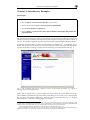
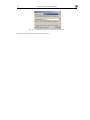
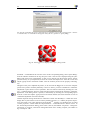
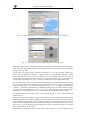
You can install POV-RayT M either by clicking on the corresponding button in the installation selection program, or by double-clicking on the file ”povwin36.exe” in the ”POV-Ray” directory on the
D IAMOND CD-ROM. If you install from separately downloaded files, simply double-click on this
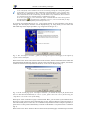
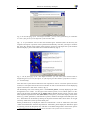
file in the directory where you have stored it on your hard disk. The POV-RayT M installation program will start and lead you through the setup process. Please follow the instructions on the screen.
Note the POV-RayT M license agreement on p. 66!
If POV-RayT M is already installed on your PC, it might be necessary to inform D IAMOND about the
directory in which it is present. D IAMOND will ask for it if necessary.
Restore Factory Settings
If your colleagues use D IAMOND on the same PC as you, you might want to restore the default
settings from time to time. This is also appropriate if you are a beginner and would like to work
through the individual tutorial sessions step-by-step.
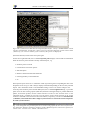
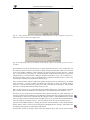
In order to restore all options and settings to the original ones selected by Crystal Impact (”factory
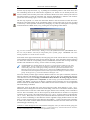
settings”), please start D IAMOND20,21 if it is not already running. Afterwards, select the ”Reset
settings...” command from the ”Tools” menu. A dialog will be opened indicating that D IAMOND
will have to be closed, so that you will have to restart it afterwards. Simply accept by clicking ”OK”,
and accept the question ”Close application now?” as well. Finally, restart D IAMOND; it will now
operate exactly like it has just been installed.
20 In order to start D IAMOND , press the Windows ”Start” button, select the ”Diamond 3” folder of the ”Programs” branch,
and finally click on ”Diamond”.
21 If D IAMOND has not been installed on your computer yet, you should read the chapter ”Installation” on p. 57 and follow
the instructions given. Of cousrse, you don’t need to restore the factory settings in this case.