1
teamwork-net
app
2. Check & approve pages
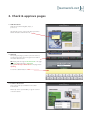
2.1 Add annotations
Mark an area (with rectangular, ellipse, or
pencil tool).
Tap with the text tool on the point where you want to
add an annotation and fill in the text.
2.2 Approval
For rejecting the pages you have to press the red cross,
for approving it please tap on the green check mark in
the toolbar at the bottom.
OR Wiping with the finger from the bottom of the page
to the top means the page is approved,
wiping from the top to the bottom of the page means
rejecting.
You can also add annotations.
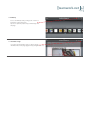
2.3 Toolbar at the bottom
There is also a little speech bubble in the toolbar
at the bottom.
With a tap on the speech bubble you get an overview
of the annotations.