1
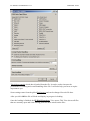
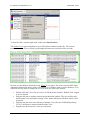
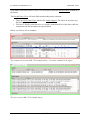
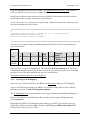
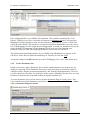
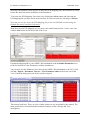
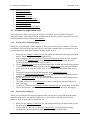
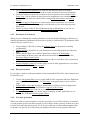
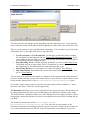
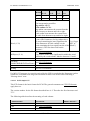
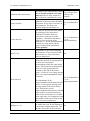
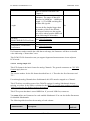
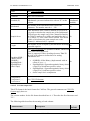
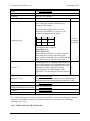
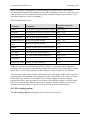
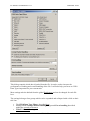
FLIDAS User Manual 2.10.1 Data Bus Tools Type: The CH10 Data Type Format: The data type format as defined in IRIG 106 Chapter 10 ICD type: The type of the ICD. This may be a standard one provided with FLIDAS or can also be a proprietary extension to support your company internal definitions formats. ICD resource type: The type of the resource that contains the ICD definition. Currently this can be a file or hard coded within a FLIDAS Plug-in. Future extensions may be other types like databases. URI: A link to the resource that defines the ICD if needed. This may currently only refer to a file. You can change and save the column layout in the same way like in the Packet View. You have these options to modify the Channel and Subchannel Mapping definition: To add a Channel ICD Mapping right-click another Channel (or select nothing and right-click) and select Add Channel. An edit dialog pops up that is described later. To add a Subchannel ICD Mapping right-click the enclosing Channel and select Add Subchannel. An edit dialog pops up that is described later. To remove a Channel or Subchannel right-click it and select Remove. If you remove a Channel its Subchannels will also be removed. To modify a Channel or Subchannel right-click it and select Edit. An edit dialog pops up that is described below. The edit dialog allows modifying the ID, Mapping ID and mapped ICD as defined above. To map another ICD, click at Select ICD and select the type from the ICD type drop down list in the upcoming dialog. You can select None to clear the ICD mapping. If you select a file you can store an absolute or relative path. Relative paths will be relative to the location of the ICD Mapping file. Editing a Channel also allows modifying the CH10 Data Type and format. These also affect the Subchannels and may invalidate Subchannel ICD Mappings. In this case you get a warning. 4.2.9.2 Associated Parameter Sets This area of the View shows Parameter Sets that are intended to be used with this ICD Mapping. They are shown as shortcuts in the Parameter Plug-in View when the ICD Mapping is active. It is still possible to use other Parameter Sets. To associate more Parameter Sets right-click the list and select Add. You can select one or more Parameter Set files in the following file dialog. You can choose to store absolute or relative paths to the files. Relative paths will be relative to the ICD Mapping file. To remove associations to Parameter Sets select one or more from the list and select Remove 4.2.10 Parameter Set View The Parameter Set View is used to display and edit Parameter Sets. It also allows running export and display actions on the selected Parameter values. 51 / 145