1
The Tool Menu
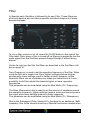
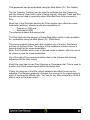
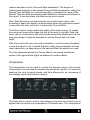
On every module in Spectral you will find the small wrench button,
usually on the very right, which lets you open a tool menu when
clicked.
The basic functions within this tool menu are copy, paste and init.
Some tools do also allow save and load (namely the Arpeggiator and
the ECS).
Its useful to know that you can copy between
1. different modules (e.g. Oscillator 1 to Oscillator 2
2. different patches (the copy buffer is preserved when loading
new patches) and
3. multiple instances of Spectral which are simultaneously
open.
The Tool Menu in the Spectral's Editor contains many more options
and explained in the respective section.
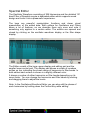
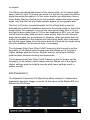
Each Oscillator contains controls for Semitone, and Cent which allows to
transpose the Oscillator. Semitone sets the Oscillator pitch in semitones. A
wide range covering multiple octaves up or down is available: -72 to +72
semitones (thats -6 to +6 octaves).
Cent sets the oscillator pitch in cents (a semitone is equal to 100 cents). A
range of -100 to +100 cents is available.
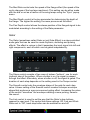
The Track button determines whether the Oscillator tracks the pitch of
incoming note messages. If Track is switched off the frequency of the
Oscillator depends on the Semitone and Cent settings only and is the same
whatever note is played.
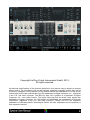
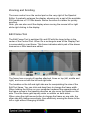
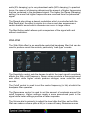
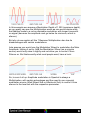
The main part of the Oscillator section is covered by a large waveform
display, as the waveform ultimately is what makes up the sound. You can
click on it to open a Waveform Editor described in the chapter “Spectral
Editor”. This display shows the waveform, reflecting the Phase and
Symmetry parameters (described soon).
Below the display is a Display Selection button to select either waveform A,
waveform B or the resulting mix of A and B to be shown on the display.
Keep in mind that what you hear is always the mix, but for editing its good
to be able to see both A and B separately.