1
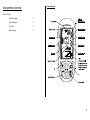
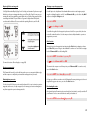
Keypad Diagram
Text Entry
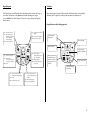
The Element's keys serve different functions depending on when and for how long you
press them. The keys have a short press function (white lettering) and a longer,
3-second hold function (dark lettering). The keys also help you navigate through the
Element menu.
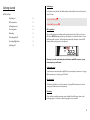
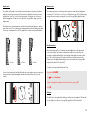
When entering data, it may be helpful to visualise the Element's keys as being labelled
differently. Here is a guide to how the keys function when in text entry mode.
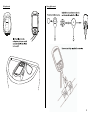
Keypad functions while editing waypoints
Press:
Select audio volume level
Hold:
Turn on/off three alarms:
Near-thermal tone (page 14)
Sink alarm (page 34)
Stall alarm (page 35)
Press: Toggle between ALT1 and ALT2
(page 12)
Hold:
Sets ALT1 and ALT2 (page 11)
MENU: Selects choices marked F2
Scroll up through
character list
Move cursor right
MENU: Selects choices marked F1
Move cursor left
Accept entry and
advance to next field
Press:
Sets ALT3 to zero (page 13)
Hold:
Activates a menu:
F1 - Goto function (page 23)
F2 - Activate route (page 20)
Press: Switches on (page 6)
Toggles between time of day
and
ALT3 (page 13)
Hold: Switches off (page 9)
MENU: Escapes current page or steps
back one page
MENU: Not used
Advance character set
to capital, lower case,
number or symbol or
long press to rub out
character
Escape / cancel entry
Scroll down through
character list
Press: Scroll through seven pages of the
Flight Information Display (page 16)
Hold:
Not used
MENU: Scroll up and down in menus
Press: Activates information screen with
current coordinates, flight time, etc.
(page 10)
Hold:
Main Setup Menu (page 5)
MENU: Selects the highlighted choice
4